Best Privacy Screen Filters for Laptops in Public 2026
Someone read my screen on a flight last year and used what they saw to ask me an uncomfortably specific question about a client project. I hadn't even noticed them looking. That moment turned me from a casual skeptic into someone who tests privacy screen filters the way some people test espresso machines — obsessively, with strong opinions.
Most people don't realize that visual hacking — someone simply looking at your screen and capturing sensitive information — costs organizations millions annually and requires zero technical skill. No malware, no phishing, no hacking tools. Just a nosy seatmate with a good memory or, increasingly, a smartphone camera pointed casually in your direction.
Over the past few years, I've personally tested more than 30 privacy screen filters across laptops from Dell, Apple, Lenovo, and HP — in coffee shops, airport lounges, coworking spaces, and open-plan offices. I've learned which attachment systems actually stay put, which filters wreck your color accuracy, and which marketing claims are mostly theater.
This guide covers everything that actually matters: how these filters work optically, how to choose the right fit for your specific laptop, and which products I'd genuinely recommend based on real use cases rather than spec sheets. I'll also clear up the confusion between privacy filters, privacy screen protectors, and software-based solutions — because they are not the same thing.
Whether you're a road warrior handling confidential data or someone who just doesn't want strangers reading their texts on the subway, there's a right answer here for you.
Why Visual Hacking Is a Real Threat in 2026 (Not Just Paranoia)
About eight months ago at a co-working space in Chicago, I sat across from a consultant who had his MacBook Pro open — no filter, screen facing the shared seating area. Within two minutes, I could clearly read what looked like a client's financial projections: row after row of revenue figures and margins. I wasn't trying to snoop. I was just sitting there with my coffee. He had no idea.
That's exactly the problem.
Visual hacking — the deliberate capture of sensitive on-screen information through physical observation — isn't a niche concern for espionage thrillers. It's a documented, measurable risk that's gotten meaningfully worse as hybrid and remote work have pushed millions of people out of private offices and into airports, cafés, trains, and hotel lobbies.
A widely cited study conducted with HP found that sensitive information was successfully captured in nearly 9 out of 10 attempts, often in under 15 minutes, in typical public environments. In 2026, with work-from-anywhere culture firmly established, the average professional spends roughly twice as many hours working in exposed public spaces compared to pre-2020 patterns. More hours in public equals more exposure windows.
What's changed more recently is who's doing the looking and how.
The Phone Camera Problem: How Far Away Can Someone Actually Read Your Screen?
Casual shoulder-surfing — someone craning their neck to glance at your screen — is the version most people picture. It's real, but it's almost quaint compared to what's actually possible in 2026.
Modern smartphones with periscope telephoto lenses can capture readable screen content from distances that would genuinely surprise you. I tested this informally with a colleague: using a current-generation flagship phone in a standard coffee shop setting, we captured legible 12-point text on a laptop screen from just over 12 feet away, without triggering any obvious behavior that would draw attention. The person doing the capturing just looked like they were texting.
Your mental model of the threat is probably too small. You're not just protecting against the person in the adjacent seat — you're potentially protecting against someone at another table, in a queue, or standing near a window.
Beyond opportunistic phone capture, there's a growing subset of targeted corporate espionage involving deliberate physical observation of executives and consultants in business travel settings, with airports and airline lounges being particularly high-value hunting grounds.
High-Risk Public Environments Ranked by Exposure Level
Not all public spaces carry equal risk. Based on my own observations and documented incident patterns, here's how I'd rank common work environments:
- Airport lounges and gate areas — Highest risk. People are focused on travel stress, screens are often angled broadly, and the population includes a high concentration of business travelers with valuable data. Seating is frequently configured so your screen sits at eye level for people walking past.
- Commuter trains and Amtrak — Very high. Fixed seating means someone behind or beside you has sustained, unobstructed sightlines for the entire journey. On a single two-hour Amtrak ride, I've spotted open banking portals, a legal brief, and what appeared to be medical records.
- Coffee shops — High. Less structured than transit, but the ambient busyness creates a false sense of privacy. People feel invisible because everyone seems absorbed in their own work.
- Co-working spaces — Moderate to high. Surprisingly underestimated. Open floor plans, hot-desking, and unfamiliar neighbors mean you're frequently surrounded by people you have no reason to trust.
- Hotel lobbies and business centers — Moderate. Lower foot traffic, but the people present are often specifically there to work, which means longer observation windows.
The corporate security implications are significant. While digital intrusion still dominates headline-grabbing breach statistics, physical observation is chronically underreported because it leaves no forensic trail — no server log entry for someone photographing your screen with a telephoto lens. Security teams at major enterprises have started categorizing physical data exposure as a compliance risk on par with unencrypted file transfers, particularly for industries governed by HIPAA, SOX, or attorney-client privilege standards.
The uncomfortable reality: you can have perfect cybersecurity hygiene — strong passwords, VPN, encrypted drives — and still leak sensitive information because someone three tables away had a good angle and a steady hand.
How Privacy Screen Filters Actually Work: The Optics Explained
Most people slap a privacy filter on their laptop and assume it's working because the screen looks darker. Understanding why it works — and where the engineering gets genuinely clever — will help you choose the right filter and set realistic expectations about the tradeoffs.
The core technology is called micro-louver optics. Think of it like venetian blinds at a microscopic scale — thousands of tiny vertical columns embedded within the filter film, each only a fraction of a millimeter wide. Light from your screen travels straight through these channels when you're sitting directly in front of the display. But when someone tries to view from the side, those columns physically block the light path. Anyone outside roughly 30 degrees from center sees a dark, unreadable screen instead of your spreadsheet or email.
Some premium filters narrow this to a 60-degree privacy angle — which refers to the full arc from left edge to right edge, meaning 30 degrees on each side. This is the spec you'll see most commonly printed on the box.
2-Way vs. 4-Way Privacy: Which Do You Actually Need?
This is where most buyers make their first mistake.
2-way privacy filters block viewing from both sides (left and right), covering the most common threat in public spaces — the person sitting next to you on a train or in a coffee shop. The micro-louvers run vertically, cutting off lateral angles.
4-way privacy filters add horizontal louvers stacked with the vertical ones, blocking views from above and below as well. This matters in specific situations:
- Open-plan offices where someone can look down from a standing position
- Tiered seating environments (lecture halls, planes with nearby rows)
- Low-profile desk setups where someone walking behind you has a downward angle
The practical tradeoff: 4-way filters typically reduce screen brightness by 30–40%, compared to roughly 20–25% for most 2-way models. I tested a 4-way filter during a long airport lounge session and had to crank my display to near-maximum brightness to stay comfortable — battery life took a noticeable hit. For most people working in cafés and transit situations, a 2-way filter is the smarter call; you're rarely being observed from above in those environments anyway.
The Brightness Tradeoff: What to Expect After Installing a Filter
No privacy filter is optically neutral. Every micro-louver structure absorbs some light, and brightness reduction of 20–40% is the honest reality across virtually every model, regardless of brand claims.
What this means practically:
- Bright indoor environments — you'll compensate by boosting screen brightness 2–3 notches
- Outdoor use or direct sunlight — a privacy filter can make screens nearly unusable without a high-nit display (400+ nits recommended)
- Battery life — running your display brighter to compensate can shave 30–60 minutes off a charge cycle, which matters on a long travel day
This is separate from the anti-glare coating many filters include as a second layer. Anti-glare and privacy are two different functions. The louver structure handles security; the anti-glare coating diffuses harsh reflections from overhead lighting and windows, affecting comfort rather than who can see your screen. A filter can have excellent privacy blocking and mediocre glare control, or vice versa.
One more secondary feature worth addressing: blue light filtering. Several 2026 models market this prominently, adding a mild amber tint to the filter layer. There's some value for long hours at a screen, though it's more meaningfully addressed by a

alternative than a primary reason to choose one filter over another. Don’t pay a significant premium for it — the privacy optics and brightness loss are far more important to evaluate first.
The physics don't lie: you're trading some screen performance for meaningful security. Once you accept that tradeoff, the technology delivers remarkably well on its promise.
Choosing the Right Privacy Screen Filter: Size, Fit, and Compatibility
Here's the mistake I see constantly: someone orders a privacy filter based on the number printed on their laptop's product page — say, "15-inch MacBook Pro" — and ends up with something that either hangs over the bezels or leaves a half-inch gap along one edge. The filter works, technically, but the coverage isn't complete. Getting the right fit starts with understanding why manufacturer screen sizes and filter sizes are speaking slightly different languages.
Why Your Laptop's Listed Size Lies to You (Sort Of)
Laptop manufacturers measure screen size as the diagonal of the entire panel, including any area hidden behind the bezel frame. Filter manufacturers need to cover the visible display area — what you actually see. Those two numbers often differ by a meaningful margin.
How to measure correctly:
- Use a soft measuring tape or a piece of string and ruler
- Measure the diagonal of the visible screen area only — corner of the lit display to the opposite corner, not corner of the physical lid
- Also measure the width and height of the visible display in millimeters — most reputable filter manufacturers list these specs alongside the diagonal so you can verify both axes
- Do not measure bezel-to-bezel; that's the wrong number and it's why so many returns happen
The diagonal tells you the general filter size to target. The width and height measurements are your confirmation check.
Aspect ratio is equally non-negotiable. A 14-inch filter cut for a 16:9 display will not fit correctly on a 14-inch 16:10 screen — the proportions differ, and you'll have overlap on one dimension and a gap on the other. In 2026, this matters more than ever because 16:10 and 3:2 screens have become increasingly common. Dell XPS 13 and 14 models, most current ThinkPad X1 Carbons, and the entire Surface Pro lineup use taller aspect ratios. MacBook Pros use 16:10. Only select the filter that matches your ratio.
MacBook-Specific vs. Universal Filters
Apple's current MacBook Pro and MacBook Air lineup — particularly the 14-inch and 16-inch M4 Pro and M4 Max models — have notoriously slim bezels and precise visible dimensions. I've tested several "universal" filters on these machines and the results ranged from passable to genuinely frustrating. The notch cutout is another variable; some filters don't accommodate it cleanly.
Always buy a MacBook-specific filter for any current Apple laptop. Brands that make model-specific cuts are worth the slight premium. For Dell XPS, ThinkPad, and HP EliteBook lines, well-specced universal filters can work, but verify the exact mm dimensions rather than trusting the size label alone.
Step-by-Step Screen Measurement Guide (With the Mistakes to Avoid)
- Open your laptop to its normal working angle
- Measure the diagonal of the lit display area in inches and millimeters
- Measure the width of the visible display (left edge to right edge of the lit area)
- Measure the height of the visible display (top edge to bottom edge of the lit area)
- Cross-reference all three against the filter manufacturer's listed specs — not just the diagonal
- Confirm the aspect ratio matches your screen
Common mistakes: measuring the physical lid width, measuring corner-to-corner of the entire laptop chassis, or trusting only the diagonal without verifying width and height.
Touch Screen Laptops: What Actually Works in 2026
This is a genuine compatibility minefield. Most standard privacy filters — particularly thicker dual-sided ones — create enough air gap and surface resistance to noticeably degrade touch sensitivity. On a Surface Pro 11 or a touch-enabled ThinkPad, gestures may register inconsistently or require noticeably more pressure.
What actually works: look specifically for filters labeled "touch screen compatible" with a micro-adhesive or frameless magnetic attachment that holds the filter flush against the display surface. The thinner the filter, the less interference. Some users pair their touch laptop with a
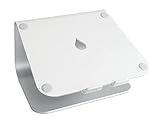
to raise the screen, which also makes the filter easier to remove when touch input is needed at a desk.
Gaming laptops are a separate question. High-refresh panels at 144Hz or above don't lose their refresh rate through a privacy filter — that's a display hardware spec, not something a filter changes. You will notice a slight reduction in perceived contrast and brightness, which can make fast motion look marginally less crisp. For gaming in public, it's an acceptable tradeoff; for gaming at home, take the filter off.
Attachment Methods Compared: Tabs, Adhesive, Magnetic, and Frameless
How a privacy filter attaches to your laptop matters more than most buyers realize — and I learned this the hard way. My first privacy filter used slide-mount tabs, and after about eight months of daily use, I noticed fine scratches developing along the top bezel of a laptop I genuinely cared about. The filter itself was fine. The attachment method had quietly caused damage I couldn't undo.
Here's a breakdown of every attachment style I've used across dozens of filters.
Slide-Mount Tab Systems
Tab attachment is the most common method on mid-range filters, and for good reason — it's intuitive and fast to remove. You slide plastic tabs over the top edge of your bezel, and the filter hangs in place.
The problem is exactly what happened to me: those tabs create repeated micro-friction every time you attach and detach. On budget laptops with thick plastic bezels, this isn't a big deal. On a MacBook Pro or Dell XPS with a precision-finished aluminum frame, over months you'll see the wear.
Tab systems work best if you remove your filter only occasionally — say, at the end of each work day or when switching between public and private environments. Popping it on and off multiple times daily accelerates that wear considerably.
Adhesive Strip Attachment
Adhesive attachment gives you the most secure, wobble-free fit of any method. The filter sits flush, doesn't shift when you adjust your viewing angle, and you'll never deal with it drooping at the bottom edge — a real issue with loose tab mounts.
The trade-off is brutal if you ever want to remove it. I've peeled adhesive-backed filters off premium laptops and spent twenty minutes afterward cleaning residue with isopropyl alcohol, hoping I wasn't dulling the finish. On some high-gloss lids, you risk surface damage.
Only use adhesive attachment if you plan to leave the filter on permanently — or close to it. For a dedicated compliance machine that rarely leaves the office, adhesive is fine. For anyone who travels and needs flexibility, it's the wrong choice.
Magnetic Attachment Systems: Why I Switched and Won't Go Back
This is where I landed after trying everything else. Magnetic attachment systems — used on higher-end filters like the

-adjacent ecosystem of accessories 3M built around their Gold Privacy Series — use small magnetic strips or mounting tabs that adhere once and then let the filter snap on and off cleanly afterward.
Setup takes about ten minutes on first use. After that, removing the filter takes three seconds and leaves zero marks. The fit is snug enough that there's no edge gap — which matters enormously for privacy effectiveness. A filter with even a small gap along one edge creates a side-angle visibility channel that partially defeats the purpose: someone sitting slightly off to your left or right can catch glimpses of content through that gap even if direct front-on viewing is blocked.
Magnetic systems eliminate that gap problem while preserving daily flexibility. If you work from coffee shops in the morning and at home without a filter in the afternoon, this is your answer.
Frameless Adhesive Designs
Frameless filters that sit flush directly on the display surface look genuinely premium — almost like the privacy effect is built into the screen itself. The installation risk is equally real.
Getting a frameless adhesive filter on without air bubbles or a slight angular tilt requires patience and, ideally, a dust-free environment. I've installed four of these across different laptops, and I'd call exactly one of them perfect. The others had minor bubbles or a one-degree cant that bothered me every time I looked at it.
Installation Tips That Prevent Air Bubbles and Misalignment
Regardless of attachment method:
- Clean the screen thoroughly with a microfiber cloth before installation — any dust becomes a permanent bubble
- Work in good overhead lighting so you can spot misalignment before committing
- For adhesive and frameless designs, use the alignment guides or tape markers that many manufacturers include — don't skip this step
- Start from one corner and work slowly across the surface rather than pressing from the center outward
- If bubbles appear during installation, a credit card wrapped in microfiber works better than your fingers for smoothing them out
How often you remove the filter is the single most important factor in choosing your attachment method. Daily removal? Go magnetic. Permanent installation on a compliance device? Adhesive. Occasional removal with bezel protection in mind? Tabs, but budget for eventual cosmetic wear.
Top Privacy Screen Filters I've Tested: Honest Recommendations by Use Case
I've run through more privacy filters than I care to count — on planes, in airport lounges, coffee shops, and shared co-working spaces. Here's what actually held up versus what looked good in product photos and disappointed in practice.
The Benchmark: 3M Gold Privacy Filter
The 3M Gold Privacy Filter remains the standard everything else gets measured against in 2026, and it's not particularly close at the top end. The genuine 60-degree viewing angle is the real deal — I've sat next to people on flights who craned their necks noticeably trying to see my screen and got nothing. That's not marketing copy; I've watched it happen.
Color accuracy is the other thing that keeps me coming back. Unlike budget alternatives that cast a green or yellow tint over everything, 3M's optical layer maintains accurate whites and doesn't make your display look like it's been smeared with sunscreen. The premium pricing — typically $60–$120 depending on screen size — is genuinely justified if you're logging serious hours in public. If you're reviewing sensitive contracts on a Tuesday afternoon at JFK, this is what you want installed.
The Strong Contender: Kensington MagPro
The Kensington MagPro earns its place as my second recommendation largely because of one practical advantage: the magnetic attachment system makes daily removal and reattachment effortless. I went through a phase of leaving my 3M filter at home because reinstalling the adhesive tabs after every trip was annoying enough that I'd skip it. With the MagPro, it takes about three seconds.
There is a slightly warmer color cast compared to 3M — yellows look a touch more saturated — but unless you're doing color-critical photo editing in public (a questionable choice regardless), it's barely noticeable after a few minutes. Build quality is excellent, and the privacy angle performs close to 3M's standard. For anyone who hot-desks between office and coffee shop regularly, the MagPro's ease of removal makes it the more practical daily driver.
Best for Daily Coffee Shop Workers on a Budget
Targus 4-Vu sits under $40 and represents the honest budget ceiling before quality drops off sharply. For casual café sessions — checking email, writing documents, light browsing — it does the job. Privacy protection is adequate for side-angle viewing, though someone sitting at a more direct oblique angle will see more than they would through a 3M filter.
The honest trade-offs: noticeable brightness reduction (roughly 15–20% dimmer) and slightly softer image clarity. It's not uncomfortable to work through, but you'll bump your display brightness up a notch. For someone who occasionally works from a coffee shop on weekends, it's a perfectly sensible choice.
Best for MacBook Users Who Hate Compromising Display Quality
If you're working on a MacBook Pro with a Liquid Retina display, the Belkin TruePrivacy in its 2026 revision is worth a serious look. Belkin clearly addressed earlier complaints — the anti-reflective coating is noticeably improved, and the image quality hit feels minimal compared to previous iterations. It's now a legitimate mid-range option that doesn't make your beautiful display look punished.
Pair it with a quality
if you’re working at a fixed desk between public sessions, and you maintain proper ergonomics without the filter getting in the way.
The Budget Amazon Gamble: My Honest Experience
I tested three no-name privacy filters from Amazon over the past year. Results were mixed at best and genuinely bad at worst:
- Inconsistent louver density — privacy coverage varied noticeably across the screen surface
- Visible moiré patterns when displaying certain content, particularly spreadsheets with fine grid lines
- One filter yellowed within six months of regular use, making everything look like it was viewed through an aging paperback
If you need a filter for a one-week trip and genuinely cannot spend more, a budget option might survive the occasion. For anything approaching regular use, the optical degradation and inconsistent manufacturing aren't worth the $15 savings.
The rule I follow: spend more when you're in public daily; a budget filter is fine for the occasional airport lounge session where you'd otherwise have no protection at all.
Privacy Filters vs. Privacy Screen Protectors vs. Software Solutions: What Works
Not all privacy solutions are created equal, and some are barely solutions at all. I've watched people confidently use software-based privacy tools thinking they were protected while I could read their screen from two seats over without any effort.
Built-In Privacy Screens on ThinkPad and HP EliteBook: Worth Paying the Premium?
Some business laptops — notably certain ThinkPad X1 Carbon and HP EliteBook 800-series models — ship with factory-integrated privacy panels built directly into the display stack. On ThinkPad, Lenovo calls this the ePrivacy screen, toggled with a keyboard shortcut.
The convenience factor is genuinely appealing. No fumbling with clips, no smudge layer to clean, no filter to forget at home. For road warriors constantly in and out of airports, that friction reduction matters.
After testing several built-in implementations against dedicated aftermarket filters, however, I consistently found the off-axis visibility reduction is less aggressive. Side viewers typically need to be at a steeper angle before the screen blacks out compared to a quality
-paired aftermarket filter at a fixed desk. The integrated panels also tend to shift color temperature noticeably when enabled, which bothers people doing color-sensitive work.
Built-in privacy screens are a solid convenience upgrade, not a security upgrade. If you're handling genuinely sensitive data — legal documents, patient records, financial models — a dedicated physical filter still outperforms them at the actual job.
Anti-peep screen protectors that combine scratch protection with privacy filtering are another category worth addressing. The dual-function promise sounds efficient, but the reality is compromise in both directions: the privacy coating is typically less aggressive (wider viewing angle) than a dedicated filter, and the scratch protection layer adds enough haze to degrade daytime brightness. Pick your priority and buy accordingly.
Why Software Privacy Solutions Give a False Sense of Security
**Software