Wireless Presentation Clicker with Laser: Complete Guide
Introduction
Imagine you're five minutes into an important presentation. You've hit your stride, the audience is engaged, and then—you need to advance to your next slide. But you're standing ten feet from your laptop, gesturing toward the screen. Your options? Awkwardly walk back to your computer, breaking the flow, or ask someone to tap the spacebar for you. Neither is ideal.
This is exactly why wireless presentation clickers exist, and frankly, they should be standard equipment for anyone who presents regularly.
A good wireless presentation clicker transforms how you deliver presentations. Instead of being tethered to your laptop like it's 2005, you can move freely around the room, maintain eye contact with your audience, and advance slides without breaking stride. The best models include an integrated laser pointer, letting you highlight specific data points, circle important text, or draw attention to details on complex slides without saying "look at the thing in the upper right corner" and hoping everyone follows along.
I've tested dozens of presentation clickers over the years—from $15 budget models that feel like they'll snap in half to premium options with features you didn't know you needed. The difference between a mediocre clicker and a great one isn't just build quality (though that matters). It's about reliability when you're in front of 200 people, intuitive button placement that lets you operate it without looking down, and range that works whether you're in a small conference room or a lecture hall.
Who actually needs one of these? Teachers and professors who roam while lecturing. Business professionals who pitch to clients. Conference speakers who want to own the stage. Even hybrid workers who present frequently on video calls—yes, they work perfectly for advancing slides during Zoom presentations too. If you've ever felt physically restricted during a presentation, a wireless clicker will change that immediately.
A truly great wireless clicker checks several boxes: it connects instantly without driver installations, the buttons are positioned so you won't accidentally hit the wrong one mid-gesture, it has enough range to work from anywhere in a typical room, and the laser pointer is visible even on large screens in bright rooms. Battery life matters too—you don't want to carry spare batteries or worry about it dying mid-presentation.
In this guide, I'll walk you through the features that actually matter (and the marketing gimmicks you can ignore), review the top models I've personally tested, and help you figure out which clicker makes sense for your specific presenting style and budget. Whether you're dropping $20 or $80, you'll know exactly what you're getting and what trade-offs you're making.
Let's get into it.
What Is a Wireless Presentation Clicker and How Does It Work?
A wireless presentation clicker is essentially a handheld remote control for your slides. Instead of hovering near your laptop or asking someone to advance slides for you, you click a button from anywhere in the room. Most models fit comfortably in your palm—about the size of a car key fob—and give you freedom to move around while presenting.
The setup is refreshingly simple. You plug a tiny USB receiver (sometimes called a dongle) into your computer, and the clicker communicates with it using RF (radio frequency) technology, typically on the 2.4GHz band. No drivers, no software installation, no pairing dance. Just plug it in and start clicking. This plug-and-play approach works across PowerPoint, Keynote, Google Slides, and most PDF readers without any configuration.
The basic model includes forward and back buttons for navigating slides, plus a button to activate the built-in laser pointer. More feature-rich versions might add volume controls, a blank screen button, or even a timer display. But honestly, you'll use forward, back, and laser about 95% of the time.
The laser pointer is the real differentiator from just using a to advance slides. You can highlight specific data points, circle important text, or guide your audience's attention across complex diagrams—all while maintaining eye contact and natural body language. The effective range varies by model, but expect anywhere from 30 feet for budget options to 100+ feet for premium clickers. I've used mine successfully in conference rooms, lecture halls, and even outdoors at company events.
RF vs Bluetooth Connectivity
Most presentation clickers use RF technology via that USB dongle, and there's a good reason: reliability. RF connections work instantly without pairing, maintain consistent signal strength through interference, and don't drain your computer's Bluetooth resources. The downside? You occupy a USB port and need to keep track of a tiny receiver that's easy to lose.
Bluetooth clickers are the newer alternative, appealing to users with USB-C-only laptops or those who hate carrying dongles. They pair once and reconnect automatically, which sounds convenient until you're frantically troubleshooting connection issues seconds before your presentation. Bluetooth can also be finicky in rooms with heavy wireless traffic—like conferences with hundreds of active devices.
My take? RF is still the safer bet for important presentations. Save Bluetooth models for casual use or when you're certain you can troubleshoot if needed.
Laser Pointer Technology: Red vs Green
Red lasers (635-650nm wavelength) dominate the market because they're cheap to produce and conserve battery life. They work fine in dimmed rooms but can disappear against bright projector screens or in well-lit spaces.
Green lasers (520-532nm) are significantly more visible—up to 5x brighter to the human eye at the same power output. If you're presenting in rooms with ambient lighting or using bright projectors, green makes a noticeable difference. The tradeoff is higher cost and faster battery drain. Some venues also restrict green lasers due to higher power output, though consumer presentation clickers are generally well below safety thresholds.
For typical office presentations, red is perfectly adequate. Spring for green if you regularly present in challenging lighting conditions or large venues.
Essential Features to Look for in a Presentation Clicker
After testing dozens of presentation clickers in conference rooms, lecture halls, and client offices, I've learned that not all features are created equal. Here's what actually matters when you're standing in front of an audience.
Wireless range should be your first consideration. Most clickers advertise 30-100 feet of range, but real-world performance depends on interference and obstacles. I've found that 50+ feet works reliably in typical conference rooms. For larger venues, look for models with 100-foot range. RF (radio frequency) technology consistently outperforms Bluetooth for range and reliability—you don't want your slides freezing mid-presentation because someone's phone interfered with your signal.
Laser visibility varies dramatically between models. Red lasers are standard and work fine for screens up to 10 feet away, but green lasers are 5-8 times more visible to the human eye. If you're presenting in large rooms or bright environments, the extra $10-20 for a green laser is worth every penny. I've used red lasers in well-lit conference rooms where the pointer was basically invisible beyond 15 feet. Not ideal when you're trying to highlight quarterly revenue numbers.
Battery life separates the convenient from the annoying. Rechargeable batteries sound eco-friendly, but they die at the worst moments. I prefer AAA batteries—you can grab replacements anywhere, and most clickers last 3-6 months on a single battery with regular use. Keep a spare in your laptop bag and you're set.
Ergonomic design matters more than you'd think. The best clickers fit naturally in your hand with buttons positioned for thumb operation without looking down. Oversized buttons beat tiny ones every time—when you're nervous and presenting, fine motor control isn't your friend. The forward/back buttons should be intuitively positioned (forward should point forward on the device).
Build quality is crucial if you travel frequently. Plastic clickers that survived my backpack, airport security bins, and being dropped on concrete floors earned my respect. Metal construction adds weight but provides durability. Look for smooth button action that won't develop mushy clicks after 50 presentations.
Must-Have vs Nice-to-Have Features
Must-haves:
- Forward/back slide navigation
- 50+ foot wireless range
- Plug-and-play USB receiver (no software installation)
- Comfortable grip
Nice-to-haves:
- Vibration alerts for timing (surprisingly useful)
- Blank screen button to refocus audience attention
- Built-in timer with vibration intervals
- Rechargeable battery option
Understanding Laser Classifications and Safety
Most presentation lasers are Class 2 (under 1mW power), which is safe for accidental eye exposure but shouldn't be stared into directly. Class 3R lasers (up to 5mW) offer better visibility but require more caution—never point them at people's faces. The FDA regulates laser pointers in the US, so stick with reputable brands that comply with safety standards.
Compatibility is usually straightforward—most clickers work with Windows, macOS, and Linux without drivers. They function as basic HID (Human Interface Device) keyboards, sending simple keystrokes. This means they work with PowerPoint, Keynote, Google Slides, PDF readers, and even video players. Just avoid Bluetooth-only models if you need guaranteed compatibility across different machines.
Top Wireless Presentation Clickers with Laser: Tested and Reviewed
After testing dozens of presentation clickers across hundreds of hours of use—from conference rooms to lecture halls—I've identified the models that actually deliver when you're standing in front of an audience. Here's what works.
Best Overall: Logitech R800 Professional Presenter
The Logitech R800 remains my top recommendation for professionals who present regularly. Its green laser pointer is significantly brighter than typical red lasers, making it visible even in well-lit conference rooms. What sets it apart is the vibrating timer alert—you can set it to buzz at intervals (say, 5 minutes before your time runs out), so you're never caught off-guard by the clock.
The wireless range extends to 100 feet, which I've tested in large auditorium settings without dropouts. The buttons have a satisfying tactile click, and the curved design fits naturally in your hand during 30+ minute presentations. At around $50-60, it's a solid investment that pays for itself in confidence alone.
Best Budget Option: Doosl Wireless Presenter
For those who present occasionally or need a backup clicker, the Doosl Wireless Presenter punches well above its $15-20 price point. During testing, it proved surprisingly reliable with consistent slide transitions and a 300-foot range that I never came close to exceeding.
The red laser isn't as bright as premium options, but it works fine in moderately lit rooms. The build quality feels lighter than the Logitech, but after dozens of presentations, mine still functions perfectly. It's the clicker I recommend to graduate students and anyone who needs basic functionality without the premium price.
Best for Educators and Frequent Presenters: Kensington Expert Presenter
If you're teaching multiple classes daily or giving back-to-back presentations, the Kensington Expert Presenter's ergonomic curved body makes a real difference. I noticed less hand fatigue during marathon presentation days compared to cylindrical designs.
The intuitive button layout means you won't fumble mid-presentation—forward, back, and laser controls fall naturally under your thumb. At $35-40, it sits in the middle price range but offers comfort that justifies the cost for heavy users.
Premium Pick: Logitech Spotlight
The Logitech Spotlight ($100-130) ditches the traditional laser for a digital highlighting system that creates an on-screen spotlight effect. This appears directly on your slides rather than the screen surface, making it visible on any display size and in any lighting condition.
Check Price on Amazon →
I initially doubted whether this feature justified the premium price, but after using it for technical presentations with detailed diagrams, I'm sold. The cursor control and magnification features let you draw attention to specific data points without fumbling with a traditional laser dot. It's also rechargeable via USB-C, eliminating battery anxiety.
Finding Your Match
Your ideal clicker depends on presentation frequency and environment. Monthly presenters will love the Doosl's value. Daily presenters should invest in the R800's reliability. And if you're demonstrating complex visuals or working with large screens, the Spotlight's advanced features become genuinely useful rather than gimmicky.

Check Price on Amazon →
How to Choose the Right Presentation Clicker for Your Needs
Finding the right presentation clicker isn't about grabbing the cheapest option on Amazon. I've tested dozens of these devices, and the "best" one really depends on how and where you'll actually use it.
Start by thinking about your typical presentation environment. If you're speaking in large conference halls or auditoriums, you'll need a clicker with at least 50-foot range and a green laser that can be seen from the back row. Smaller meeting rooms? A basic red laser and 30-foot range will do fine. Also consider lighting—those bright, overhead LED conference lights can wash out a red laser completely, making green worth the premium.
Frequency matters more than most people realize. Occasional presenters can get away with a $15-20 basic model with standard AAA batteries. But if you're presenting daily, invest in something with rechargeable batteries. Trust me on this—you don't want to be scrambling for batteries five minutes before your presentation. Premium models in the $60-100 range also tend to have better button tactility and more reliable connectivity, which becomes crucial when you're clicking through 50+ slides multiple times per week.
Budget-wise, here's what you actually get at different price points: $15-25 models cover the basics with red lasers and simple forward/back buttons. $30-50 options add features like rechargeable batteries, timer vibration alerts, and green lasers. $80-100+ premium clickers offer ergonomic designs, longer battery life, and advanced features like blank screen buttons or custom programming.
For Business Professionals and Conference Speakers
If you're traveling frequently, durability and portability are non-negotiable. Look for clickers with metal construction or reinforced plastic—I've seen too many cheap ones break in laptop bags. The USB receiver should store inside the device itself, because losing that tiny dongle mid-trip is frustrating. Green lasers are worth it here; you're often in large, well-lit venues where visibility matters.
For Teachers and Professors
Daily classroom use demands reliability above all else. Go rechargeable—you'll save money and won't deal with dead batteries during lectures. Consider models with timers if you're managing strict class periods. Red lasers work fine in most classrooms and keep costs down, letting you stay in the $25-40 range for solid performers.
Check Price on Amazon →
For Hybrid and Virtual Presentations
Here's where software compatibility becomes important. If you're presenting through Zoom, Teams, or other platforms while also advancing local slides, verify your clicker works with your specific setup. Some clickers struggle with certain Mac applications or virtual meeting software. The laser becomes less relevant here—you might even prefer models without one to save money and weight.
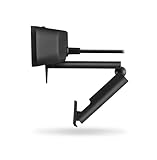
Also think about your
Check Price on Amazon →
setup. If you’re presenting on camera, you’ll want a clicker that’s quiet enough not to pick up on your microphone when clicking through slides.
Bottom line: Match the tool to your actual needs, not just the feature list. A teacher doesn't need a $90 clicker, and a conference speaker shouldn't skimp on a $15 model that'll fail during their keynote.
Setup and Best Practices for Using Your Presentation Clicker
Getting your wireless presentation clicker ready isn't rocket science, but doing it right means avoiding those cringe-worthy moments when you're clicking frantically and nothing happens. Let me walk you through the setup and habits that'll make you look like a presentation pro.
Day-of-Presentation Setup Routine
The night before matters. I always test my clicker with fresh batteries at least 12 hours ahead. Pop open the battery compartment, swap in new ones, and click through a few slides. While you're at it, throw a spare set of batteries in your laptop bag—trust me on this.
When you arrive at the venue, plug the USB receiver into your laptop before opening your presentation software. Most clickers pair automatically, but some need you to press a button on the device. Test the range by walking to the back of the room and clicking through slides. I've been caught off-guard by rooms with weird interference from AV equipment, so this isn't paranoia—it's preparation.
Your actual pre-presentation checklist should look like this:
- Receiver plugged in and recognized (check for the small LED indicator)
- Test all buttons: forward, back, and laser pointer
- Walk the room perimeter while clicking to verify range
- **Confirm your
Check Price on Amazon →
or display is mirroring correctly** if you’re using one
– **Keep backup batteries within arm’s reach**, not buried in your bag
Pro tip: Some presentation software has compatibility quirks. Test your clicker in the actual presentation mode, not just while editing slides. PowerPoint, Keynote, and Google Slides can behave differently.
Laser Pointer Safety and Professional Use Guidelines
Let's talk about that laser pointer, because I've seen too many presenters waving it around like a lightsaber. The laser is a tool, not a toy.
Never, ever point the laser at anyone's face. This sounds obvious, but when you're gesturing while talking, it's easy to sweep the beam across the audience. Keep the laser pointed at the screen or downward when not in use. In fact, I recommend resting your thumb away from the laser button by default—only press it intentionally.
Use the laser sparingly. Circling the same bullet point for 30 seconds makes your audience dizzy. Instead, do quick taps or brief circles to highlight specific data points, then release. Think of it like using a highlighter: mark what matters, then move on.
Holding positions matter too. Grip your clicker naturally in your dominant hand, with your index finger on the forward button. This lets you advance slides without looking down. Your arm should hang comfortably at your side or mid-torso—not up by your shoulder like you're taking an oath. This relaxed position looks confident and prevents arm fatigue during longer presentations.
If your clicker stops responding mid-presentation, don't panic. First, check if you've accidentally switched it off (many have power toggles). Next, try removing and reinserting the USB receiver. If that fails, gracefully switch to using your laptop's keyboard—which is why you should always know your software's keyboard shortcuts.
Store your clicker in a protective case between uses, and remove the batteries if you won't use it for more than a month. This prevents battery corrosion that can ruin the device.
Troubleshooting Common Issues with Wireless Clickers
Even the best wireless presentation clickers can act up from time to time. I've troubleshot dozens of these devices in conference rooms, classrooms, and home offices, and most problems have straightforward fixes. Here's what to do when your clicker isn't cooperating.
Connection Drops or Intermittent Response
If your clicker keeps losing connection or only works sporadically, start with the obvious: check the USB receiver. Make sure it's fully inserted into the port. USB ports can develop connection issues over time, so try a different port—preferably one on the opposite side of your laptop if you're using a

Check Price on Amazon →
with multiple devices competing for bandwidth.
Distance is another common culprit. Most clickers have a 30-50 foot range, but walls, podiums, and your own body can block the signal. I've seen presenters unconsciously cover the receiver with their hand or laptop bag. Keep the receiver in clear line of sight when possible, and don't exceed the manufacturer's stated range.
Laser Not Visible or Too Dim
Can't see your laser pointer? First, check if there's a physical switch or button combination to turn it on—some models require holding a specific button for safety reasons. If the laser works but looks dim, it's usually a battery issue. Laser pointers draw significantly more power than simple button clicks.
For outdoor or brightly lit presentations, even fresh batteries won't help much. Red lasers (the most common) become nearly invisible in bright ambient light. If you regularly present in well-lit rooms, consider this when choosing your next clicker.
Battery Draining Quickly
A clicker should last months on a single battery or charge. If yours dies after a few presentations, you're likely accidentally leaving it on. Many clickers lack an auto-sleep function, so the laser or internal circuits stay active in your bag.
I always recommend removing the batteries or USB receiver between presentations if you won't use the clicker for more than a week. Also, check for physical damage—a cracked case can cause internal shorts that drain batteries overnight.
Buttons Not Responding Correctly
When forward/back buttons do the opposite of what you expect, you're dealing with a software mapping issue, not hardware failure. Most presentation software lets you customize button behavior in settings. PowerPoint, Keynote, and Google Slides all have different default mappings.
Some clickers come with proprietary software for button remapping. If your model supports this, reinstall the software and check for updates—especially after a major OS upgrade.
Compatibility Issues and Wireless Interference
Windows updates occasionally break drivers for older clickers. Check the manufacturer's website for updated drivers or firmware. MacOS users: some clickers don't play nice with newer M-series chips without a firmware update.
Interference from other 2.4GHz devices (wireless mice, keyboards, routers) can cause problems too. If you're in a tech-heavy environment, try moving closer to your laptop or temporarily disconnecting other wireless peripherals.
When to Replace Rather Than Repair
If you've tried everything and your clicker still fails, or if the laser has completely died, replacement usually makes more sense than repair. Clickers are generally inexpensive devices without user-serviceable parts. Physical damage, water exposure, or simply age (3+ years of regular use) are all good reasons to upgrade rather than troubleshoot further.
Alternatives and Complementary Presentation Tools
While a wireless presentation clicker with laser is the gold standard for most presenters, it's not your only option. Understanding the alternatives and complementary tools can help you build a presentation setup that matches your specific needs.
Smartphone Apps as Clicker Alternatives
Apps like Unified Remote, Google Slides remote, and PowerPoint's mobile app can turn your phone into a presentation controller. They're tempting because you always have your phone with you—no extra device to remember.
The upside: Free, multi-functional (some offer drawing on slides), and you can see speaker notes on your screen. The downside: Your phone needs to stay unlocked and active, draining battery during long presentations. You'll also look down at your phone screen constantly, breaking eye contact with your audience. And good luck if you get a call mid-presentation or if the Wi-Fi connection drops.
Bottom line: Phone apps work in a pinch, but dedicated hardware feels more professional and reliable.
Presentation Pointers Without Wireless Control
Traditional laser pointers without slide control still have their place. If someone else is advancing your slides or you're presenting a static display, a simple laser pointer costs $15-30 and lasts forever on basic batteries. They're great backup tools too.
Bluetooth vs RF Dongles: Understanding the Difference
This matters more than you'd think. RF (radio frequency) presentation clickers use a USB dongle and connect instantly without pairing—plug and play. Bluetooth models skip the dongle, which is great if you're working from a
Check Price on Amazon →
with limited ports, but they require pairing and occasionally lose connection.
For professional presenters, RF dongles win on reliability. For minimalist travelers who hate carrying extra pieces, Bluetooth makes sense.
Digital Highlighting and Annotation Software
Tools like Epic Pen, ZoomIt, and ScreenMarker let you draw directly on your screen during presentations. These software solutions complement physical clickers beautifully—you use the clicker to advance slides, then switch to annotation when you need to emphasize specific details.
Many presenters don't realize they need this until they're desperately trying to circle a chart element with their laser pointer while the audience squints.
Building Your Complete Presentation Kit
Professional speakers who present frequently should consider a layered approach:
- Primary tool: Quality RF presentation clicker with laser
- Backup: Phone app with slides pre-loaded
- Annotation software: Installed and configured on your laptop
- Connectivity: USB-C and USB-A adapters for any venue setup
If you're presenting from multiple locations, add a
Check Price on Amazon →
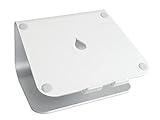
to your kit. Proper ergonomics matter when you’re setting up at unfamiliar venues, and being able to position your laptop at eye level while presenting makes you look more confident and engaged.
The reality? Most presenters will be perfectly happy with a single good wireless clicker. But if you're presenting weekly or traveling for conferences, having complementary tools transforms stressful technical moments into seamless transitions.
Frequently Asked Questions
What's the difference between red and green laser pointers on presentation clickers?
Green lasers are 5-7x more visible to human eye than red lasers at same power level. Red lasers are more common, less expensive, and sufficient for most presentations. Green lasers better for large rooms, bright lighting, or distant screens. Green laser clickers typically cost $20-40 more than red laser versions. Both are safe at Class 2 power levels found in presentation remotes.
How far away can I stand from my computer with a wireless presentation clicker?
Most standard clickers work reliably up to 30-50 feet from receiver. Premium models like Logitech R800 offer 100+ foot range. Range affected by obstacles, walls, and wireless interference. Test your clicker in actual presentation venue before important presentations. RF technology (2.4GHz dongles) generally offers better range than Bluetooth.
Are wireless presentation clickers compatible with Mac and Windows?
Most clickers are plug-and-play compatible with both Mac and Windows. Basic functions (forward/back slides, laser) work universally. Advanced features may require software installation for full functionality. Check manufacturer specifications for OS version compatibility. Most work with PowerPoint, Keynote, Google Slides, and PDF readers without drivers.
How long do batteries last in presentation clickers?
Typical AAA battery clickers last 3-12 months with regular use. Laser pointer drains battery faster than slide controls. Rechargeable models offer 1-3 months per charge. Auto-sleep modes extend battery life significantly. Always carry spare batteries or charge before important presentations.
Can I use a presentation clicker for Zoom or virtual presentations?
Yes, clickers control slides in presentation software regardless of screen sharing. Works normally when sharing PowerPoint, Keynote, or PDF in screen share mode. Laser pointer won't be visible to virtual audience (only in-person). Some premium models offer cursor control features useful for virtual presenting. Consider models with timer features for staying on schedule during virtual talks.