Best Hot Swap Mechanical Keyboards Under $100 (2026)
Introduction
Remember when customizing your mechanical keyboard meant breaking out a soldering iron, watching YouTube tutorials on repeat, and hoping you didn't brick your expensive board? Those days are over. Hot-swappable keyboards have completely changed the game, letting you pop switches in and out like LEGO blocks—no technical skills required, no permanent commitments.
Here's what makes this exciting: until recently, hot-swap functionality was a premium feature. If you wanted to experiment with different switches without soldering, you'd need to drop $150-$300 or settle for a barebones kit that required assembly. The budget market was stuck with fixed switches, meaning your choice on day one was your choice forever.
Not anymore.
The mechanical keyboard market has evolved rapidly over the past two years, and the sub-$100 segment has seen the most dramatic transformation. You can now grab a fully assembled, hot-swappable board with decent stabilizers, multiple connectivity options, and RGB lighting (if that's your thing) for under a hundred bucks. We're not talking about compromised products—these are legitimate keyboards that punch well above their price point.
Why Hot-Swap Actually Matters
If you're new to mechanical keyboards, you might wonder: why does being able to swap switches matter so much?
Experimentation without commitment. Switch preference is deeply personal. What feels perfect to your coworker might feel mushy or scratchy to you. With a hot-swappable board, you can try linear, tactile, and clicky switches without buying three different keyboards. Buy a switch tester, find your favorites, and pop them in.
Easy repairs. Switches fail. Sometimes one develops a ping, sometimes one stops registering keypresses. With traditional keyboards, you'd either live with it or attempt surgery. With hot-swap, you pull out the bad switch and replace it in 30 seconds.
Evolving preferences. Your typing style and preferences change. Maybe you start wanting a heavier spring weight, or you discover you prefer silent switches for office work. Instead of selling your entire keyboard and starting over, you just swap the switches.

Check Price on Amazon →
What This Guide Covers
I've spent the past month testing every major hot-swappable keyboard under $100 I could find. In this guide, you'll learn:
- The best budget hot-swap options currently available, with honest assessments of each
- Which features actually matter at this price point (and which "premium" features you can skip)
- What compromises to expect—because yes, there are some compared to $200+ boards
- How to prioritize your needs based on whether you're gaming, typing, or doing both
We'll cut through the marketing hype and focus on what makes a genuinely good typing experience. Because at the end of the day, a hot-swap board is only worth it if the keyboard itself is solid.
What Is a Hot-Swappable Mechanical Keyboard and Why Does It Matter?
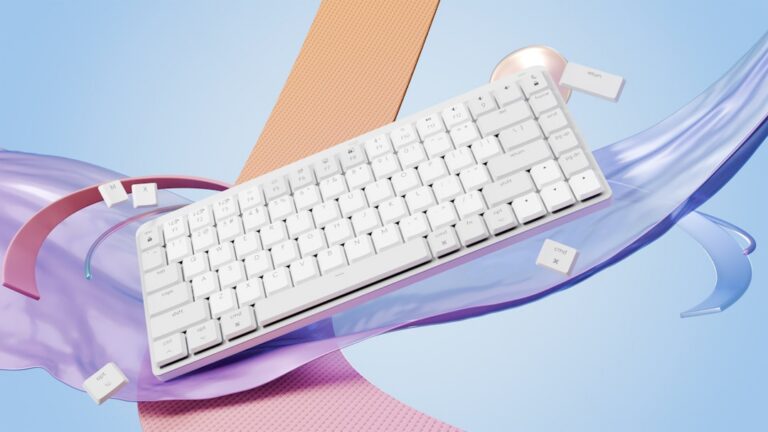
Let's cut through the jargon: a hot-swappable mechanical keyboard has special sockets that let you pop switches in and out like LEGO bricks. No soldering iron, no technical skills required. Just pull the old switch out with a simple tool (usually included), snap a new one in, and you're typing.
This is a bigger deal than it might sound at first.
Traditionally, changing switches on a
Check Price on Amazon →
meant either buying an entirely new keyboard or breaking out a soldering iron. And if you’ve never soldered before, you’re looking at buying equipment ($50-100 for a decent setup), watching YouTube tutorials for hours, and accepting that your first attempt might result in lifted pads or damaged PCBs. I’ve seen too many enthusiasts trash a $150 board trying to desolder their first switch.
Hot-swap technology removes that barrier entirely. Whether you're a curious beginner who wants to try different switch types or an enthusiast who tweaks their setup seasonally, hot-swap boards put you in control. Want clicky blues for typing at home but quiet linears for the office? Swap them in five minutes. Develop a taste for tactile switches six months after buying your board? No problem—you haven't committed to anything permanent.
The cost savings add up fast. Instead of buying three different keyboards to experience different switch types (easily $300+), you buy one hot-swap board and a few switch packs. A set of 90 switches typically runs $20-40, meaning you can experiment with multiple types for less than the cost of a second keyboard.
Maintenance becomes trivial too. Spill coffee and only damage three switches? Replace just those three. One switch acting mushy after a year? Swap it out in 30 seconds. With soldered boards, these scenarios mean either living with the problem or paying for professional repair.
Hot-Swap vs. Soldered: The Real-World Difference
The performance gap between hot-swap and soldered boards is essentially zero. Some purists claim soldered connections feel "more stable," but in blind tests, even experienced typists can't reliably tell the difference.
The practical difference? A soldered board locks you in. It's a commitment. Hot-swap boards give you options, which matters especially in the under-$100 range where you're still figuring out your preferences.
Kailh vs. Gateron Hot-Swap Sockets: What You Need to Know
Most hot-swap keyboards under $100 use either Kailh or Gateron sockets. Both work with standard MX-style switches, so you're not locked into a proprietary ecosystem.
Kailh sockets are more common and have a proven track record. They're rated for 100+ insertion cycles, which is more than enough for regular users. They grip switches firmly with minimal wobble.
Gateron sockets are functionally similar but slightly less common in budget boards. Some users report they feel marginally easier to insert switches into, but we're talking about minor differences.
Here's what actually matters: socket quality varies more by manufacturer implementation than by brand. A well-implemented Gateron socket beats a poorly-mounted Kailh one every time. When shopping in this price range, focus on overall build quality and reviews rather than obsessing over socket brand.
Key Features to Look for in a Budget Hot-Swap Keyboard
When you're shopping for a hot-swap
Check Price on Amazon →
under $100, you’ll quickly realize you can’t have everything. But understanding which features matter most will help you choose a board that punches above its weight class.
Build Quality: Where the Money Goes
The chassis makes a huge difference in how a keyboard feels. Most budget boards use plastic cases, which isn't necessarily bad—look for thicker plastic that doesn't flex when you type. Some sub-$100 options now offer aluminum top plates or bezels, which add rigidity and a premium feel without breaking the bank.
Pay close attention to PCB quality and socket durability. Kailh hot-swap sockets are the gold standard and should handle hundreds of switch changes without issues. Cheaper sockets can fail after just a few swaps. If reviews mention socket failures, that's a red flag.
Keycaps: The First Thing You'll Want to Replace
Here's the truth: most budget keyboards ship with thin ABS keycaps that'll develop shine within weeks. PBT keycaps resist this wear much better and have a more textured feel. Check the thickness too—1.5mm is decent, anything below feels cheap.
The legend quality (the letters on the keys) varies wildly. Double-shot legends won't fade, while pad-printed ones can wear off. Some manufacturers use dye-sublimation on PBT caps, which is a solid middle ground.
Layout: Size Matters for Your Workflow
- 60%: Ultra-compact, no arrow keys or function row (you'll miss them at first)
- 65%: The sweet spot for most people—includes arrow keys and a few navigation keys
- 75%: Compact but includes the function row
- TKL: Full functionality minus the numpad
- Full-size: Everything included, but takes up serious desk space
If you're not sure, start with 65% or 75%. You can always go smaller later.
Connectivity Options
Wired-only boards are typically the cheapest, but 2.4GHz wireless is becoming common even under $100. Bluetooth is nice for device switching but can have latency issues for gaming. If you're getting wireless, check the battery life—some budget boards drain quickly.
Programmability: Your Customization Ceiling
QMK/VIA support is the holy grail of customization—remap any key, create macros, adjust lighting without bloatware. Budget boards often use proprietary software instead, which ranges from "actually pretty good" to "crashes constantly." Some have no programming at all.
Must-Have Features vs. Nice-to-Haves Under $100
Must-haves:
- Quality hot-swap sockets (Kailh preferred)
- 5-pin switch support (gives you more switch options)
- Decent stabilizers (screw-in if possible)
- Standard layout (easier to find replacement keycaps)
Nice-to-haves:
- Wireless connectivity
- QMK/VIA support
- Aluminum construction
- Sound-dampening foam
- Per-key RGB
Common Compromises at This Price Point
The stabilizers are almost always the weak point in budget boards. They'll rattle, they'll feel mushy, and you'll probably want to mod them eventually. Most sub-$100 boards also lack sound dampening, so they'll be louder and more hollow-sounding than premium options.
You'll also see cheaper mounting styles (usually tray-mount) that offer less typing flex and can amplify ping. But honestly? For most people, these compromises are totally livable, especially since you can address many of them with simple mods later.
Top Hot-Swap Mechanical Keyboards Under $100 (2026)
The hot-swap keyboard market has exploded in the past two years, and you no longer need to spend $150+ to get a quality board. After testing dozens of keyboards in this price range, I've found several that genuinely compete with more expensive options—you just need to know where to look.
Best Overall: Keychron K Pro Series
The Keychron K8 Pro or K6 Pro (typically $79-$89) strikes the perfect balance. You get hot-swap PCB, south-facing RGB, QMK/VIA support, and a solid aluminum frame. The typing experience is excellent out of the box, and the wireless connectivity actually works reliably. I've been using a K8 Pro as my daily driver for six months, and the battery life consistently hits 2-3 weeks with moderate RGB use.
Pros: Premium feel, full customization, Mac and Windows support
Cons: Stock keycaps are mediocre, slightly heavier than competitors
Check Price on Amazon →
Best Value: Royal Kludge RK84
If you want the most features for around $60, the RK84 is unbeatable. Triple-mode connectivity (Bluetooth, 2.4GHz, wired), hot-swap sockets, decent RGB, and a 75% layout that saves desk space without sacrificing function keys. The build quality feels cheaper than Keychron, but it's perfectly functional. I recommend immediately swapping the stabilizers—the stock ones are rattly.
Best for: Budget-conscious buyers who want wireless without compromises
Best for Beginners: GMMK 2 Compact
The Glorious GMMK 2 (65% version, usually $79-$89) wins for newcomers because everything just works. The software is intuitive, the hot-swap sockets are reinforced, and Glorious provides excellent documentation. The board comes with Fox Linear switches pre-installed, which are smooth enough that beginners won't feel pressured to immediately upgrade.
Why it's beginner-friendly: Clear setup guides, forgiving switch installation, active community support
Best Wireless Option Under $100
The Epomaker RT100 ($89-$95) offers the best wireless experience in this price bracket. The 2.4GHz dongle provides zero-latency gaming performance, and the gasket-mount design gives it a softer, more premium typing feel than you'd expect. Battery life is solid at 2 weeks, and the translucent case looks fantastic with RGB enabled.
Trade-off: Limited availability—often sells out quickly
Best Compact Option (60-65%)
For pure portability, the Akko 3068B Plus (around $75) can't be beaten. This 65% board weighs barely a pound, connects via Bluetooth 5.0, and the build quality embarrasses keyboards twice its price. The Akko CS switches are surprisingly good, and the doubleshot PBT keycaps mean you won't need immediate upgrades.
Honorable mentions: Royal Kludge RK61 (ultra-budget at $45), Redragon K617 Fizz (gaming-focused with low latency)
Where to Buy and Pricing Tips
Most of these keyboards are available on Amazon, but check manufacturer websites during sales events. Keychron runs 15-20% off promotions quarterly. Epomaker and Akko products ship directly from their sites with better pricing than Amazon. The RK series frequently drops to $40-$55 during Prime Day and Black Friday.
Pro tip: If you're planning to upgrade switches and keycaps anyway, start with the cheapest hot-swap board that has the layout you want. A $50 RK84 with $30 in upgrades often outperforms an $80 stock keyboard.

Check Price on Amazon →
Understanding Switch Compatibility and Your First Switch Choice
Here's the thing about hot-swap keyboards: the board is just the starting point. The real magic happens when you start experimenting with switches, and getting your first purchase right saves you money and frustration.
Pin Configuration: What Actually Fits Your Board
Every hot-swap keyboard under $100 uses one of two socket types: 3-pin or 5-pin. Most budget boards support both, but it's crucial to check.
5-pin switches have two plastic stabilizer pins plus three metal pins. 3-pin switches only have the three metal pins. Here's what matters: 5-pin sockets accept both types, but 3-pin sockets only accept 3-pin switches. If you've got a 5-pin switch and a 3-pin board, you can clip those plastic pins with flush cutters—it's harmless and takes seconds per switch.
All budget hot-swap keyboards use MX-style sockets, which means you're compatible with the massive ecosystem of Cherry MX-style switches: Gateron, Akko, TTC, Cherry, Kailh, and dozens more. This is good news—you've got options.
The Pre-Lubed Question
Factory pre-lubed switches sound premium, but at budget prices, the lubing is often mediocre. Akko switches come pre-lubed and are genuinely decent. Gateron's budget yellows? Dry as a bone but smooth enough. Don't let "unlubed" scare you off—many enthusiasts prefer starting dry anyway.
Switch Types Decoded
- Linear: Smooth, consistent press with no feedback bump. Quieter, great for gaming and fast typing. Think Gateron Yellows or Akko Jelly Blacks.
- Tactile: A satisfying bump when you actuate. More typing feedback without the noise. Try Akko CS Lavender Purple or TTC Gold Browns.
- Clicky: That classic mechanical keyboard click sound. Love it or hate it—your coworkers will probably hate it. Gateron Blues are the budget standard.
Best Budget Switches (Under $15 per 45-pack)
Gateron Yellow/Milky Yellow ($12-15): The budget linear king. Smooth, reliable, responsive. Perfect for beginners.
Akko CS switches ($14-16): Pre-lubed, unique colors, solid performance. The Jelly Blacks and Lavender Purples punch above their weight.
TTC Gold Browns ($15-18): Better tactile bump than Cherry Browns, smoother too. Great all-rounder.
Buy at least 45 switches for a 60% board, 90 for full-size. But here's my advice: grab a 10-switch sampler pack first ($8-12). Test them for a week before committing to 100 switches.
Beginner Switch Recommendations by Use Case
Gaming focus: Gateron Yellows or Reds—light, fast, linear
Typing all day: Akko CS Lavender Purple or TTC Gold Browns—tactile feedback reduces fatigue
Quiet office work: Gateron Silent Reds or Akko Rose Reds—tactile without annoying everyone
The break-in period: Switches feel different after the first 50-100 presses. They smooth out, the sound changes slightly. Give your switches a few days before judging.
Check Price on Amazon →
Where to Buy Switches Without Breaking Your Budget
Amazon carries most budget switches but often at inflated prices. AliExpress offers the best prices ($10-13 for Gaterons) if you can wait 2-3 weeks. Divinikey and NovelKeys in the US offer $15-20 shipping-included options with better customer service and faster delivery.
Don't forget: hot-swap means you're never locked in. Start with one type, swap them out next month. That's the whole point.
Modding and Upgrading Your Budget Hot-Swap Keyboard
Here's the truth: a $70 hot-swap keyboard won't sound like a $300 custom build out of the box. But with an hour of work and maybe $15 in materials, you can get surprisingly close. I've modded dozens of budget boards, and the improvement is always more dramatic than people expect.
The 20-Minute Mods That Make the Biggest Difference
Stabilizer tuning is your number one priority. Those rattly, scratchy stabilizers on your spacebar and shift keys? They're killing your keyboard's potential. Here's what actually works:
- Remove the keycaps and pop out the stabilizers (they usually just clip out)
- Wipe off the factory grease with a paper towel
- Apply a thin layer of dielectric grease to the stabilizer wires and housing
- Press them back in and test—the difference is immediately noticeable
Total time: 15-20 minutes. Cost: $6 for dielectric grease that'll last you years.
The tape mod is the easiest sound improvement you'll ever make. Flip your
Check Price on Amazon →
over, unscrew the case, and apply 2-3 layers of painter’s tape to the back of the PCB. It dampens hollow sounds and adds a deeper, more satisfying thock. Takes 10 minutes, costs under a dollar.
Recommended Upgrade Path for Budget Keyboards
Month 1: Stabilizers and tape mod. Start here. Always. These cost almost nothing and make the biggest impact on how your board sounds and feels.
Month 2-3: Add foam if needed. If your keyboard still sounds hollow or pingy, case foam helps. You can buy pre-cut foam sets for popular budget boards ($10-15), or cut your own from shelf liner foam. PCB foam goes between the PCB and plate—it's more subtle but reduces higher-pitched sounds.
Month 4+: Consider keycaps. Stock keycaps on budget boards are usually thin ABS that'll develop shine quickly. Upgrade to PBT keycaps when you have $30-50 to spare. The typing feel improves noticeably, and good keycaps can move to your next keyboard.
Should you lube switches on a budget build? Honestly? It's optional. Switch lubing takes 2-3 hours for a full board and requires steady hands. On a $70 keyboard, I'd only do it if you're really committed or enjoy the process. The stabilizers and foam will get you 80% of the way there.
Tools You Actually Need
Your under-$20 starter modding kit:
- Keycap puller (usually included with your keyboard)
- Small Phillips screwdriver
- Dielectric grease ($6)
- Krytox 205g0 if you're lubing switches ($8)
- Painter's tape (you probably have this)
Realistic expectations: A properly modded $70 hot-swap keyboard can sound better than an unmodded $150 board. The hollow ping disappears, stabilizers stop rattling, and you get that deeper, more premium sound. You won't match a lubed, custom-gasket-mounted build, but you'll be shocked how good a budget board can sound with basic mods. And if you decide to upgrade later? You've learned valuable skills that transfer to any keyboard.
Common Issues and How to Avoid Them
Budget hot-swap keyboards are fantastic value, but they come with some predictable quirks. Here's what actually goes wrong and how to deal with it.
How to Safely Remove and Install Switches
The socket durability issue is real—I've personally broken sockets by rushing the process. The golden rule: switches must go in perfectly straight. If you feel resistance, stop. Don't wiggle or force it.
When removing switches, use a proper switch puller (most boards include one). Pull straight up with even pressure on both sides. Never rock the switch back and forth—that's how you bend or break the metal contacts inside the socket.
For installation, align the switch pins with the socket holes, then press firmly and evenly. If the pins are bent slightly from shipping, straighten them gently with tweezers before attempting installation. I check every switch before it goes in, which takes an extra five minutes but saves hours of frustration.
Troubleshooting Guide for Common Problems
Stabilizer rattle is the most common complaint about budget boards, and honestly, it's almost guaranteed out of the box. The spacebar, shift, enter, and backspace keys will likely sound hollow and rattly. The fix requires disassembly—you'll need to remove the keycaps, pull the switches around the stabilizers, then apply dielectric grease or Super Lube to the stabilizer wires and housings. It's tedious but transforms the typing experience.
Non-standard layouts bite people constantly. Some budget boards use unusual bottom row sizes (especially the right side modifiers). Before buying aftermarket keycaps, verify your board uses a standard layout. The spacebar is usually the culprit—standard is 6.25u, but some boards use 6u or even 7u.
Connectivity issues plague cheaper wireless models. The solution is usually mundane: make sure the USB receiver isn't plugged into a

Check Price on Amazon →
or behind your PC where the signal gets blocked. These keyboards typically use 2.4GHz dongles that need line-of-sight. Battery life on budget wireless boards ranges from terrible to acceptable—expect 20-40 hours with RGB on, 100+ hours with backlighting off.
Software problems are frustrating because budget brands often use janky configuration tools. If the software won't recognize your board, try different USB ports, run as administrator, and disable antivirus temporarily. Some boards require you to hold specific key combinations to enter programming mode—check the manual.
Dead keys or double-typing usually means a bad socket or switch. Test the switch in a different socket to isolate the problem. If it's the socket, that's warranty territory.
Speaking of warranties, look for at least a one-year warranty and a seller with hassle-free returns. Amazon's return policy is your safety net here—it's why I often recommend buying from them for budget keyboards even if prices are slightly higher. Some manufacturers make you pay return shipping to China, which can cost more than the board itself.
The key takeaway: most issues with budget hot-swap boards are fixable, but prevention beats repair every time.
Making Your Final Decision: Which Keyboard Should You Buy?
Start With Your Primary Use Case
The "best" hot-swappable keyboard under $100 depends entirely on how you'll actually use it. If you're a gamer who needs instant responsiveness, prioritize boards with low latency and reliable wireless connections. Programmers should look for layouts with dedicated function rows and arrow keys—trust me, navigating code without those is painful. Writers might want something quieter with tactile feedback, while students need portability and battery life that'll survive all-day library sessions.
The "Buy Now vs. Wait" Question
Here's my honest take: if you find a solid hot-swappable board for $70-80 that checks most of your boxes, buy it. The $90-110 options aren't dramatically better—you're often just paying for RGB effects or brand names. However, if you're eyeing a $60 board that feels plasticky with known connection issues, save another month. That extra $20-30 makes a huge difference in build quality.
Black Friday, Prime Day, and back-to-school sales (August-September) typically offer 15-30% off mechanical keyboards. Set price alerts on CamelCamelCamel for boards you're watching.
The Used Market: Proceed Carefully
Hot-swappable keyboards are generally safe to buy used since you can replace the switches if needed. But inspect photos carefully—warped PCBs or corroded USB ports are deal-breakers. Check that all hot-swap sockets work before completing the purchase. I'd avoid used wireless boards older than two years; battery degradation is real.
Skip used if: The price is only $10-15 less than new, switches are included but not identified (could be junk), or the seller can't demonstrate it works.
Check Price on Amazon →
Budget Reality Check
Your total investment will likely be:
- Keyboard: $60-95
- Switch set: $15-25 (if replacing stock switches)
- Basic keycaps (optional): $20-35
- Switch puller + keycap puller: $5-10
- Total realistic budget: $80-140
Managing Hobby Creep
Fair warning: this hobby is a rabbit hole. You'll start thinking about different switch types, custom keycaps, and foam mods. Set a budget before joining keyboard subreddits. I've seen people drop $500 within six months of buying their first $75 board.
Final Recommendations by User Type
Gamers: Prioritize wireless reliability and low latency over aesthetics. Look for boards with 1000Hz polling rates and tested connection stability.
Programmers: Get a full-size or TKL layout. You need those F-keys and arrow keys more than you think. Tactile switches will save your fingers during long coding sessions.
Writers: Quieter linear or tactile switches are your friends. Consider adding a
Check Price on Amazon →
if you’re typing for hours daily.
Students: Focus on portability and battery life. A 60% or 65% board with at least 20 hours of wireless use will serve you well across campus.
The perfect keyboard is the one you'll actually enjoy using every day. Start with something solid in your budget, learn what you like, and upgrade later if the hobby sticks.
Frequently Asked Questions
Can I use any mechanical switches with a hot-swap keyboard?
Most hot-swap boards use MX-style sockets compatible with Cherry MX and clones (Gateron, Kailh, etc.). Check if your board supports 3-pin or 5-pin switches (5-pin offers more options). 3-pin boards can use 5-pin switches if you clip the extra plastic legs. Optical switches and MX mechanical switches are NOT interchangeable. Avoid forcing incompatible switches as this damages sockets.
Is a hot-swap keyboard as durable as a soldered keyboard?
Quality hot-swap sockets (Kailh, Gateron) are very durable with proper use. Rated for 100+ switch changes when installed correctly. Main risk is user error: inserting switches at angles or forcing them. Budget boards may use lower-quality sockets, but still last years with care. Always insert switches straight and remove with proper switch puller.
Do I need to buy switches separately for a hot-swap keyboard?
Many hot-swap keyboards come with switches pre-installed (check product description). Barebones versions come without switches or keycaps (usually $10-20 cheaper). Barebones is better if you want specific switches or already own some. Pre-built is more convenient for beginners and often includes decent starter switches. Budget about $15-30 for a full set of budget switches if buying separately.
What size keyboard should I get as a beginner?
65% offers best balance: compact with arrow keys and some function keys. 75% if you need F-row keys but want compact size. TKL (tenkeyless) if you have desk space and want familiar layout. 60% is very portable but requires learning layers for arrows/functions. Avoid 40% and smaller as first keyboard – too much learning curve. Full-size under $100 usually means compromising on quality.
How much should I budget for my first hot-swap keyboard setup?
Keyboard only: $60-100 for quality hot-swap board. If buying barebones: add $15-30 for switches, $20-40 for keycaps. Essential tools: $10-15 for switch puller and keycap puller. Optional but recommended: $10-15 for stabilizer lube and basic modding supplies. Realistic total for complete upgraded setup: $100-150. Can start cheaper ($60-70) with pre-built board and mod gradually.