Best Webcam for Streaming and Video Calls in 2026
Let us be blunt: the webcam built into your laptop is almost certainly terrible. Even on premium laptops that cost over two thousand dollars, manufacturers cram in a tiny sensor behind a pinhole-sized lens, and the result is grainy, washed-out video that makes you look like you are broadcasting from 2008. If you do regular video calls, stream on Twitch or YouTube, record content, or just want to look professional on Zoom, an external webcam is one of the highest-impact upgrades you can make.
Check Price on Amazon →
This guide covers everything that matters when choosing a webcam in 2026, from resolution and frame rate to low-light performance and autofocus speed. Then we give you our top picks for streaming, video calls, and budget buyers.
🏆 Our Top Picks
As an Amazon Associate, we earn from qualifying purchases.
As an Amazon Associate, we earn from qualifying purchases.
Why Your Laptop Webcam Is Holding You Back
The core problem is physics. Laptop webcams use sensors that are typically 1/4 inch or smaller, paired with fixed-focus lenses that have no room for proper optics. They are an afterthought — manufacturers optimize for thinness, and the webcam is whatever fits in the remaining space above the display.
The result is predictable:
- Grainy video in anything less than perfect lighting because the tiny sensor cannot capture enough light
- Washed-out colors from aggressive noise reduction trying to compensate for that tiny sensor
- Fixed focus or slow autofocus that leaves you blurry when you lean in or move
- Unflattering angles because the camera is below eye level on most laptop lids, shooting up at your chin and nostrils
- Narrow field of view that either crops your face awkwardly or shows too much of your messy background
A dedicated external webcam fixes every single one of these problems. Larger sensor, better lens, proper autofocus, adjustable mounting angle, wider dynamic range, and often a significantly better microphone too.
Check Price on Amazon →
Check Price on Amazon →
Resolution: 1080p vs. 4K — Is the Upgrade Worth It?
1080p (1920 x 1080)
For the vast majority of use cases, 1080p is the right resolution. Here is why: Zoom, Teams, Google Meet, and most video call platforms cap their output at 720p or 1080p anyway. Even if you have a 4K camera, your colleagues are seeing you at 1080p at best. For streaming, Twitch defaults to 1080p for most streamers, and YouTube Live commonly uses 1080p as well.
A good 1080p webcam with a decent sensor will look dramatically better than a bad 4K webcam with a small sensor. Resolution is not the bottleneck — sensor quality and lens quality are.

Check Price on Amazon →
4K (3840 x 2160)
4K webcams make sense in specific scenarios: recording pre-produced video content where you want maximum detail, using the camera as a document camera to capture fine text, or future-proofing for when video platforms eventually support higher resolutions. 4K also gives you the option to crop and reframe in post-production while maintaining 1080p output quality.
Our take: Buy a great 1080p webcam over a mediocre 4K one every time. If budget allows and you record content, 4K is a nice bonus but not a necessity.
Frame Rate: 30fps vs. 60fps
Frame rate is more noticeable than resolution in real-time video. The difference between 30fps and 60fps is immediately visible — 60fps looks smoother, more natural, and more present. At 30fps, fast hand gestures blur and movements look slightly choppy.
For video calls, 30fps is fine. You are mostly sitting still and talking. For streaming, especially if you are animated, move around, or show products and objects, 60fps is a meaningful upgrade that makes your stream look more polished and professional.
One important caveat: most webcams that advertise 60fps at 1080p will drop to 30fps in low light, because the sensor needs longer exposure times to gather enough light. So if your room is dimly lit, that 60fps spec might not help you.
Low-Light Performance: The Most Underrated Spec
This is where cheap webcams fall apart and good ones shine. Literally. Low-light performance depends on three things: sensor size, pixel size, and software processing.
Sensor Size
Bigger sensors capture more light. Webcams with 1/2.8-inch or larger sensors will dramatically outperform those with 1/4-inch sensors in dim rooms. Most premium webcams now use sensors in the 1/2.8-inch to 1/2-inch range.
Pixel Size
Larger individual pixels capture more light per pixel. A 1080p sensor with large 2-micron pixels will produce cleaner low-light footage than a 4K sensor with tiny 1-micron pixels. This is another reason why a good 1080p webcam often looks better than a mediocre 4K one.
Software Processing
Modern webcams use AI-based noise reduction and exposure optimization. The best implementations from Logitech and Elgato dramatically clean up low-light footage without turning your face into a watercolor painting. Lesser implementations smear details and introduce artifacts.
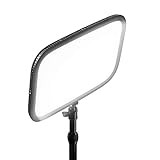
Pro tip: If your room lighting is poor, fix the lighting before buying an expensive webcam. A $30 ring light paired with a $70 webcam will look better than a $200 webcam in a dark room.
Autofocus: Speed and Reliability Matter
There are three types of autofocus in webcams:
- Fixed focus: No autofocus at all. The lens is set to a fixed distance, usually 2 to 4 feet. Cheap and cheerful, but you will be blurry if you lean in or move back. Only acceptable for budget models where you sit at a consistent distance.
- Contrast-detect autofocus: The camera adjusts focus by analyzing contrast in the image. It works but can be slow and sometimes hunts back and forth before locking on. Found in most mid-range webcams.
- Phase-detect or hybrid autofocus: Fast, accurate, and rarely hunts. This is what you find in premium webcams and smartphone cameras. If you hold up products, documents, or move around, this is worth paying for.
Field of View: Finding the Right Frame
Field of view determines how much of your environment the camera captures. Common FOV ranges:
| FOV | What It Captures | Best For |
|---|---|---|
| 65-70 degrees | Tight headshot, minimal background | Video calls, privacy-conscious users |
| 78-82 degrees | Head and shoulders, some background | Streaming, general purpose |
| 90-95 degrees | Upper body and significant background | Group calls, wide setups |
| 100+ degrees | Wide-angle, room-level view | Conference rooms, multi-person setups |
For solo use, 78 to 82 degrees is ideal. It frames you naturally without showing too much of your room. Many premium webcams let you adjust FOV digitally, which is a genuinely useful feature.
Microphone Quality: A Bonus, Not a Replacement
Almost every webcam includes a built-in microphone, and some are surprisingly decent. Modern webcams from Logitech, Elgato, and Razer use dual omnidirectional mics with noise cancellation that can produce clear, usable audio for video calls.
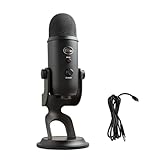
However, if you stream or record content, a dedicated USB microphone or headset mic will always sound better. Webcam mics pick up more room noise, keyboard clatter, and echo. They are a backup, not a primary audio solution for content creators.
That said, for casual video calls, the mic on a good webcam is often better than laptop mics and can save you from needing to wear a headset every time.
Mounting and Positioning
Most webcams use a universal clip that mounts on top of your monitor or laptop lid. A few things to consider:
- Monitor thickness: Some clips struggle with ultra-thin bezels or very thick monitors. Check the maximum thickness spec.
- Tripod mount: A standard 1/4-inch tripod thread on the bottom gives you mounting flexibility. You can use a small desk tripod, a monitor arm adapter, or a flexible gooseneck mount.
- Eye-level positioning: The camera should be at or slightly above eye level. Mounting on top of a monitor is usually perfect. Mounting on a laptop screen puts the camera too low.
- Privacy shutter: A physical privacy cover or shutter is a must-have. You should be able to physically block the lens when not in use.
Software and Features
Premium webcams come with companion software that can make a significant difference:
- Background blur and replacement: Built-in AI background effects that work without loading Zoom or Teams
- Auto-framing: The camera digitally pans and zooms to keep you centered
- Color and exposure controls: Manual adjustment of white balance, brightness, contrast, saturation, and sharpness
- HDR processing: Balances bright windows behind you with your face in the foreground
- Preset profiles: Save different settings for different applications
Logitech G Hub, Elgato Camera Hub, and Razer Synapse are the most polished companion apps. Avoid webcams that require you to manually configure settings through Windows Device Manager.
Our Top Webcam Picks for 2026
| Webcam | Resolution | Frame Rate | Autofocus | FOV | Price Range | Best For |
|---|---|---|---|---|---|---|
| Elgato Facecam Pro | 4K | 60fps at 1080p / 30fps at 4K | Phase-detect | Adjustable | $250-$300 | Streaming and content creation |
| Logitech Brio 500 | 1080p | 30fps | Contrast-detect | 90/78/65 degrees | $100-$130 | Video calls and hybrid work |
| Logitech C920s | 1080p | 30fps | Contrast-detect | 78 degrees | $50-$70 | Budget all-rounder |
| Razer Kiyo Pro Ultra | 4K | 60fps at 1080p / 30fps at 4K | Phase-detect | Adjustable | $250-$300 | Best low-light performance |
| Insta360 Link 2 | 4K | 30fps | AI tracking | Adjustable | $200-$250 | Presentations and demos |
| Anker PowerConf C200 | 2K | 30fps | Contrast-detect | 65-95 degrees | $50-$70 | Budget video calls |
Best for Streaming: Elgato Facecam Pro
Elgato designed this webcam specifically for streamers and content creators, and it shows in every detail. The Sony STARVIS 2 sensor captures excellent detail with impressive low-light performance. Phase-detect autofocus locks on instantly and never hunts. The 4K resolution at 30fps gives you room to crop and reframe, while 1080p at 60fps delivers buttery-smooth video for live streams.
Elgato Camera Hub software is the best in the business — granular control over every image parameter, scene presets, and a clean interface that does not fight you. The camera outputs uncompressed video, which means no artifacting or quality loss before it hits your streaming software. The only downside is the price, and the fact that it has no built-in mic, though Elgato rightly assumes streamers use dedicated microphones.
Why it wins: Purpose-built for content creators with the best sensor, autofocus, and software combo available. If streaming or video content is part of your income, this pays for itself.
Best for Video Calls: Logitech Brio 500
The Brio 500 answers the question of what hybrid workers actually need with precision. Show Mode lets you tilt the camera down to display documents or products on your desk. The adjustable FOV switches between 65, 78, and 90 degrees depending on whether you are solo or in a group. RightLight 4 HDR handles mixed lighting beautifully — no more being a silhouette against a bright window.
The built-in dual mics with noise reduction are genuinely good enough for daily calls. The privacy shutter is physical, not software-based. And the whole thing mounts securely on monitors of any thickness. At $100 to $130, it is the goldilocks choice for professional video calls.
Why it wins: Perfectly tuned for the remote work use case. Great auto-exposure, solid mic, flexible FOV, and reasonable price.
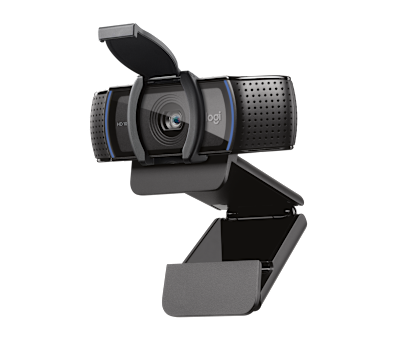
Best Budget: Logitech C920s
The C920 line has been the default recommendation for years, and the C920s with its built-in privacy shutter remains king at this price. Is it the sharpest 1080p? No. Is the autofocus the fastest? No. Does it produce perfectly acceptable video for calls, casual streaming, and recording? Absolutely.
The dual mics are decent. The 78-degree FOV is appropriate. The mounting clip works on every monitor. And Logitech software support means it works reliably on Windows, Mac, and ChromeOS without fuss.
Why it wins: Proven reliability, acceptable quality, unbeatable price. If you just need a webcam that works and looks significantly better than your laptop camera, this is it.
Best Low-Light: Razer Kiyo Pro Ultra
Razer put the largest sensor in any webcam — a 1/1.2-inch Sony sensor — into the Kiyo Pro Ultra, and the low-light results are remarkable. In dimly lit rooms where other webcams produce noisy, muddy footage, this camera delivers clean, well-exposed video. The physical aperture ring lets you control depth of field for that blurred background look without software processing.
It is large, expensive, and the stand is divisive, but if your lighting situation is challenging and you do not want to add ring lights, this camera compensates better than anything else on the market.
Why it wins: Best low-light performance in any webcam, period. The large sensor makes an enormous difference.
Best for Presentations: Insta360 Link 2
This is the most innovative webcam on the list. The Insta360 Link 2 sits on a motorized gimbal that physically tracks your movement using AI. Walk across the room and the camera follows you. Hold up a product and it zooms in. Switch to a whiteboard and it reframes automatically. It even has gesture controls.
For anyone who does presentations, product demos, or tutorials, this is transformative. The video quality is excellent at 4K with good autofocus, and the tracking is surprisingly reliable.
Why it wins: The gimbal tracking is a genuine differentiator that no other webcam offers at this price.
Best Budget Alternative: Anker PowerConf C200
Anker consistently delivers above-average products at below-average prices. The 2K resolution is a step above 1080p competitors at this price. The adjustable FOV from 65 to 95 degrees is unusual for a budget webcam. AI noise reduction on the dual mics works better than expected.
Why it wins: More resolution and more features than you would expect under $70.
Setup Tips for the Best Video Quality
Lighting First, Camera Second
Even the best webcam looks mediocre with bad lighting. Position a light source in front of you and slightly above eye level. Avoid overhead-only lighting which creates under-eye shadows and backlighting from windows which turns you into a silhouette. A simple desk lamp with a daylight-temperature bulb pointed at the wall behind your monitor provides soft, flattering light for almost no cost.
Position the Camera at Eye Level
Mount the webcam on top of your external monitor, not on your laptop screen. This puts the camera at a natural eye level and creates a much more flattering angle. If you use a laptop only, consider a laptop stand that raises the screen, and use an external keyboard and mouse.
Check Your Background
You do not need a studio backdrop, but be intentional about what is behind you. A tidy bookshelf, clean wall, or simple curtain looks professional. If your space is messy, use software background blur — but a clean physical background always looks more natural.
Adjust White Balance
Auto white balance on webcams can shift colors depending on your environment. If you look too orange or too blue on calls, manually set the white balance in your webcam software to match your room lighting. This single adjustment can dramatically improve how natural you look on camera.
Final Verdict
A good webcam is not a vanity purchase — it is a communication tool. When you look clear, well-lit, and sharp on video calls, people engage more with what you are saying. When you are a blurry, grainy mess, it is a distraction. For streamers and content creators, video quality is directly tied to audience growth and retention.
Invest in the Elgato Facecam Pro if content is your livelihood, the Logitech Brio 500 for professional video calls, or the C920s if you just need something better than your laptop. Then fix your lighting. You will be surprised how much of a difference these two upgrades make together.