Best Portable Monitor for Laptop: 7 Picks for Every Budget
If you have ever tried to get real work done on a 13-inch laptop screen, you know the pain. Squinting at spreadsheets, endlessly alt-tabbing between browser tabs and documents, losing your mind trying to reference one thing while editing another. A portable monitor fixes all of that without chaining you to a desk. Whether you are a remote worker bouncing between coffee shops, a developer who needs dual screens on the road, or a creative professional who wants color-accurate output everywhere, portable monitors have matured into genuinely useful tools.
Check Price on Amazon →

Check Price on Amazon →
Check Price on Amazon →
This guide breaks down everything you need to know before buying one, then gives you seven solid picks across every budget tier.
🏆 Our Top Picks
As an Amazon Associate, we earn from qualifying purchases.
As an Amazon Associate, we earn from qualifying purchases.
Why a Portable Monitor Is Worth the Investment
The productivity argument is not just marketing fluff. Research consistently shows that adding a second screen increases output by 20 to 30 percent for knowledge workers. But the real magic of a portable monitor is flexibility. You get that productivity boost at the airport, at a client site, in a hotel room, or at your kitchen table. Then you fold it up and slide it into your bag.
Check Price on Amazon →
Portable monitors have also gotten dramatically better in the last two years. We are talking about vibrant IPS and OLED panels, USB-C single-cable connections that deliver video and power simultaneously, and weights under two pounds. The days of washed-out TN panels with janky adapters are over.
Who Benefits Most
- Remote workers and digital nomads who need dual-screen setups without permanent desk infrastructure
- Software developers who want code on one screen and output or documentation on the other
- Designers and photographers who need to check work on a calibrated external panel
- Presenters and consultants who want a personal reference screen during pitches
- Gamers who want a secondary display for chat, guides, or a portable gaming screen for consoles
USB-C vs. HDMI: Connectivity Matters More Than You Think
This is the single most important spec to get right, because if you buy a USB-C portable monitor and your laptop does not support video output over USB-C, you are in for a frustrating afternoon of troubleshooting.
USB-C with DisplayPort Alt Mode
This is the gold standard. One cable carries video, audio, and power to the monitor. Your laptop charges the monitor, so there is no separate power brick. It is clean, fast, and elegant. Most modern laptops from 2022 onward support this, but you need to verify your specific USB-C port supports DisplayPort Alt Mode or Thunderbolt. Not all USB-C ports carry video — some are charge-only or data-only.
Mini HDMI or Micro HDMI
Many portable monitors include a Mini HDMI port as a backup. This is useful for connecting to older laptops, gaming consoles, or Raspberry Pi setups. The downside: you will usually need a separate USB cable for power, so you end up with two cables instead of one.
USB-A DisplayLink
A few monitors use DisplayLink technology to push video over a standard USB-A connection. This works on virtually any laptop, which sounds great, but DisplayLink adds latency and requires driver software. Fine for spreadsheets and documents, not great for video editing or gaming.
Our recommendation: Prioritize USB-C with DisplayPort Alt Mode. Make sure your laptop supports it. If it does not, get a monitor that also has Mini HDMI as a fallback.
Resolution and Refresh Rate: How Sharp Do You Need?
Portable monitors typically come in three resolution tiers, and each one serves a different purpose.
1080p (1920 x 1080)
The sweet spot for most people. Text is sharp enough on screens up to 15.6 inches, video playback is smooth, and your laptop GPU barely breaks a sweat driving it. If you are primarily working with documents, code, or web browsing, 1080p is all you need. It also tends to deliver better battery life on your laptop since the GPU is not pushing as many pixels.
1440p (2560 x 1440)
The emerging middle ground. Noticeably sharper text and UI elements, more screen real estate for multitasking, and still reasonable on GPU resources. If you do any design work or just appreciate crisp text, 1440p is the upgrade worth paying for. Expect to pay 30 to 50 percent more than equivalent 1080p models.
4K (3840 x 2160)
Beautiful but often overkill on a 15-inch screen. At typical viewing distances, many people struggle to see the difference between 1440p and 4K at this size. The tradeoffs are real: higher price, more GPU load, and sometimes reduced brightness to manage thermals. 4K makes sense if you are a photographer checking detail or a video editor who needs pixel-accurate previews.
Refresh Rate
Most portable monitors run at 60Hz, which is perfectly fine for productivity. If you plan to game on yours, look for 120Hz or 144Hz panels, but know that high refresh rate plus high resolution will demand significant GPU power and drain your laptop battery faster.
IPS vs. OLED: The Panel Technology Decision
IPS (In-Plane Switching)
The workhorse of portable monitors. IPS panels deliver wide viewing angles, good color accuracy, and consistent brightness. They are also more affordable and available in every size and resolution combination. The downsides are middling contrast ratios (typically 1000:1) and blacks that look more like dark gray in dimly lit rooms.
OLED
OLED portable monitors have exploded onto the market in the past year, and they are genuinely impressive. You get true blacks, essentially infinite contrast ratio, vibrant colors, and razor-thin profiles. The downsides: higher price (usually 2x an equivalent IPS), potential for burn-in with static content like taskbars, and sometimes lower peak brightness in well-lit rooms. OLED also tends to draw slightly more power from your laptop battery.
The verdict: IPS for most productivity users. OLED if you do creative work, consume a lot of media, or simply want the best-looking panel and are willing to pay for it.
Size Comparison: 13, 14, 15.6, 16, and 17 Inches
Size is a personal tradeoff between usability and portability. Here is how the common sizes break down:
| Screen Size | Best For | Weight Range | Portability |
|---|---|---|---|
| 13.3″ | Ultra-light travel, pairing with 13″ laptops | 0.9 – 1.3 lbs | Excellent |
| 14″ | Balanced travel use, good screen real estate | 1.1 – 1.5 lbs | Very Good |
| 15.6″ | Most popular size, matches common laptop screens | 1.5 – 2.0 lbs | Good |
| 16″ | Extra workspace, pairs well with 15-16″ laptops | 1.7 – 2.3 lbs | Decent |
| 17.3″ | Maximum real estate, semi-portable | 2.2 – 3.0 lbs | Marginal |
If you travel frequently, 14 to 15.6 inches hits the sweet spot. Below 14 inches starts feeling cramped for real work. Above 16 inches, you are carrying something that barely fits in most laptop bags and starts to feel like you should have just packed a regular monitor.
Weight and Build Quality
Every ounce matters when you are carrying a portable monitor alongside a laptop, charger, and other gear. The lightest options come in under a pound, but they often sacrifice build quality or brightness. Most solid portable monitors fall in the 1.3 to 2.0 pound range.
Pay attention to the stand or cover mechanism. Some use magnetic smart covers that double as adjustable stands — these add weight but are very convenient. Others use built-in kickstands, which are lighter but sometimes less stable. A few ship with no stand at all, expecting you to lean them against something or buy a separate stand.
Color Accuracy: When It Actually Matters
If you are using a portable monitor for email, Slack, and spreadsheets, color accuracy is irrelevant. If you are editing photos, designing graphics, or grading video, it matters a lot.
Look for these specs:
- sRGB coverage: 99% or higher for general creative work
- DCI-P3 coverage: 90% or higher for video and cinema work
- Delta E: Under 2 means color-accurate out of the box; under 1 is excellent
- Factory calibration: Some monitors ship pre-calibrated with a report. This saves you the hassle of calibrating yourself
For everyone else, just make sure sRGB coverage is above 90% and you will be fine.
Our 7 Top Picks for Every Budget
We tested and researched dozens of portable monitors to narrow it down to these seven. Each one earns its spot for a specific use case and budget tier.
| Monitor | Size | Resolution | Panel | Price Range | Best For |
|---|---|---|---|---|---|
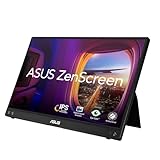
| ASUS ZenScreen MB16ACV | 15.6″ | 1080p | IPS | $200–$230 | Best overall value |
| Lenovo ThinkVision M14t Gen 2 | 14″ | 1080p | IPS | $280–$320 | Business users, touch input |
| ViewSonic VX1655-4K-OLED | 15.6″ | 4K | OLED | $350–$400 | Creators and media consumption |
| Innocn 15K1F | 15.6″ | 4K | OLED | $280–$320 | Budget OLED pick |
| ASUS ROG Strix XG16AHP-W | 15.6″ | 1080p 144Hz | IPS | $350–$400 | Portable gaming |
| Espresso Display V2 | 13.3″ | 1080p | IPS | $250–$280 | Ultra-portable, Mac users |
| KYY K3-15 | 15.6″ | 1080p | IPS | $100–$130 | Budget pick under $150 |
1. ASUS ZenScreen MB16ACV — Best Overall Value
The ZenScreen line has been a reliable standby for years, and the MB16ACV continues that tradition. You get a solid 15.6-inch IPS panel with good color accuracy (100% sRGB), USB-C connectivity, and a smart cover that works as a stand. At around 1.8 pounds, it is light enough for daily carry. The 250-nit brightness is adequate indoors but can struggle in direct sunlight. Build quality is excellent — this feels like a premium product.
Why it wins: Reliable, well-built, good color accuracy, and priced right. It does not excel in any single area but has zero weak spots. If you want a portable monitor that just works and works well, this is the one.
2. Lenovo ThinkVision M14t Gen 2 — Best for Business
Lenovo built this for the enterprise crowd, and it shows. The 14-inch form factor is ideal for travel, the touch screen is surprisingly useful for presentations and navigation, and the build quality is ThinkPad-level sturdy. You also get a tilt-adjustable stand that feels more robust than most magnetic covers. The 300-nit brightness is a step up from most competitors.
Why it wins: Touch screen, great build quality, and a form factor that was clearly designed by people who actually travel for work. The 14-inch size is the sweet spot for portability without sacrificing too much screen real estate.
3. ViewSonic VX1655-4K-OLED — Best for Creators
If you need color accuracy and stunning visuals on the go, this is the portable monitor to beat. The 4K OLED panel delivers 100% DCI-P3 coverage, true blacks, and a Delta E under 2 out of the box. Videos and photos look incredible on this thing. The 15.6-inch size gives you enough room to work, and at 1.6 pounds, it is remarkably light for a 4K OLED panel.
Why it wins: The best display quality you can get in a portable form factor. Period. If your work depends on accurate color reproduction and you need it on the go, this is the obvious choice.
4. Innocn 15K1F — Best Budget OLED
Innocn has carved out a niche making affordable OLED portable monitors, and the 15K1F is their best effort yet. You get a 4K OLED panel with excellent contrast and color accuracy at a price that undercuts the competition significantly. The build quality is a step below the ViewSonic, and the stand is a bit flimsy, but the panel itself punches well above its price point.
Why it wins: OLED visual quality at an IPS price. If you want those deep blacks and vivid colors but cannot justify spending $400, this is your monitor.
5. ASUS ROG Strix XG16AHP-W — Best for Gaming
This is the portable monitor for gamers, full stop. A 144Hz refresh rate makes gameplay noticeably smoother, the 3ms response time keeps things sharp during fast action, and ASUS included a built-in 7800mAh battery so you can game without draining your laptop. It also has an HDMI port for connecting to consoles. The adaptive sync support means no tearing. At $350 to $400, it is not cheap, but it is the best gaming-focused portable monitor available.
Why it wins: 144Hz, built-in battery, console-friendly HDMI, and adaptive sync. No other portable monitor is this well-equipped for gaming.
6. Espresso Display V2 — Best Ultra-Portable
At just 13.3 inches and barely over a pound, the Espresso Display V2 is the lightest and thinnest option on this list. It looks gorgeous, with a machined aluminum body that matches MacBook aesthetics perfectly. The magnetic mounting system is clever, and the companion software for Mac is genuinely useful. The trade-off is screen size — 13.3 inches feels small for extended work sessions — and the price is high for a 1080p IPS panel.
Why it wins: If portability is your absolute top priority and you are in the Apple ecosystem, nothing else comes close to this form factor.
7. KYY K3-15 — Best Budget Pick
Under $130 for a functional 15.6-inch portable monitor with USB-C and Mini HDMI. The KYY K3-15 is no-frills and honest about what it is: a basic 1080p IPS panel that gets the job done. Color accuracy is mediocre, brightness is just adequate at 220 nits, and the included cover-stand is flimsy. But it works, the picture quality is perfectly acceptable for productivity, and the price is hard to argue with.
Why it wins: Best way to test whether a portable monitor fits your workflow without committing serious money. If you outgrow it, great — now you know it is worth upgrading.
Setup Tips for Getting the Most Out of Your Portable Monitor
Cable Management
Buy a short USB-C cable (1 foot or less) specifically for your portable monitor. The cables that ship with most monitors are usually too long and create a tangled mess on small desks and airplane tray tables.
Display Arrangement
Most people position their portable monitor to the left or right of their laptop. But consider putting it directly behind your laptop, elevated on a small stand. This keeps your neck from constantly turning to one side and works great for reference material you glance at occasionally.
Brightness and Battery
A portable monitor running off your laptop USB-C port will drain your battery faster. If you are working unplugged, lower the monitor brightness to 40 to 50 percent. This dramatically extends your combined battery life with minimal visual impact indoors.
Windows Display Settings
If you are on Windows, go to Settings, then System, then Display, and make sure you set the correct arrangement. Also check that scaling is set appropriately — if your laptop is 14 inches at 1080p and your monitor is 15.6 inches at 1080p, they should both be at 100% scaling for consistent text size.
Mac Display Settings
On macOS, go to System Settings, then Displays, and drag the arrangement to match your physical setup. If you are using an OLED portable monitor, consider enabling Dark Mode to reduce the risk of burn-in on static elements.
Who Should Skip Portable Monitors
Not everyone needs one, and I would rather be honest about that than sell you something you will not use.
- Desk-only workers: If you never leave your desk, buy a proper 27-inch monitor instead. More screen, better ergonomics, lower cost per inch.
- Tablet users: If you already carry an iPad, apps like Sidecar (Mac) or Duet Display (Windows) can turn it into a second screen. Not as good as a dedicated monitor, but it avoids carrying another device.
- Light email and browsing: If your workflow is simple and single-window, a second screen adds complexity without meaningful benefit.
- Budget-constrained buyers: If $100 is a stretch, that money might be better spent on a laptop stand, external keyboard, or better chair — things that improve ergonomics, which matters more than screen real estate for your health.
Final Thoughts
The portable monitor market is the best it has ever been. Prices are down, quality is up, and USB-C connectivity has eliminated most of the compatibility headaches that plagued earlier generations. For the ASUS ZenScreen MB16ACV as the best all-around pick, the ViewSonic OLED for creators, or the KYY for budget-conscious buyers, there is a solid option at every price point.
Figure out your primary use case, check your laptop ports, and pick the monitor that matches. Then enjoy the feeling of actually having enough screen space to get things done, no matter where you are working from.