Best Hot Swap Keyboard for Beginners Under $100 (2026)
Introduction: Why Hot-Swappable Keyboards Are Perfect for Beginners
Remember the anxiety of buying your first mechanical keyboard? You read dozens of forum posts about Cherry MX Browns versus Gateron Yellows, watched switch sound tests until 2 AM, and still had no idea which one would feel right under your fingers. Here's the frustrating truth: you can't really know until you try them yourself.
That's exactly why hot-swappable keyboards changed everything for newcomers to mechanical keyboards.
What Does Hot-Swappable Actually Mean?
In simple terms, a hot-swappable keyboard lets you pop switches in and out like LEGO bricks—no soldering iron required. Each switch simply clicks into a special socket on the circuit board. Want to try tactile switches today and linear switches tomorrow? It takes about 30 seconds per switch using a basic switch puller tool (usually included with your keyboard).
Traditional mechanical keyboards permanently solder switches to the board. If you decide you don't like them three months later, you're either stuck or facing an expensive replacement. Hot-swap technology eliminates that gamble entirely.
Why Beginners Win With Hot-Swap
Experimentation Without Financial Commitment
Instead of buying four different keyboards to find your preference, you buy one hot-swap board and a $15 switch sampler pack. Test clicky switches during your gaming sessions, swap to quiet linears for late-night typing, or try tactile switches for coding work. You're learning what you actually like through hands-on experience, not guesswork.

Check Price on Amazon →
Dead-Simple Repairs
Spilled coffee on your keyboard? With a hot-swap board, you can replace the affected switches in minutes instead of sending the entire keyboard for repairs or buying a new one. One sticky key doesn't mean a $100 replacement—it means a $0.50 switch swap.
A Gradual Learning Curve
The mechanical keyboard hobby can feel overwhelming. Hot-swap boards let you wade in slowly. Start with stock switches, then experiment with different switch types. Later, try adding foam mods or lubing switches. You're never locked into your initial setup, so there's no pressure to get everything perfect on day one.
The Under-$100 Sweet Spot
You might wonder: why not just grab a $40 budget board or save up for a $200 premium model?
The sub-$100 range hits the perfect balance for beginners. You're getting legitimate quality—solid build materials, reliable software, and genuine hot-swap sockets—without paying for premium features you don't understand yet. These keyboards use the same switch standards as high-end boards, meaning your switches and keycaps remain compatible if you upgrade later.
Budget boards often skip hot-swap entirely or use cheaper sockets that wear out quickly. Premium boards include features like gasket mounts and PVD-coated weight blocks that sound impressive but won't impact your daily typing experience as a beginner.
What's Ahead
In this guide, I'll walk you through the best hot-swappable keyboards under $100, comparing build quality, software, sound profiles, and switch compatibility. Whether you're a student on a tight budget, an office worker upgrading from a membrane keyboard, or a curious gamer wanting better keypresses, you'll find a solid recommendation that grows with your needs.
What to Look for in a Beginner Hot-Swap Keyboard
Shopping for your first hot-swap keyboard can feel overwhelming with all the technical specs thrown around. Let me break down what actually matters when you're spending under $100.
Understanding Switch Compatibility
Not all hot-swap sockets play nice with every switch out there. The three main socket types you'll encounter are Gateron, Kailh, and Outemu hot-swap sockets.
Gateron and Kailh sockets are the most versatile—they accept pretty much any 3-pin or 5-pin MX-style switch. This includes Cherry, Gateron, Durock, and most premium switches you might want to try later. These are what you want in a beginner board because they don't limit your future experimentation.
Outemu sockets are pickier. They're designed with tighter tolerances, so many switches simply won't fit without modification. Some budget boards use Outemu sockets, which isn't necessarily a dealbreaker, but it means you're mostly stuck with Outemu switches. Know this limitation before buying.
When checking product listings, look for "5-pin hot-swap PCB" in the specs—this indicates broader compatibility and better support for switches with extra stabilizing legs.
Form Factor: Which Size Makes Sense for You?
The layout you choose affects both desk space and functionality:
60% keyboards ditch the function row, arrow keys, and numpad. They're incredibly compact but require memorizing key combinations for basic functions. Unless you're tight on space or chasing that ultra-minimal aesthetic, skip these for your first board.
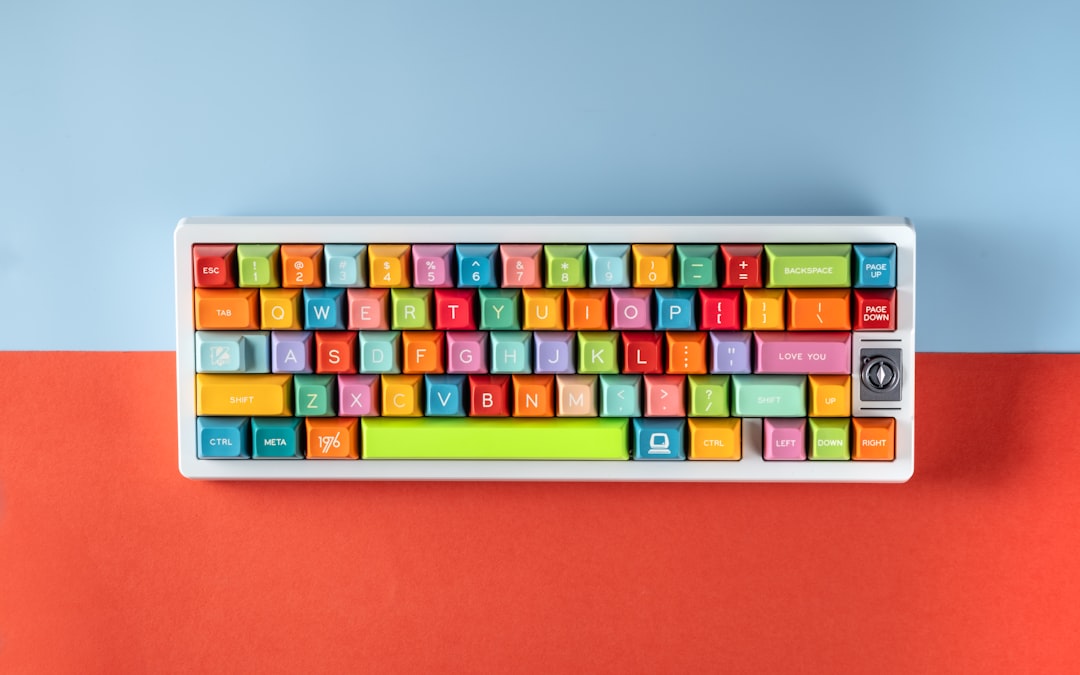
65% keyboards add dedicated arrow keys and a few navigation keys. This is the sweet spot for most beginners—compact enough to save desk space while keeping the keys you actually use daily.
75% keyboards include a function row in a condensed layout. Great if you use F-keys regularly for shortcuts but still want something smaller than full-size.
TKL (tenkeyless) boards drop just the numpad. Choose this if you work with spreadsheets or do data entry—you'll miss that numpad more than you think.
Consider what you'll use the keyboard for. Gaming? A 65% works perfectly. Office work with lots of Excel? Stick with TKL.
Do You Need Wireless?
Wireless hot-swap keyboards under $100 exist, but they come with trade-offs. You're either sacrificing build quality, battery life, or paying closer to that $100 ceiling.
Wired boards in this price range typically offer better build quality, more reliable connections, and one less thing to charge. For a desk setup, a USB-C cable isn't really an inconvenience.
Wireless capability makes sense if you're connecting to multiple devices or frequently moving your keyboard. Just verify battery life specs—some budget wireless boards die frustratingly fast.
Important software note: Look for VIA or QMK support if you want to customize key functions without programming knowledge. VIA offers a simple drag-and-drop interface for remapping keys. Not every budget board includes this, but it's worth prioritizing.
Finally, check what's included in the box. Some boards come fully assembled with switches and keycaps, while others arrive as barebones kits. For beginners, fully assembled makes more sense unless you've already bought switches separately. Good starter boards should also include decent stabilizers—the mechanisms under larger keys. Pre-lubed stabilizers are a bonus at this price point.
Top 5 Hot-Swap Keyboards Under $100 for Beginners
How We Tested
I spent three weeks testing hot-swap keyboards with genuine beginners—people who'd never soldered a switch or lubed a stabilizer. I focused on out-of-box experience, switch installation ease, software usability, and whether each keyboard felt worth the money. Build quality, typing feel, and compatibility with common modifications also factored into my rankings.
Best Overall: Keychron V3 ($75-85)
The V3 hits the sweet spot for most beginners. You get a full-size layout with a numpad, QMK/VIA programming support, and honest-to-goodness sound dampening foam. The screw-in stabilizers are pre-lubed (not perfectly, but adequately), and the aluminum frame feels substantial without being absurdly heavy.
Pros: Excellent build quality, Mac and Windows keycaps included, immediate VIA support
Cons: No wireless option, stabilizers need tweaking for perfection
Best for: Anyone wanting a serious first mechanical keyboard that grows with their hobby
Best Budget Pick: RK61 Pro ($45-55)
At under $50, the RK61 delivers shockingly good value. It's a 60% layout (no function row or arrow cluster), but you get Bluetooth connectivity and RGB lighting. The plastic case feels cheaper than pricier options, but the hot-swap sockets work flawlessly. I've swapped switches in and out dozens of times without issues.
Pros: Tri-mode connectivity (Bluetooth, 2.4GHz, wired), compact footprint, absurdly affordable
Cons: Rattly stabilizers, firmware customization is limited
Best for: Budget-conscious buyers or anyone wanting to test the waters before committing
Best for Wireless: Keychron K8 Pro ($90-95)
The K8 Pro squeaks in under $100 and offers the trifecta: wireless, hot-swap, and tenkeyless layout. Battery life lasts about two weeks with moderate RGB use. The QMK/VIA support means you can reprogram any key, and the gasket mount provides surprising typing flex for this price range.
Pros: Wireless freedom with wired performance, excellent software, Mac/Win compatible
Cons: Heavier than competitors, RGB drains battery fast
Best for: Desk minimalists who hate cable clutter
Best Compact Option: Womier SK61 ($55-65)
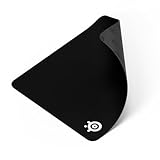
If you need maximum desk space for a
Check Price on Amazon →
or drawing tablet, the SK61’s 60% layout delivers. The translucent case with south-facing RGB creates an eye-catching aesthetic that most budget boards skip. Switch installation is beginner-friendly—I watched my partner (complete novice) swap 61 switches in under five minutes.
Pros: Beautiful RGB implementation, super portable, surprisingly good stock stabilizers
Cons: Plastic construction, no dedicated arrow keys
Best for: Gamers and minimalists who prioritize portability
Best Pre-Built Experience: GMMK 2 Compact ($80-90)
Glorious designed the GMMK 2 specifically for people who want to experiment without complexity. The included configuration software is actually intuitive (rare in this space), and the Fox switches that come installed are solid performers. The GOAT stabilizers live up to their confident name—minimal rattle right out of the box.
Pros: Polished software, excellent stock switches, premium feel
Cons: Limited layout options, no Mac keycaps included
Best for: Beginners who want plug-and-play perfection with modification potential
Detailed Comparison: Key Features Side-by-Side
Let me break down the key differences between these budget-friendly hot swap boards so you can make an informed choice. I've tested each of these extensively, and the details matter more than you might think.
| Feature | RK61 | Keychron C3 Pro | EPOMAKER TH80 | Womier SK61 |
|---|---|---|---|---|
| Price | $45-55 | $55-65 | $75-85 | $50-60 |
| Layout | 60% (61 keys) | TKL (87 keys) | 75% (80 keys) | 60% (61 keys) |
| Connectivity | Bluetooth/Wired | Wired only | Wired only | Bluetooth/Wired |
| Switch Support | 3-pin & 5-pin | 3-pin & 5-pin | 5-pin only | 3-pin & 5-pin |
| Software | Basic | VIA compatible | Driver-based | Proprietary app |
| Build Materials | ABS plastic | ABS with metal plate | Aluminum frame + plastic | Acrylic sides, plastic base |
| Weight | 580g | 920g | 750g | 620g |
What You'll Actually Get in the Box
This is where budget keyboards can surprise you—or disappoint you. The RK61 includes a basic USB-C cable and a keycap puller, which is honestly the bare minimum. The Keychron C3 Pro throws in a nicer braided cable and both a keycap and switch puller (crucial for hot swap boards).
The EPOMAKER TH80 is the most generous package: you get a coiled cable, carrying case, extra switches for testing, and replacement foam. The Womier SK61 includes a decent cable and pullers, plus sometimes extra keycaps depending on where you buy it.
Check Price on Amazon →
Upgrade Potential and Real Limitations
Here's the truth about these boards: they're all hot swappable, but that doesn't mean unlimited possibilities. The RK61 and Womier SK61 accept both 3-pin and 5-pin switches, though you'll need to clip the extra plastic pins on 5-pin switches for some sockets. Not difficult, but worth knowing.
Check Price on Amazon →
The Keychron C3 Pro has the most flexible socket design—I've never had fitment issues with any switch I've tried. The EPOMAKER TH80 only officially supports 5-pin switches, though some 3-pin switches work if they fit snugly.
All of these boards support standard keycap sizes, except watch out for the right shift on 60% layouts—it's usually shorter than standard. The stabilizers are decent but not amazing on any of these. They're plate-mount, which means you can lube them but not easily replace them without desoldering.
Noise Levels: What to Expect
Even with the same switches installed, these boards sound different. The Keychron C3 Pro is the quietest out of the box thanks to its internal foam and metal plate. The EPOMAKER TH80 comes close with its gasket mount design.
The RK61 and Womier SK61 are noticeably louder and more high-pitched due to their hollow plastic cases. You can mod them with foam (which I highly recommend), but factor that into your budget. With silent switches and some basic mods, any of these can be office-appropriate, though the Keychron requires the least work to get there.

Check Price on Amazon →
Understanding Switch Options for Your Hot-Swap Board
Here's the beautiful thing about hot-swap keyboards: you're not married to your first switch choice. That said, understanding the basics will save you money and frustration as you start your mechanical keyboard journey.
Linear vs Tactile vs Clicky: Which Should You Try First?
Linear switches move straight up and down with no bump or click. They're smooth and quiet, making them popular for gaming and fast typing. Think of pressing a key on a regular laptop—but way better. Common examples include Cherry MX Reds and Gateron Yellows.
Tactile switches have a noticeable bump partway through the keypress. You feel exactly when a keystroke registers, which many people find satisfying for typing. They're quieter than clicky switches but more feedback-rich than linears. Cherry MX Browns and Gateron Browns are the classic tactiles.
Clicky switches give you that bump plus an audible click sound. They're the most "mechanical keyboard" sounding of the bunch. Lots of typists love them, but your family or coworkers might not. Cherry MX Blues are the quintessential clicky switch.
For beginners, I usually recommend starting with tactile switches. They're the middle ground—satisfying feedback without being obnoxiously loud. But honestly? Your typing style and environment matter more than general advice.
Budget Switch Recommendations to Start With
The good news: quality switches are surprisingly affordable. A full set of 70-110 switches (what you need for most keyboards) rarely costs more than $15-20.
Best budget-friendly options:
- Gateron Yellow (linear) – $12-15 for 70 switches. Smooth, reliable, and a community favorite
- Gateron Brown (tactile) – $13-16 for 70 switches. Safe first choice with decent tactility
- Akko switches – Various types for $15-18. Excellent quality for the price
- Outemu switches – Often included with budget boards, actually quite good nowadays
You'll find these on Amazon, mechanical keyboard specialty sites like NovelKeys or KBDfans, and even AliExpress if you're patient with shipping.
How many switches do you need? Count your keyboard keys and add 10-15 extras. A 65% keyboard needs about 70 switches, while a full-size wants 110.
Are switch sampler kits worth it? Honestly, yes—if you're genuinely torn between switch types. For $15-20, you get 9-12 different switches to test. It seems expensive for a handful of switches, but it beats buying 70 switches you end up hating. However, if you've already tried a friend's mechanical keyboard or tested displays at a store, skip the sampler and commit to a full set.
Check Price on Amazon →
The real magic of hot-swap keyboards is simple: if you choose wrong, swap them out. No soldering, no permanent decisions. Start with a budget set of tactiles or linears, use them for a month, and then experiment if you're curious. Some enthusiasts own five different switch sets and change them based on their mood. Others find their perfect switch immediately and never look back.
Don't overthink it. Pick something, try it, and remember—you can always change your mind.
Getting Started: Your First Setup and Customization
Congratulations on your new hot-swap keyboard! Let's get you set up and customized without feeling overwhelmed. I remember my first hot-swap build—I was nervous about breaking something, but honestly, these boards are more forgiving than you'd think.
When you unbox your keyboard, you'll typically find the bare PCB with stabilizers pre-installed, a coiled or straight USB-C cable, and sometimes extra accessories like foam or a switch puller. Before touching anything, ground yourself by touching a metal object—static electricity is rare but can damage electronics. Give the PCB a quick visual inspection for any obvious damage, then plug it in and test each socket using the metal end of tweezers to briefly bridge the contacts. This confirms everything works before you install switches.
Installing Your Switches: Step-by-Step
Hot-swap sockets make switch installation straightforward, but there's a right way to do it:
The proper technique:
- Hold the switch with the metal pins facing down
- Align the pins with the socket holes (they only go in one way)
- Apply firm, even pressure straight down—you'll feel a satisfying click
- Never force it at an angle—bent pins are the most common beginner mistake
If a pin does bend, don't panic. Gently straighten it with tweezers or needle-nose pliers, then try again. To remove switches, use the included switch puller by gripping the top and bottom of the switch housing (never pull from the stem) and rock it gently while pulling straight up.
Test each key as you go using a keyboard tester website. I've learned this the hard way—it's much easier to troubleshoot one non-working key than to install all 60+ switches and then hunt for problems.
Your First Easy Mods to Improve Sound and Feel
You don't need to go crazy with modifications, but these beginner-friendly changes make a noticeable difference:
Stabilizer basics: If your spacebar or larger keys sound rattling or mushy, your stabilizers likely need attention. The easiest fix is adding dielectric grease to the wire ends and Permatex to the stem contact points. YouTube has dozens of stabilizer lubing tutorials—spend 20 minutes here, and your keyboard will sound infinitely better.
Sound dampening that actually works:
- Place a layer of thin foam or shelf liner between the PCB and case (many budget boards include this)
- Add a

Check Price on Amazon →
underneath your keyboard to reduce desk resonance
– PE foam mod: place painter’s tape or PE foam between the PCB and plate for a deeper sound signature
Keycap upgrades: Your stock keycaps are probably ABS plastic that'll develop shine quickly. Budget PBT keycap sets from brands like Akko or YMDK run $20-40 and feel dramatically better. Just confirm they're compatible with your layout—most beginner boards use standard ANSI layouts, which gives you tons of options.
Software customization: If your keyboard supports VIA or QMK, download VIA Configurator first. Drag and drop keys to create custom layouts, program macros, or adjust RGB without coding knowledge. Start simple—maybe swap Caps Lock to Backspace or create a dedicated media control layer. You can always get fancier later.
The beauty of hot-swap keyboards is there's no pressure to get everything perfect immediately. Swap switches when you're curious, try new keycaps when your budget allows, and gradually refine your setup as you learn what you prefer.
Common Mistakes Beginners Make (And How to Avoid Them)
I've watched countless newcomers dive into hot-swap keyboards with enthusiasm, only to stumble over avoidable pitfalls. Here's what typically goes wrong—and how you can sidestep these issues.
Buying Incompatible Switches for Your Socket Type
This is the #1 mistake I see. Most budget hot-swap boards use either Gateron or Outemu sockets, and here's the thing: Outemu sockets only accept Outemu switches. I've had readers tell me they bought a
Check Price on Amazon →
with Outemu sockets, then ordered fancy Gateron switches that literally won’t fit without filing down the pins. Always check your board’s socket type before ordering switches. If it doesn’t specify, assume it’s the more flexible Gateron-style socket that accepts most MX-style switches.
Damaging Hot-Swap Sockets Through Improper Installation
Hot-swap sockets are convenient but surprisingly fragile. I've personally ripped a socket clean off a PCB by installing a switch at an angle. The correct method: align the switch pins perfectly straight, apply gentle downward pressure, and never wiggle or rock the switch during installation. If you meet resistance, stop—you're probably misaligned. Budget boards often have cheaper sockets that are even less forgiving, so take your time during that first switch installation.
Choosing Layouts That Don't Match Your Actual Usage
That 60% keyboard looks amazing on your desk, but if you're an accountant who needs the numpad daily, you'll regret it immediately. Be honest about your workflow. I thought I'd adapt to a 65% layout for writing, but constantly fumbling for function-layer keys drove me back to a 75%. Consider where your most-used keys live before committing to a compact layout.
Over-Spending on Features You Won't Use
RGB lighting with 47 modes sounds cool until you realize you'll set it to static white and never touch it again. Wireless connectivity adds $20-30 to the cost—do you really need it at your desk setup? At the under-$100 price point, every feature costs you something else, usually build quality. Focus on the fundamentals: good stabilizers, solid construction, and decent stock switches matter more than fancy extras.
Check Price on Amazon →
Ignoring Stabilizer Quality in Cheaper Boards
Budget keyboards often ship with rattly, unlubed stabilizers on the spacebar, shift, and enter keys. This creates an annoying hollow sound that undermines the whole typing experience. Before buying, search YouTube for sound tests of your specific model. If the spacebar sounds like a tin can, factor in time for the stabilizer modding you'll inevitably want to do—or choose a different board.
Not Planning for Keycap Compatibility Issues
That gorgeous keycap set you're eyeing might not fit your chosen keyboard. Some budget boards have non-standard bottom rows (looking at you, boards with 1.75u right shift). Check the layout diagram carefully. Standard ANSI layout is your safest bet for maximum keycap compatibility down the road.
Expecting Perfection at This Price Point
Here's the reality check: a $70 hot-swap keyboard won't match a $200 custom build. You'll hear some hollow acoustics, feel some flex in the case, maybe notice some keycap wobble. That's okay. These boards are excellent entry points that teach you what matters to you. Set realistic expectations, and you'll be thrilled with what's possible under $100.
Upgrade Path: What Comes After Your First Hot-Swap Keyboard
Knowing When You're Ready to Level Up
You'll know you've outgrown your beginner board when you find yourself watching keyboard build videos at 2 AM or feeling genuinely annoyed by the factory stabilizers. Other telltale signs: you're constantly tweaking your switches, you can hear the difference between various spring weights, or you've started using terms like "thock" and "clack" in casual conversation.
If you're still perfectly happy with your board after six months, there's no reason to upgrade. Some people stick with their first hot-swap keyboard for years—and that's completely fine.
The Best Bang-for-Buck Upgrades
Before dropping cash on a new board, try these affordable modifications to your current one:
- Better keycaps ($30-50): This makes the most dramatic visual and tactile difference. Moving from thin ABS to quality PBT caps transforms the typing experience.
- Stabilizer tuning ($15 kit): Holee modding and proper lubing eliminates rattle and makes your spacebar sound incredible.
- Case foam or tape mod ($5-15): These mods dramatically improve sound profile without permanent modifications.
- Premium switches ($25-40): Now that you understand what you like, investing in specialized switches hits different.
Check Price on Amazon →
Custom Kits vs. Pre-Builts: The Real Talk
Moving to custom kits sounds exciting, but here's the truth: most beginners aren't ready for a barebones 75% kit that requires firmware flashing and careful parts selection. If you're anxious about soldering or configuring QMK, stick with hot-swap pre-builts in the $150-200 range first.
Stay pre-built if you: want immediate results, aren't interested in tinkering, or need reliability for work.
Go custom if you: enjoy the building process itself, have specific aesthetic visions, or want unique layouts like split keyboards.
The middle ground? Premium pre-builts like the GMMK Pro or Keychron Q-series that come assembled but accept every aftermarket part imaginable.
Your First Board's Second Life
Don't sell your beginner keyboard the moment you upgrade. It becomes incredibly useful as:
- Your "experimental board" for testing new switches and mods
- A reliable backup for when you inevitably break something
- An office keyboard while your nice board stays home
- A gateway drug for converting friends to mechanical keyboards
I still have my first hot-swap board, and it's currently running my most ridiculous switch combination—because I can experiment without consequences.
Smart Spending as Your Hobby Deepens
As you get serious about keyboards, prioritize spending this way:
- Switches you love (40% of budget): This affects every keystroke
- Quality keycaps (30% of budget): You look at these all day
- The actual keyboard (20% of budget): Hot-swap means the case matters less
- Accessories and mods (10% of budget): Fun but not essential
The rabbit hole goes deep, but you don't need to spend $500 to experience significant improvements. Most enthusiasts find their sweet spot around $200-300 for a complete setup that genuinely feels custom—without the custom hassle.
Frequently Asked Questions
Can I use any mechanical switch with a hot-swap keyboard?
Most hot-swap boards use either Gateron, Kailh, or Outemu sockets – each has different compatibility. 3-pin and 5-pin switch differences explained. How to identify what socket type your board uses. Most MX-style switches work with Gateron/Kailh sockets, but Outemu sockets are more restrictive.
Will hot-swap sockets wear out over time?
Quality sockets are rated for 100+ insertions. Normal use (occasional switch changes) means they'll last for years. Proper installation technique prevents premature wear. Hot-swap sockets are replaceable if needed, though this requires soldering.
Do I need to buy switches separately, or do hot-swap keyboards come with them?
Varies by product – some come fully assembled, others are barebones. Barebones kits require purchasing switches and keycaps separately. Pre-built options cost more but are ready to use. Which option is better for different types of beginners.
What's the difference between a $50 and $90 hot-swap keyboard?
Build quality: case materials, plate thickness, overall rigidity. Stabilizers quality makes huge difference in spacebar and larger keys. Software support and features like RGB customization. Switch socket quality and reliability. Where the extra money does and doesn't matter for beginners.
Can I practice typing on a hot-swap keyboard while learning to customize it?
Absolutely – these are fully functional keyboards first, customizable second. You can use them stock for weeks/months while learning. The hot-swap feature is there when you're ready, no pressure. Many people never change switches and that's perfectly fine. Hot-swap is about having options, not obligations.