Thunderbolt Hub vs USB Hub: Don’t Buy Wrong in 2026
Most people buying a "hub" for their desk have no idea they might be comparing two completely different technologies — and that confusion has cost some of my readers hundreds of dollars on hardware that doesn't do what they expected.
I've spent the better part of the last three years testing connectivity gear for home office setups — Thunderbolt hubs, USB hubs, docks, switches, you name it. I've watched people buy a $25 USB hub expecting 4K monitor output, and I've watched others spend $200 on a Thunderbolt hub when a $40 powered USB hub would have handled everything they actually needed. Both mistakes are painfully common, and both are completely avoidable.
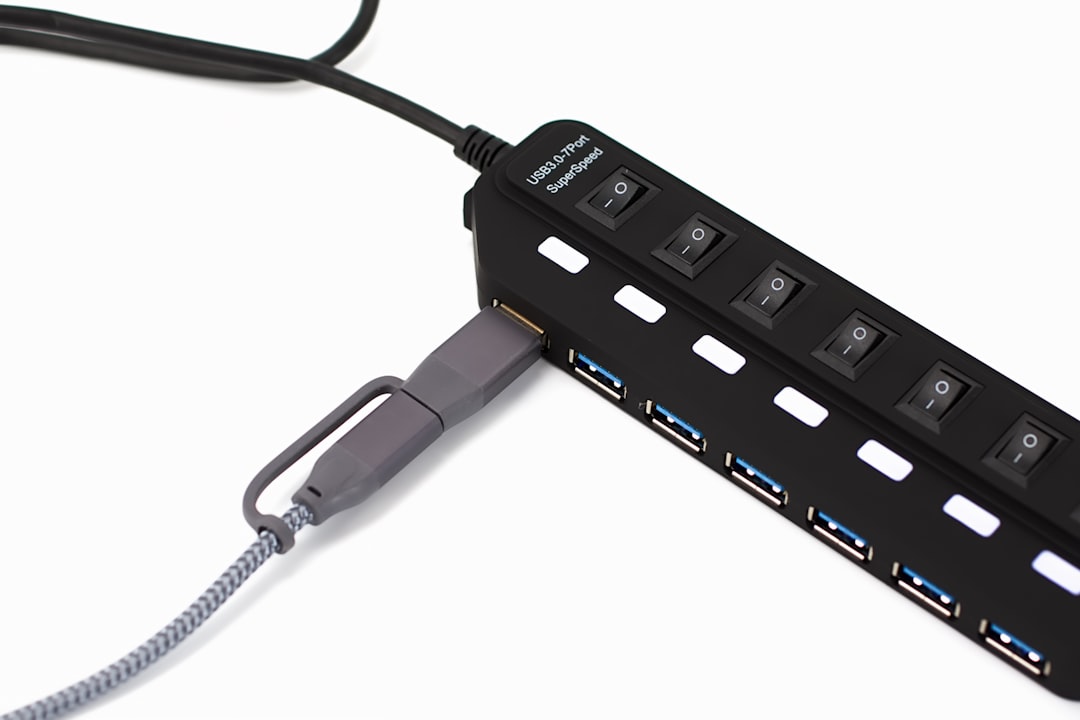
Here's what makes this genuinely confusing: the ports look identical. A Thunderbolt 4 port and a USB-C port are physically the same shape. Manufacturers aren't always transparent about the difference. And marketing copy tends to blur the lines with vague claims about "high-speed connectivity" and "universal compatibility."
This guide cuts through all of that. You'll understand exactly how each technology works, why a $15 USB hub and a $180 Thunderbolt hub can share the same connector but perform worlds apart, and — most importantly — which one your specific setup actually needs. I'll also cover real benchmark results from my own testing, common setup mistakes I see constantly, and a practical decision framework that makes the right choice obvious.
Whether you're driving dual monitors from a MacBook, building a clean cable setup for a Windows workstation, or just trying to add a few extra ports without spending a fortune, the right answer starts with understanding what actually separates these two technologies.
What Actually Separates a Thunderbolt Hub from a USB Hub

Here's the conversation I have constantly: someone buys a

, plugs it into their MacBook or Dell XPS, and then wonders why their external SSD is transferring files at a fraction of the speed they expected. Nine times out of ten, the problem isn’t the drive. It’s that they grabbed a USB hub when their workflow needed Thunderbolt.
The core difference comes down to bandwidth — and not just a little bit. Thunderbolt 4 delivers up to 40Gbps of bidirectional bandwidth. USB 3.2 Gen 2 tops out at 10Gbps. That's a 4x gap on paper, but in practice the difference compounds significantly when you're running several devices simultaneously. Your SSD, your webcam, your display output, your audio interface — they're all fighting for the same pipe on a USB hub.
The USB-C Connector Trap: Why Same Shape Doesn't Mean Same Speed
This is where most people get burned, and honestly, the industry has done a terrible job making this obvious.
Both Thunderbolt hubs and USB hubs frequently use USB-C connectors. Same oval port, same cable shape, completely different performance potential. Smart, technically literate people buy the wrong product because they assume "USB-C hub" and "Thunderbolt hub" are interchangeable terms describing the same hardware in different price brackets. They're not.
The only reliable visual indicator on the port itself is a small lightning bolt icon (⚡) stamped next to it. No lightning bolt? You're looking at USB, regardless of what the marketing copy says.
The trap gets worse when you factor in what happens if you plug a Thunderbolt hub into a machine that doesn't support Thunderbolt. Thunderbolt hubs require a Thunderbolt-capable host port to function at Thunderbolt speeds. Connect one to a laptop with a USB-C-only port and you'll get USB speeds — typically USB 3.2 Gen 2 at best. The hub doesn't throw an error. It doesn't warn you. It just quietly underperforms, and you might not notice until you're scratching your head over why your NVMe enclosure is crawling.
I made exactly this mistake in early 2026 when testing a setup on a budget Windows laptop — plugged in a premium Thunderbolt 4 hub, noticed the SSD benchmarks looked suspiciously sluggish, and eventually realized the laptop's USB-C port simply wasn't a Thunderbolt port. Expensive lesson. Check your host machine first.
The other thing worth understanding is how bandwidth is distributed. A USB hub works like a garden hose with multiple nozzles attached — you're splitting the same fixed volume of water pressure among however many outlets you open. Add more devices and each one gets less. Thunderbolt hubs use Intel's protocol architecture to maintain dedicated bandwidth channels, so devices aren't competing for whatever's left over after the others take their share.
Thunderbolt 3 vs Thunderbolt 4 vs Thunderbolt 5: Which Generation Are We Talking About?
If you're shopping for a Thunderbolt hub right now, you'll encounter three generations in the market:
- Thunderbolt 3: 40Gbps maximum, supports one 4K display or two in some configurations. Still capable, but increasingly dated.
- Thunderbolt 4: Also 40Gbps, but with tighter mandatory certification requirements — minimum 32Gbps for PCIe data, guaranteed dual 4K display support, and stronger security standards. This is the current baseline most people should target.
- Thunderbolt 5: Up to 120Gbps with Bandwidth Boost for display-heavy workloads. Released on compatible hardware in 2025 and now appearing in hubs through 2026. Future-proof, but you'll pay a meaningful premium.
The practical difference between Thunderbolt 3 and 4 is smaller than the marketing suggests — most everyday workflows won't expose the gap. The jump to Thunderbolt 5 matters mainly if you're running dual 8K displays, high-refresh-rate 4K gaming monitors, or extremely fast NVMe arrays.
What matters most is matching your hub generation to your laptop's capability. A Thunderbolt 5 hub connected to a Thunderbolt 4 laptop runs at Thunderbolt 4 speeds. Backward compatibility exists, but you're leaving performance on the table if you buy ahead of your hardware.
The bottom line before we go deeper: same port shape does not mean same technology, and your laptop's spec sheet matters as much as the hub you choose.
How Each Technology Actually Works Under the Hood
Most buying guides gloss over the interesting stuff here — and this is where the real performance differences originate.
Bandwidth Sharing in Practice: The Real-World Numbers
A standard USB hub operates through a host controller that manages a single shared bandwidth pool. Every device you plug in draws from the same pipeline simultaneously. USB 3.2 Gen 2 gives you a theoretical 10Gbps ceiling, but that ceiling is shared — not divided equally, but competed for.
I tested this directly with a
by running a large file transfer to an external SSD while simultaneously streaming 4K video from a capture device and pulling data from a flash drive. The SSD transfer rate dropped from around 420 MB/s in isolation to roughly 180 MB/s under that combined load. That’s not a cable problem or a bad hub — that’s just how the architecture works. The host controller is the bottleneck.
The numbers tell a consistent story:
- Single device on USB 3.2 Gen 2 hub: Near-theoretical speeds, 800–950 MB/s on a fast NVMe enclosure
- Three active devices simultaneously: Expect 40–60% throughput reduction on any individual device
- USB 2.0 ports on a mixed hub: Cap at 480Mbps regardless of what's connected — many budget hubs hide USB 2.0 ports in the back
There's also the display bandwidth problem. When you use DisplayPort Alt Mode through a USB-C hub, you're not getting a bonus lane — you're borrowing from the data channel. A hub running a 4K monitor at 60Hz is already consuming a significant chunk of that shared pool before your SSD or webcam even connects, meaning video and data transfers genuinely fight each other for resources.
How Thunderbolt's PCIe Tunneling Changes the Game for Pros
Thunderbolt operates on a fundamentally different philosophy. Rather than creating a shared peripheral bus, it uses PCIe tunneling — essentially extending your computer's internal PCIe bus outside the machine. Think of it less like a power strip for devices and more like adding internal expansion slots that happen to sit on your desk.
Each Thunderbolt 4 connection provides 40Gbps of bandwidth allocated in dedicated lanes per device cluster rather than thrown into a single competitive pool. Displays get their own protocol lane entirely, which is why a Thunderbolt dock can push video to two 4K monitors at 60Hz while your NVMe enclosure transfers files at full speed in the background — these workloads simply don't compete with each other the same way.
The daisy-chaining capability follows directly from this architecture. Because Thunderbolt functions like an internal bus extension, you can chain up to six devices in series without the performance degradation you'd expect. USB hubs can't do this natively; adding a second USB hub downstream from the first introduces an additional host controller with its own overhead, and speeds compound downward.
Power delivery also works more predictably on Thunderbolt 4 hardware. The spec mandates up to 100W pass-through to charge a host laptop while simultaneously powering downstream devices. I've been running a setup where a single Thunderbolt cable from my

handles display output to two monitors, a fast NVMe drive, audio interface, and laptop charging simultaneously — and nothing throttles. Try that configuration with most USB hubs and you’ll either lose display resolution, hit thermal limits on the hub itself, or watch your laptop battery drain despite being “connected.”
USB hub power delivery, by contrast, varies wildly by manufacturer. Some 100W-labeled USB-C hubs deliver that only when no other devices are active. Others negotiate the power contract correctly but share wattage across downstream ports in ways that aren't clearly documented.
The practical summary: USB hubs are multipliers for a single shared pipe. Thunderbolt hubs are extensions of multiple independent pipes. One is a highway with shared lanes; the other is multiple separate roads that happen to share an on-ramp. That architectural difference explains almost every real-world performance gap you'll encounter before you even start comparing specs on the box.
USB Hub Types Explained: Not All USB Hubs Are Equal
Walk into any electronics retailer in 2026 and you'll find USB hubs ranging from $8 to $180, all labeled with different "USB 3.x" branding that seems designed to confuse rather than inform. Here's the honest breakdown of what actually matters.
USB 2.0 hubs — yes, they're still being manufactured and sold — top out at 480Mbps. That sounds embarrassingly slow, but for a

, a mouse, a numeric keypad, or a USB headset, it’s genuinely all you need. None of those devices come close to saturating 480Mbps. Dropping $45 on a USB 3.2 hub specifically to connect a keyboard and a phone charging cable wastes $35. If your entire use case is input devices and trickle-charging, a $10 USB 2.0 hub does the job without apology.
USB 3.2 Gen 1 at 5Gbps is where I'd point most people buying a general-purpose hub in 2026. It handles external SSDs,
connections, card readers, and USB microphones without breaking a sweat. A typical external SSD running sequential reads around 500MB/s uses roughly 4Gbps of that 5Gbps ceiling — you’re covered with room to spare. This is the sweet spot: meaningfully faster than USB 2.0 for real tasks, without the price premium of faster specs you probably won’t use.
USB 3.2 Gen 2 (10Gbps) and Gen 2×2 (20Gbps) hubs exist, and they're genuinely useful in a narrow scenario: you're regularly copying files from multiple fast NVMe enclosures or high-bitrate video capture devices simultaneously. If that describes your workflow, the premium makes sense. For everyone else, you're paying for headroom you'll never fill.
USB4 Hubs: The Confusing Middle Ground Between USB and Thunderbolt
This is where USB hub shopping gets genuinely treacherous. USB4 runs at 40Gbps — the same bandwidth as Thunderbolt 4 — and some USB4 hubs even advertise Thunderbolt compatibility. On paper, this sounds like getting Thunderbolt performance at USB prices.
In practice, USB4 hub shopping in 2026 is a minefield. The USB4 specification allows manufacturers to implement optional features selectively, which means two hubs both labeled "USB4 40Gbps" can behave completely differently. Some support video output over DisplayPort alt mode. Some don't. Some partially work with Thunderbolt hosts. Others throw errors or drop to USB 3.2 speeds when connected to a Thunderbolt port. I've tested units from reputable brands where the product page claimed broad compatibility, and real-world behavior was inconsistent enough that I wouldn't recommend them without checking user reports specific to your laptop model.
If you're drawn to USB4 hubs for Thunderbolt-adjacent performance without the Thunderbolt price, proceed carefully: read reviews from people using the same host machine you have, not just the spec sheet.
Bus-Powered vs. Externally Powered Hubs: When It Actually Matters
This distinction causes more frustration than almost any other hub decision, and it's easy to get wrong.
A bus-powered hub draws electricity entirely from the port it's plugged into. USB-C ports on laptops typically provide around 4.5W for downstream devices — that budget gets split across everything connected to the hub. It sounds fine until you plug in an external hard drive (which can spike to 2.5W on spin-up), a webcam, and a charging cable simultaneously. The result is brownouts: drives that disconnect mid-transfer, webcams that stutter, or devices that simply refuse to initialize.
I learned this firsthand with a bus-powered hub at a previous desk setup. Everything worked fine individually. The moment I added a portable external drive to an already-populated hub, the drive would unmount within 30 seconds every time. Switching to an externally powered hub — one with its own AC adapter — solved it immediately.
The rules I follow now:
- Bus-powered hub: acceptable only for laptops on the go, connecting input devices and low-draw accessories
- Externally powered hub: mandatory for any desktop setup, or anywhere you'll connect storage, high-draw webcams, or charge devices simultaneously
A powered hub's AC adapter handles the electrical load independently, meaning your laptop's port only needs to manage data signals — a meaningful difference that spec sheets rarely emphasize loudly enough.
Thunderbolt Hub vs Thunderbolt Dock: A Distinction Worth Knowing
This is where many people — myself included — spend money on the wrong product. The terms "hub" and "dock" get used interchangeably in product listings, by salespeople, and even occasionally by manufacturers who should know better. They're not the same thing, and picking the wrong one has real consequences.
The short version: a Thunderbolt hub keeps everything in the Thunderbolt ecosystem. A Thunderbolt dock trades some of that purity for a wider variety of ports that older devices can actually use. Both are useful. Neither is universally better. The question is which one matches what you're actually plugging in.
What a Thunderbolt Hub Actually Does
A Thunderbolt hub takes one Thunderbolt port and multiplies it into several downstream Thunderbolt ports, preserving the Thunderbolt protocol on every connection. This matters enormously if the devices you're connecting are themselves Thunderbolt devices — external NVMe enclosures, Thunderbolt-based eGPUs, high-resolution displays running over Thunderbolt, or daisy-chained Thunderbolt storage arrays.
The bandwidth architecture stays intact downstream. Every device plugged into a proper Thunderbolt hub negotiates a full Thunderbolt connection rather than being handed off to a slower USB fallback mode. For bandwidth-hungry peripherals, this distinction is the whole ballgame.
What a Thunderbolt Dock Does Differently
A Thunderbolt dock takes that same Thunderbolt connection from your laptop and distributes it across a much broader range of ports: HDMI, DisplayPort, Ethernet, SD card readers, USB-A, USB-C, and sometimes a dedicated Thunderbolt passthrough port. The value proposition is consolidation and legacy compatibility — one cable to your laptop, everything else plugged into the dock.
The tradeoff is that many of those ports are not running the Thunderbolt protocol. They're USB, HDMI, or Ethernet, all sharing that upstream bandwidth pipe. Most docks offer one Thunderbolt downstream port, sometimes two, but the rest of the port selection has stepped down to more conventional connectivity.
I learned this the hard way in early 2026 when building out an NVMe RAID setup for video editing. I bought a well-reviewed Thunderbolt 4 dock —
— because I wanted the HDMI and USB-A ports for my existing peripherals. What I didn’t fully appreciate was that the dock’s Thunderbolt passthrough was effectively limited to a single downstream device running at full speed. My two-drive NVMe enclosure and my second Thunderbolt display were competing for that headroom, and transfer speeds on the RAID dropped noticeably compared to connecting directly. I ended up returning the dock and picking up a dedicated Thunderbolt 4 hub instead, then handling my legacy ports separately with a basic USB hub. Annoying lesson, but an instructive one.
When to Choose a Hub Over a Dock
Choose a Thunderbolt hub if:
- You're connecting external NVMe enclosures, Thunderbolt SSDs, or eGPUs where full bandwidth matters
- Your display already handles its own connection and you don't need HDMI or DP from the hub
- You're running multiple Thunderbolt devices simultaneously and need each one at full protocol fidelity
- You're building a clean, high-performance workstation and prefer separating concerns (Thunderbolt for fast devices, a separate USB hub for everything else)
In 2026, quality Thunderbolt 4 hubs from CalDigit, OWC, and Belkin typically run $130–$250. Thunderbolt 4 docks span a wider range — $180–$380 — depending on port count and power delivery wattage.
Products That Blur Both Categories: Hybrid Dock-Hubs Worth Considering
A few manufacturers have started building what I'd call hybrid dock-hubs — products that maintain multiple full-bandwidth Thunderbolt downstream ports while also including HDMI, Ethernet, and USB-A. CalDigit's TS4 is the most prominent example: it offers three Thunderbolt 4 downstream ports alongside a comprehensive legacy port selection.
These are genuinely impressive pieces of engineering, but they carry a price premium and are physically larger than a pure hub. If your budget allows and your desk has room, they eliminate the hub-vs-dock dilemma entirely. If you're choosing between a hybrid and a pure hub, ask yourself honestly: how often do I actually need those HDMI and USB-A ports? If the answer is "daily," the hybrid earns its cost. If the answer is "occasionally," a pure Thunderbolt hub plus a $30 USB-A hub covers the same ground for less money and less desk clutter.
Real-World Use Cases: Which One Do You Actually Need?
The specs matter, but what actually determines whether you need a Thunderbolt hub or a USB hub is your specific workflow — not your aspirations for your workflow.
The Laptop Compatibility Check You Must Do Before Buying
Before you spend a single dollar on either option, open your laptop's spec sheet and look at the USB-C ports individually. Not collectively — each port has its own capabilities, and manufacturers are not always transparent about this.
People buy a $250 Thunderbolt hub, plug it into the "wrong" USB-C port on their Windows laptop, and wonder why their NVMe transfer speeds look identical to a $45 alternative. The answer is usually that they plugged into a USB 3.2 port that happens to share the same physical connector as the Thunderbolt port sitting right next to it.
In 2026, Apple Silicon Macs (M3 and M4 series) fully support Thunderbolt 4 on every USB-C port — no guesswork needed. Most Intel Core Ultra laptops also ship with at least one certified Thunderbolt 4 port. But a large portion of mid-range Windows laptops — anything in the $600–$1,100 range — still includes USB-C ports that top out at USB 3.2 Gen 2 with no Thunderbolt support at all. If your spec sheet says "USB-C (DisplayPort, Power Delivery)" without mentioning Thunderbolt, you cannot unlock Thunderbolt bandwidth regardless of what hub you plug in.
The fix is simple: search your laptop model + "full specifications" on the manufacturer's site, not a retailer page.
Here are the four scenarios I see most often and what actually makes sense for each.
The home office MacBook user with one external monitor, a keyboard, mouse, and phone charging: a quality
Similar Posts
How to Reduce Monitor Eye Strain at Work (2026)
By 3pm, your eyes feel like sandpaper. You've got a dull headache sitting right behind your forehead, and the screen in front of you seems just a little too bright — even though you've had it turned down for months. Sound familiar? If you're spending 6, 8, or 10 hours a day in front of…
Ultrawide Monitor vs Dual Monitors: Which Is Better?
Introduction: The Great Monitor Debate I still remember the day I switched from dual monitors to an ultrawide. Within two hours, I was frantically reinstalling my second monitor, convinced I'd made a terrible mistake. Fast forward six months, and I'd adapted completely—only to switch back to dual monitors for a project and realize each setup…