Best Dual Monitor Setup for Productivity 2026
After testing over 200 monitors and helping dozens of remote workers rebuild their home offices from scratch, I can tell you the single most common thing I see holding people back: they bought two screens but never actually set up a dual monitor workspace.
There's a difference. Anyone can plug in a second monitor. Far fewer people have thought through panel alignment, color calibration consistency between two different displays, or why their neck hurts after six hours despite spending $800 on hardware. I've made every one of these mistakes myself — including the embarrassing one where I ran mismatched 60Hz and 144Hz monitors side-by-side for three weeks before realizing why my eyes felt so strange at the end of every workday.
Here's what's interesting about 2026: ultrawide monitors have never been cheaper, AI-assisted window management has genuinely matured, and yet dual monitor setups continue to dominate serious productivity environments across nearly every profession. The flexibility, the price-per-inch value, and the way two discrete screens map to how most people actually think in parallel — reference material on one side, active work on the other — is hard to beat.
This guide covers everything that actually matters: how to pick two monitors that work together rather than just alongside each other, how to position them without wrecking your posture, which cables and docking stations are worth the money, and how to configure your software so the setup runs like a single cohesive tool rather than two separate computers.
Whether you're building your first dual monitor desk or tearing down a frustrating setup to start over, let's start with the question I get asked most often — why dual monitors still win.
Why Dual Monitors Still Dominate Productivity Setups in 2026
Every few years, someone declares that dual monitors are dead — killed by ultrawides, or foldable screens, or some ambient computing concept that never quite materialized. And every year, the setups I actually see on the desks of the most productive people I know look roughly the same: two monitors, side by side, doing exactly what they've always done.
There's a reason for that stubbornness. It works.
Real Productivity Gains: What the Numbers Actually Mean for Daily Work
The research on dual monitors has been remarkably consistent for over a decade. Studies across knowledge worker tasks show productivity improvements in the 20–42% range — and before you dismiss that as a marketing statistic, let me tell you what it actually felt like when I made the switch.
I spent three weeks logging my daily output on a single 27-inch monitor before upgrading: articles edited per day, research tabs managed, response time on client emails. Then I ran the same tracking for three weeks after adding a second screen. The difference wasn't subtle. I was finishing in six hours what had previously taken eight. The friction of constantly alt-tabbing — which I'd completely normalized — turned out to be genuinely expensive in both time and mental energy.
What dual monitors actually eliminate is context-switching cost. When you're writing with your research on the left screen and your draft on the right, your brain doesn't have to reload the mental model of what you were looking at. That cognitive overhead compounds quietly across hundreds of micro-tasks every day. A financial analyst cross-referencing a spreadsheet against live market data, a developer keeping documentation open while writing code, a remote worker on a video call who needs to actually do something while on that call — these aren't edge cases. They're the daily reality of knowledge work.
Who benefits most from dual monitors:
- Developers — code on one screen, documentation, terminal, or Stack Overflow on the other
- Writers and editors — source material on the left, draft on the right (my personal setup)
- Financial analysts — spreadsheets and live data feeds simultaneously visible
- Video editors — timeline on one screen, preview and asset library on the other
- Remote workers on constant video calls — keep the call open on one screen while actually working on the other instead of toggling between them
Who might genuinely be better served by a single ultrawide: someone doing mostly single-application deep work (3D modeling, large canvas design, gaming during breaks) where one continuous visual space matters more than discrete screen separation.
The Ultrawide vs. Dual Monitor Decision Tree
The ultrawide argument is real, and I want to take it seriously before explaining why I keep recommending two discrete screens for most setups.
A 34–49-inch ultrawide gives you one continuous workspace, no bezel gap in the middle, and a genuinely cinematic feel. For certain workflows, that matters. But here's where dual monitors maintain a structural advantage in 2026:
Window snapping flexibility. Even with Windows 11's Snap Layouts and macOS Sequoia's improved window management, a single ultrawide still requires software to enforce boundaries that two physical screens create automatically. The moment you need to maximize a single application — a video call, a presentation, a reference document — two screens handle this effortlessly. An ultrawide forces compromise.
Different tasks deserve different panel optimizations. I run a 4K IPS monitor for my primary writing work and a secondary VA panel for reference material and video. Different refresh rates, different color profiles, different brightness levels tuned to the task. You simply can't do that with one screen.
Physical rotation. One of my most-used configurations is keeping my secondary monitor in portrait mode for reading long documents, code files, and email threads. This is a

feature that ultrawides can’t replicate at all.
The 2026 hardware environment has made all of this easier than ever. Thunderbolt 5 and USB4 Gen 3 are now common on mainstream laptops, meaning a single cable to a

can drive two 4K monitors without a dedicated GPU in most workflows. The “dual monitors are complicated to set up” objection has largely evaporated. Modern operating systems remember your window positions, display profiles, and app assignments across restarts.
Two monitors remain the default answer in 2026 because they solve the right problems cleanly — and the competition still hasn't caught up.
Choosing the Right Monitors: Size, Resolution, and Panel Type
Before you buy anything, this section will save you from a mistake I made in early 2026: purchasing two monitors that looked great individually and created a genuinely frustrating workspace together. More on that shortly.
1440p vs. 4K for Dual Monitor Setups: The GPU Math You Need to Do First
The 27-inch 1440p QHD monitor is the undisputed sweet spot for dual monitor productivity right now, and the reasoning is more practical than it sounds. At 27 inches, 1440p hits roughly 109 pixels per inch — sharp enough that text looks clean without the scaling headaches that still plague dual 4K setups on Windows.
The GPU math matters here. Running two 4K monitors at 60Hz pushes your graphics card significantly harder than a dual 1440p configuration, even when you're just doing document work. If your machine is running integrated graphics or a mid-range discrete GPU, dual 4K will introduce subtle lag, dropped frames in video calls, and occasionally choppy window animations. None of these are catastrophic, but they accumulate into cognitive friction across an eight-hour workday.
When does 32-inch or 4K make sense?
- You're doing photo editing, video grading, or illustration where pixel-level detail is non-negotiable
- You're running a dedicated GPU with at least 8GB VRAM (RTX 4060-tier or equivalent)
- You want a primary 4K display paired with a secondary 1440p monitor — an asymmetric setup that works better than most people expect
For the majority of setups, two Dell U2723D units remain an excellent choice: consistent factory calibration, USB-C connectivity, and bezels thin enough that the gap between screens nearly disappears. If your work tilts toward gaming after hours, the LG 27GP850-B pairing gives you 165Hz with solid IPS color — a legitimate dual-purpose setup. For color-critical creative work, two BenQ PD2706Q monitors deliver factory-calibrated accuracy that holds up without third-party profiling.
Panel Types Decoded for Productivity
IPS panels are the default recommendation for good reason: wide viewing angles mean color consistency whether you're sitting straight-on or leaning to grab your coffee, and they handle mixed content — documents, browser tabs, spreadsheets — without quirks. The Dell and BenQ recommendations above are both IPS.
VA panels are worth considering if you spend the majority of your day reading dark-mode code or working in low-light conditions. The contrast ratios (typically 3000:1 versus IPS's 1000:1) make black backgrounds genuinely black rather than slightly gray, which reduces eye strain over long sessions. The tradeoff is color shift when viewing from angles, which matters if you're frequently showing your screen to someone beside you.
Refresh rate is simpler than the marketing makes it seem. 60Hz is completely adequate for document writing, spreadsheet work, and standard video calls. Where 144Hz makes a real, noticeable difference is in any workflow involving motion-heavy content review, rapid switching between a coding environment and a game, or scrubbing through video timelines. If that describes your day, pay the premium.
OLED in a Dual Monitor Setup: Burn-In Risk vs. Visual Payoff
OLED monitors have matured considerably, and after testing several units for extended periods, I can give you an honest answer: the visual payoff is real, and so is the risk.
Running an OLED as your primary display in a mixed-media workflow — creative work, video, some document editing — delivers a perceptibly better experience. Contrast, motion clarity, and color depth are genuinely superior. The problem in a productivity context is static UI elements. A taskbar, a persistent sidebar, or a stock ticker sitting in the same position for six hours a day creates measurable retention over months. Modern burn-in mitigation (pixel shift, screensavers, automatic brightness adjustments) slows this but doesn't eliminate it.
My practical recommendation: if you want OLED, use it as your primary display paired with a conventional IPS secondary. Running dual OLEDs doubles your burn-in exposure and panel replacement cost. For most people, one OLED plus one well-matched IPS is the better trade-off — and matching them carefully is where the next point becomes critical.
When Mismatched Monitors Are Actually Fine (And When They're Not)
Mismatched monitors cause more subtle problems than most buyers anticipate. When I ran a 350-nit IPS next to a 250-nit VA for a week, I noticed myself unconsciously avoiding the dimmer screen for sustained reading — my eyes were doing extra adjustment work every time I crossed between displays.
Mismatched setups work fine when:
- The secondary monitor handles reference material, chat windows, or dashboards you glance at rather than stare at
- Both panels are calibrated to the same color temperature (6500K is standard)
Avoid mismatching when:
- Both screens share your primary workspace equally
- Color accuracy matters professionally — differing color profiles make consistent design decisions nearly impossible
A
helps here more than you’d expect: repositioning mismatched screens so the brighter one sits at your direct sightline reduces the visual adjustment burden considerably.
Monitor Placement and Ergonomic Configuration
Getting two monitors onto your desk is the easy part. Getting them positioned so you're not hunched, craning, or squinting after six hours is where most people get it wrong — including me, for longer than I'd like to admit.
The Primary Monitor Rule: Why Centering Both Screens Is an Ergonomic Mistake
For the first few months after I switched to dual monitors, I split the difference: both screens angled equally toward me in a wide V shape, neither one directly in front. It felt balanced and looked great in photos. Then I developed a persistent ache in the right side of my neck. My physical therapist pointed out what should have been obvious — I was spending about 70% of my time on the right-hand screen, which meant I'd been rotating my head slightly right for hours every day.
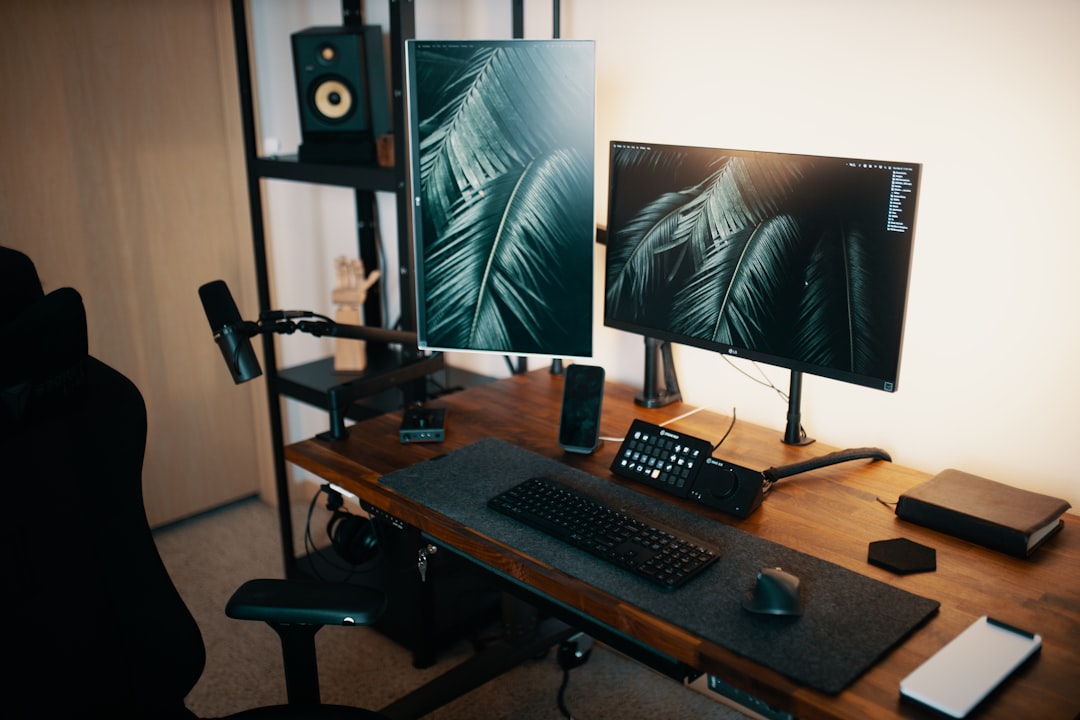
The fix is straightforward but non-negotiable: your primary monitor goes directly in front of you, centered on your body midline. The secondary monitor sits to one side at roughly 30–45 degrees from the primary. That angle matters. Too shallow (under 20 degrees) and the screens feel too close together, causing your eyes to constantly jump. Too wide (over 60 degrees) and you're right back to the neck-rotation problem.
Height is equally critical for both screens:
- Top of each monitor at or just below eye level — not the center of the screen, the top edge
- Eyes should naturally land about one-third down from the top when looking straight ahead
- Distance: 20–30 inches from your eyes, scaled to screen size — a 27-inch display wants to sit at 28–30 inches, while a 24-inch can sit at 22–24 inches comfortably
If your secondary monitor is a different size than your primary, adjust its distance slightly to compensate. A smaller secondary pushed slightly forward often feels more natural than a larger one set back.
Portrait + Landscape Hybrid Setup: Who Should Actually Try This
Rotating your secondary monitor 90 degrees into portrait orientation is one of those things that sounds odd until you try it — and then you wonder how you worked without it. The use cases where it genuinely transforms your workflow:
- Long-form documents or PDFs — you see a full page without scrolling
- Code files — 200 lines visible at once instead of 60
- Slack, email, or any communication tool — conversation threads read naturally in a tall, narrow column
- Research — keeping a reference article open while writing on the primary screen
Who it doesn't work for: video editors, photographers, designers working with wide canvas files, or anyone regularly watching content on the secondary display. Landscape stays the right call in those cases.
One practical requirement people overlook: your monitor needs to support pivot rotation, and your stand needs to allow it. Many budget stands technically rotate but put the monitor in an awkward position that defeats the ergonomic purpose. This is one of the strongest arguments for a proper
.
Monitor Arms for Dual Setups: Entry-Level to Premium Picks
Once you've used a quality dual monitor arm, individual stands feel like a waste of desk real estate. Arms let you dial in exact height, tilt, and angle adjustments in seconds, and they free up the surface beneath your screens — a meaningful amount of usable desk space.
Here's how I'd break down the options by price:
- ~$60 entry level — Functional but with stiffer joints and less precise tension adjustment. Fine for monitors under 24 inches that you set-and-forget. Look for dual-arm models that mount on a single clamp.
- ~$150 mid-range — This is where the ergonomics genuinely get good. Fluid adjustment, reliable gas springs that hold position, and support for 27-inch monitors without gradual drooping. The sweet spot for most home office setups.
- $300+ premium — These earn their price if you're adjusting positions frequently (sit/stand desk users), running heavier ultrawide secondaries, or want cable routing built into the arm. The build quality difference is immediately obvious.
With two screens, your glare geometry gets complicated fast. A window that causes zero glare on a single centered monitor can become a problem for whichever secondary screen faces it obliquely. Position both displays so no light source sits directly behind either of them from your viewing angle. Bias lighting — an LED strip behind each monitor — dramatically reduces eye fatigue during long sessions and is worth doing on both screens, not just the primary.
The Essential Hardware: Desk, Cables, Docking Stations, and KVM Switches
Let's start with the thing nobody wants to hear: your desk might be the problem.
The Desk Size Reality Check
I've tried running dual 27-inch monitors on a 55-inch desk — not once, but twice. The compromise is constant. Your keyboard gets pushed too close to the edge, your monitors have to angle inward so aggressively that the off-center one becomes almost unwatchable, and your elbows have nowhere to go.
60 inches wide is the practical floor for a comfortable dual 27-inch setup. At 60 inches, you have enough surface to position both monitors with appropriate depth, keep your keyboard centered or slightly offset, and still have a small zone for a notebook or coffee. If you're running dual 32-inch displays, push that minimum to 70 inches. The

market in 2026 is healthy enough that 60-inch options are available at every price point — there’s no good reason to compromise here.
Cable Management Is Not Optional
A chaotic dual monitor cable situation creates real cognitive drag. The visual clutter of four to six cables snaking across or dangling under a desk is a constant low-level distraction. The fix is straightforward but requires actually committing to it:
- Velcro ties over zip ties — always. They're repositionable when you inevitably swap something out
- An under-desk cable tray (

) handles the bulk runs beautifully and costs almost nothing
– **Monitor arm cable routing** channels display cables internally, eliminating the most visible mess entirely
– Label your cables at both ends with small tags — sounds fussy, but you’ll thank yourself the first time you need to disconnect just one monitor
Run your cable tray along the back edge of the desk, bundle power and data separately where possible, and drop everything into a single power strip mounted underneath. The whole operation takes about 45 minutes and makes the setup look intentional rather than improvised.
Docking Station Deep Dive: When Your Laptop Becomes Your Dual Monitor Hub
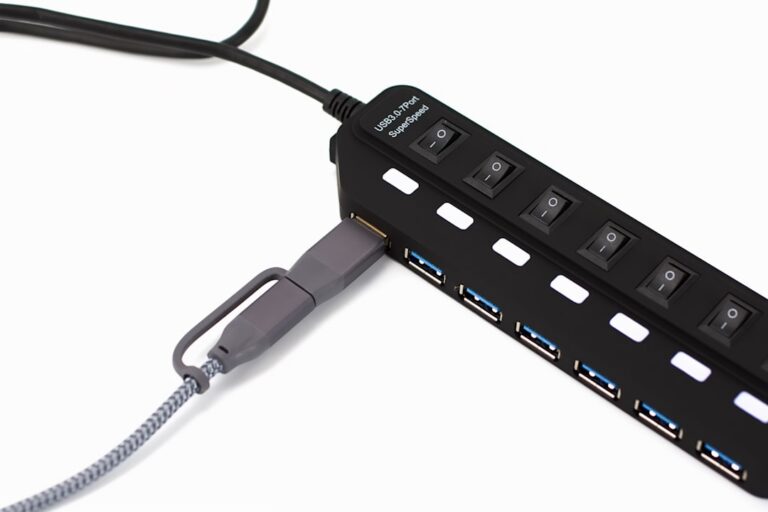
This is where laptop users consistently get burned. Not every dock drives two external monitors reliably, and the difference between a Thunderbolt 4 dock and a generic USB-C hub isn't just marketing — it's the difference between a stable dual monitor setup and one that drops a display every time your laptop wakes from sleep.
USB-C hubs that use DisplayLink technology can technically drive two monitors from a single USB-C port, but they rely on software rendering that taxes your CPU and introduces occasional flickering artifacts. For casual use, fine. For eight-hour workdays, frustrating.
The Caldigit TS4 remains one of the most reliable Thunderbolt 4 docks available in 2026 — it's been in my setup for over a year with exactly zero display drop incidents. The OWC Thunderbolt 5 Dock is the upgrade path worth considering if you're running high-refresh-rate monitors or need additional bandwidth for daisy-chaining displays. The T5 spec genuinely matters here; if you're pushing two 4K 144Hz panels, Thunderbolt 4's bandwidth ceiling becomes a real constraint.
For cable choice at the monitor end: DisplayPort 1.4 is still the safe default for most setups — it handles 4K at 60Hz and 1440p at 144Hz without issue, and compatibility is nearly universal. DisplayPort 2.1 matters if you're running 4K at 144Hz or higher on both screens. HDMI works fine in many scenarios but watch for HDMI 2.0 ports on older monitors that cap out at 4K/60Hz even when your source supports more. USB-C direct connections are convenient but verify your monitor supports DisplayPort Alt Mode before assuming it'll work.
KVM Switches: Running Two Computers Through One Dual Monitor Setup
If you run a work laptop and a personal desktop — an increasingly common configuration in 2026's hybrid work reality — a KVM switch lets both machines share your dual monitors, keyboard, and mouse with a single button press or hotkey.
What to look for:
- DisplayPort support at your target resolution and refresh rate — many KVM switches still top out at 4K/60Hz, so verify specs carefully
- USB 3.0 passthrough for peripherals that need bandwidth (audio interfaces, high-speed drives)
- Sub-50ms switching latency — anything slower creates a perceptible lag that becomes annoying fast
- Hardware button switching, not just software — you want it to work even when one machine is mid-reboot
The use case is genuinely transformative if you've been unplugging and replugging cables between computers. One tap, and your entire workspace shifts context.
Software, Window Management, and Workflow Configuration
The hardware gets you 50% of the way there. The other 50% is entirely software and discipline. Two monitors without a deliberate window management strategy just gives you twice as much space to lose your cursor and leave tabs open.
FancyZones and PowerToys: The Free Windows Dual Monitor Setup That Changes Everything
The native options first. Windows 11 Snap Layouts are better than they were in earlier iterations — but still frustratingly monitor-agnostic. Drag a window to a Snap zone on your secondary screen and Windows will frequently "forget" your layout the moment you disconnect and reconnect a monitor. For anyone using a
and hot-swapping between a laptop