Ultrawide Monitor vs Dual Monitors: Which Is Better?
Introduction: The Great Monitor Debate
I still remember the day I switched from dual monitors to an ultrawide. Within two hours, I was frantically reinstalling my second monitor, convinced I'd made a terrible mistake. Fast forward six months, and I'd adapted completely—only to switch back to dual monitors for a project and realize each setup has genuinely different strengths.
This choice isn't just about screen real estate. It fundamentally changes how you interact with your computer every single day. Whether you're a developer juggling code and documentation, a gamer seeking immersion, or a video editor managing timelines and previews, your monitor configuration shapes your workflow in ways that aren't immediately obvious until you live with them.
Here's why this decision matters more than people think:
The wrong setup can mean constantly resizing windows, dealing with annoying bezels interrupting your view, or discovering too late that your desk can't accommodate your choice. I've watched colleagues struggle with ultrawide monitors that were too wide for their desks, forcing them to turn their heads constantly. I've also seen people with dual monitors spend half their day managing window placement instead of actually working.
What Makes This Choice Complex
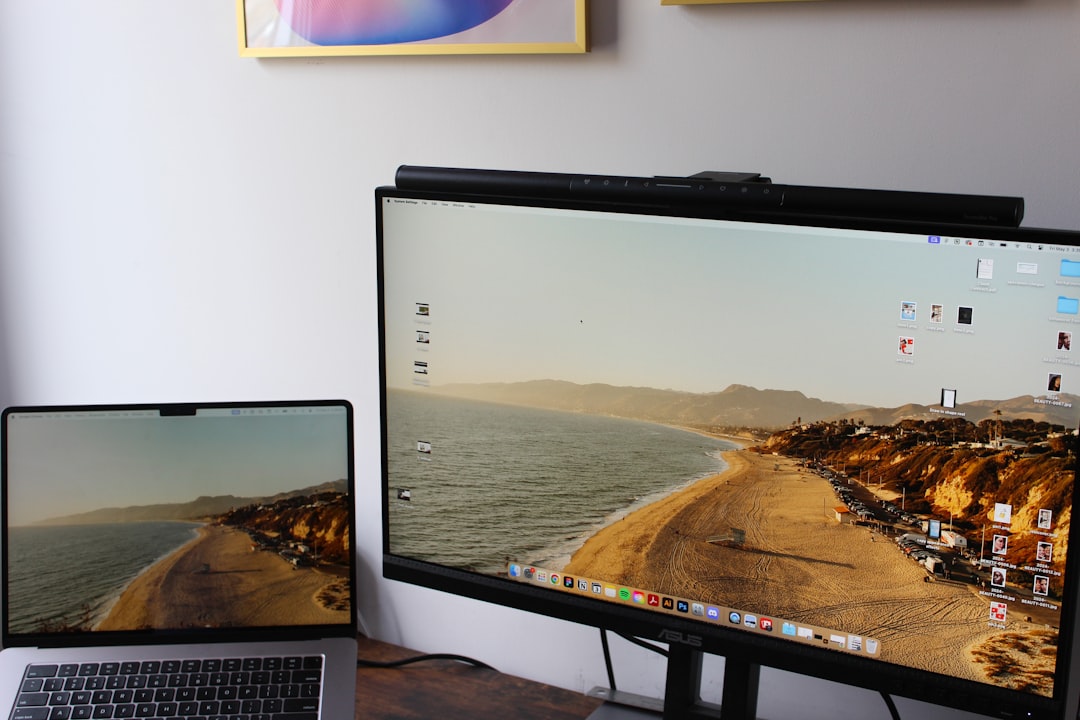
For productivity work, the question isn't just about total screen space—it's about how that space is organized. Dual monitors give you natural separation between tasks, while ultrawides offer seamless transitions and no bezels breaking your view.
Gamers face a different calculation entirely. An ultrawide's immersive curve can transform racing and flight sims, but many games don't properly support ultrawide resolutions, leaving you with black bars or stretched images.
Creative professionals working in Premiere, Photoshop, or Lightroom need to consider how their specific software handles multiple displays versus a single wide canvas. Some programs play beautifully with ultrawides; others treat them awkwardly.

Check Price on Amazon →
What You'll Actually Learn Here
I'm not here to tell you one setup is universally better—because it isn't. Instead, I'll share what I've learned from running both configurations for years across different work scenarios:
- Real-world cost breakdowns beyond just the sticker price (cables, stands, and that graphics card you might need to upgrade)
- Desk space requirements that actually consider your viewing distance and neck comfort
- Software quirks I discovered the hard way—like that time I lost a dialog box between dual monitors for 15 minutes
- Setup and cable management realities (spoiler: ultrawides aren't automatically simpler)
I've tested everything from budget 1080p dual monitor setups to premium 49-inch super-ultrawides. I've gamed on them, written on them, edited video on them, and stared at spreadsheets on them until my eyes crossed.
Let's figure out which setup actually makes sense for your situation—not based on what looks cool in setup photos, but on how you'll actually use it tomorrow and every day after.
Understanding Ultrawide Monitors: What You're Actually Getting
Let's cut through the marketing hype and talk about what you're actually getting when you buy an ultrawide monitor.
An ultrawide monitor is essentially a display that's significantly wider than the standard 16:9 aspect ratio you'll find on most monitors and TVs. The two most common ultrawide formats are 21:9 (which gives you about 33% more horizontal space) and 32:9 (which is basically like placing two 16:9 monitors side by side). That 49-inch super ultrawide sitting on my desk right now? It's a 32:9 beast, and yes, it's as wide as it sounds.
Here's what those ratios mean in real pixels. A typical 34-inch 21:9 ultrawide runs at 3440×1440, which gives you 4.9 million pixels to work with. Compare that to two 24-inch 1080p monitors (1920×1080 each), which deliver about 4.1 million pixels combined. The ultrawide actually wins on pixel count, though it's arranged differently.
The 49-inch ultrawides—usually running 5120×1440—pack 7.4 million pixels. That's roughly equivalent to two 27-inch 1440p monitors placed edge-to-edge, minus the bezel in the middle. The math works out pretty evenly, which is why this comparison gets interesting.
Common Ultrawide Sizes and Specs
The sweet spot for most people is the 34-inch 3440×1440 display. It's wide enough to feel genuinely expansive but doesn't completely dominate your desk. You can comfortably fit three full-height windows side by side, or two larger ones with a chat app squeezed in.
Moving up to 38-inch ultrawides (usually 3840×1600), you get a bit more vertical space, which matters more than you'd think. That extra 160 pixels means you see more of your spreadsheets, code, or documents without scrolling.
The 49-inch monsters at 5120×1440 are legitimate desk takeovers. I needed a
Check Price on Amazon →
just to position mine properly. They’re incredible for multitasking but require a deep desk—you’ll want to sit at least 30 inches back.
The Curve Factor: 1000R vs 1800R
This is where ultrawides differ most from flat dual monitors. That curve rating (measured in millimeters of radius) determines how aggressive the bend is.
An 1800R curve means if you completed the circle, it would have an 1800mm (about 6 feet) radius. This is the gentler curve you'll find on most 34-inch ultrawides. It's subtle—some people barely notice it.
A 1000R curve is much more aggressive and wraps around your field of vision more dramatically. Most 49-inch ultrawides use this tighter curve because without it, the edges would be uncomfortably far from your line of sight.
From my testing, the 1000R curve is non-negotiable for anything over 40 inches. I've tried flat 49-inch displays, and constantly turning your head to see the edges gets old fast. The curve brings those outer sections into your peripheral vision naturally.
Price-wise, expect to spend $400-600 for a decent 34-inch ultrawide, $700-1,000 for quality 38-inch models, and $1,000-1,500+ for the 49-inch flagships. That's roughly comparable to buying two good monitors separately, which brings us back to the core question: which setup is actually better for your workflow?
Understanding Dual Monitor Setups: The Traditional Approach
Dual monitors have been the productivity gold standard for decades, and for good reason. The concept is straightforward: two separate displays working together to expand your digital workspace. But the devil's in the details, and how you configure your dual setup matters more than you might think.
Matching vs. Mismatched Monitors
Here's where things get interesting. You're not locked into buying identical monitors, though many people assume you are.
A matching pair gives you the most seamless experience. Two identical 27-inch monitors at 1440p create perfect symmetry—no height differences, no color mismatches, no jarring transitions as your cursor moves between screens. This is the ideal scenario, especially if you're starting from scratch.
But life isn't always ideal. Maybe you already own a monitor you love, or you scored an incredible deal on a mismatched display. I've tested dozens of asymmetrical setups, and here's the truth: mismatched monitors work fine if you adjust your expectations. A 24-inch paired with a 27-inch? No problem—just designate one as your primary workspace and use the other for secondary tasks like email, Slack, or reference materials.
The real challenge comes with resolution mismatches. Pairing a 1080p monitor with a 4K display creates scaling headaches in Windows. Text looks drastically different sizes, and dragging windows between screens feels jarring. Stick to monitors with similar pixel densities when possible.
Physical Setup Considerations
Let's talk real estate. Two 27-inch monitors give you roughly 2560 × 1440 pixels each, totaling about 7.3 million pixels across approximately 50 inches of horizontal space. Compare that to a 34-inch ultrawide at 3440 × 1440, which delivers 4.9 million pixels. The dual setup wins on total screen space, but there's a catch.
The bezel gap is real. That center dividing line where your monitors meet isn't just aesthetic—it's a workflow consideration. If you work with full-screen applications like video editing or CAD software, that bezel will slice right through your canvas. I've learned to work around it by keeping important content away from the center, but it's something you'll deal with daily.
Check Price on Amazon →
The flexibility, though? Unmatched. Dual monitors let you experiment with configurations ultrawides simply can't replicate:
- Landscape + portrait: Perfect for coding or writing. Your code editor lives vertically while browser previews stay horizontal
- Stacked arrangements: One monitor above the other saves desk space and works great for research-heavy workflows
- Asymmetrical angles: Angle your primary display dead-center while pushing the secondary to the side at 45 degrees
Cable management gets messier with two displays—two power cables, two video cables, potentially two USB uplink cables if your monitors have hubs. It's manageable with good

Check Price on Amazon →
solutions, but it’s definitely more cluttered than a single ultrawide.
The modularity extends beyond physical positioning. One monitor dies? You've still got the other. Want to upgrade? Replace one at a time instead of eating the full cost upfront. That's genuine flexibility.
Productivity Showdown: Real-World Workflow Comparison
Let me cut through the theory and show you how these setups actually perform when you're juggling real work.
Window management is where the differences become immediately obvious. With dual monitors, you typically run one or two apps per screen—your brain naturally treats each monitor as a distinct workspace. Ultrawide monitors, however, give you flexibility. Most operating systems struggle with native window management on ultrawides, which is why I always recommend pairing them with third-party tools like FancyZones (Windows) or Rectangle (macOS). These utilities let you create custom snap zones, essentially turning your ultrawide into 2-4 virtual screens.
The built-in options are mediocre at best. Windows Snap feels clunky on anything wider than 32 inches, and macOS Split View only divides your screen in half—completely wasting an ultrawide's potential. Meanwhile, dual monitors work perfectly with stock OS features since they're already separate displays.
For Programmers and Developers
Here's where ultrawides genuinely shine. I've tested both setups extensively while coding, and the ultrawide wins for most development workflows. You can comfortably run your IDE on two-thirds of the screen, documentation or Stack Overflow on the remaining third, and still have your terminal visible at the bottom.
With dual monitors, you're constantly turning your head. Code on the left, browser on the right—sounds perfect until you're rapidly switching between them fifty times an hour and developing neck strain.
Check Price on Amazon →
The exception? If you're frequently reviewing pull requests while writing code, or comparing two full-width codebases side-by-side, dual monitors give you more total pixels and cleaner separation.
Check Price on Amazon →
For Office Work and Data Analysis
Spreadsheet warriors, listen up: this is complicated. An ultrawide lets you see more columns simultaneously, which is fantastic for financial modeling or data analysis. I can fit an entire quarterly report across my 34-inch ultrawide without scrolling horizontally.
But if you're constantly on Zoom calls while working in Excel, dual monitors have the edge. Keep your video call on the secondary screen while your primary stays focused on actual work. With an ultrawide, you're sacrificing prime screen real estate to a floating video window.
For the email + browser + Slack trifecta that most office workers live in, ultrawide monitors are more elegant. Split the screen thirds: email left, browser center, Slack right. Everything's visible at a glance without the bezel interruption.
For Content Writers and Researchers
I'm writing this article on an ultrawide right now, and honestly? Dual monitors feel better for research-heavy writing. I keep my draft on one screen at comfortable reading width (you don't want text stretching across 34 inches—nobody reads like that), and sources on the second monitor.
The "sweet spot" for reading is about 24-27 inches wide. On an ultrawide, you'll naturally create a narrower window for documents anyway, leaving awkward empty space. Dual monitors let you use that secondary screen for references without compromise.
Gaming Performance: Immersion vs. Practicality
The gaming experience differs dramatically between ultrawides and dual monitors, and honestly, neither setup is universally better—it depends entirely on what you play and how you play it.
Immersive Single-Player Gaming
For single-player adventures, ultrawides are genuinely transformative. That 21:9 or 32:9 aspect ratio wraps around your peripheral vision in games like Cyberpunk 2077, Red Dead Redemption 2, or Microsoft Flight Simulator. You're not just looking at a game; you're sitting inside it. Racing games especially benefit—seeing the apex of a turn in your peripheral vision while keeping your eyes forward feels incredibly natural.
The catch? Game support is inconsistent. AAA titles usually work great, but you'll encounter issues:
- Cutscenes often revert to 16:9 with black bars
- UI elements can get stretched to the far edges, forcing you to whip your head around
- Older or indie games may not support ultrawide at all, requiring community patches or mods from PCGamingWiki
I've spent hours tweaking config files for games that "technically" support ultrawide but stretch the image awkwardly. It's part of the experience, for better or worse.
GPU requirements are significant too. A 3440×1440 ultrawide has 5 million pixels—about 30% more than standard 1440p. You'll need serious horsepower to hit high framerates, especially with demanding titles.
Competitive Multiplayer Considerations
Here's where things get complicated. While ultrawide gives you a wider field of view in games like Apex Legends or Warzone—letting you spot enemies sooner—many competitive games limit or ban ultrawide advantages. Overwatch 2 crops the top and bottom of the image. League of Legends locks your FOV. Valorant forces 16:9 with black bars.
Professional players overwhelmingly stick to standard 24-25" 1080p or 1440p monitors, typically at 240Hz or higher. Why? Lower pixel counts mean higher framerates, less head movement to check corners, and simpler focus on what matters. When milliseconds count, that 34" ultrawide actually becomes a liability.
Check Price on Amazon →
For competitive gaming, dual monitors don't really enter the equation—you cannot span a game across two screens effectively. The bezels splitting your crosshair down the middle is a dealbreaker, and very few games even support it. You'd game on one monitor and leave the second one idle or alt-tabbing for Discord.
Secondary Monitor Use While Gaming
This is where dual monitors shine. Having Discord, Spotify, browser tabs, or stream chat visible while gaming is incredibly convenient. With an ultrawide, you're either running everything on one screen (which works but feels cramped), snapping windows to half the ultrawide (wasting that premium real estate), or buying a third monitor anyway—which many ultrawide users eventually do.
The ideal setup I've landed on? One high-refresh primary monitor for gaming, plus a secondary vertical monitor for everything else. But if you're choosing between ultrawide or dual monitors specifically, recognize that the ultrawide forces you to alt-tab constantly, while dual monitors let you glance over naturally.
Creative Work: Design, Video Editing, and Content Creation
Video Editing Workflows
For video editors, the timeline and tool panel debate is real. I've edited projects in Premiere Pro and DaVinci Resolve on both setups, and here's what actually matters: ultrawide monitors give you an uninterrupted timeline view that lets you see more of your project at once. You can stretch that timeline across 34-49 inches without a bezel interrupting your visual flow.
But here's the catch—vertical space matters too. Most video editing software loads up toolbars, effects panels, and scopes. On a dual monitor setup, I typically dedicate one 27-inch display to the timeline and preview, while the second handles all my tools, color scopes, and file management. This separation keeps my workspace cleaner and more organized.
Check Price on Amazon →
The real advantage of dual monitors? You can calibrate them differently. Keep one at standard brightness for timeline work and UI elements, while the other is color-calibrated for accurate preview. With an ultrawide, you're stuck with one calibration for everything.
Photography and Photo Editing
Lightroom and Photoshop users have different needs. When I'm culling hundreds of wedding photos in Lightroom, an ultrawide lets me view more thumbnails simultaneously—genuinely helpful for batch processing. But when I jump into Photoshop for detailed retouching, dual monitors win decisively.
Here's my ideal dual monitor photo editing setup: main 27-inch display shows the full image at 100% zoom, while the secondary monitor houses every palette—layers, adjustments, history, and properties. You're not constantly shuffling panels or working with a cramped canvas.
Color accuracy is simpler with dual monitors too. Buy two identical displays, calibrate them identically, and you've got consistent color across your workspace. With ultrawides, you're dealing with potentially uneven backlighting across that massive panel, and premium color-accurate ultrawides cost significantly more than dual 27-inch monitors with excellent color reproduction.
Live Streaming and Content Creation
Streamers and content creators need real estate for OBS, chat windows, alerts, and reference material. I've tested both configurations for streaming, and ultrawides create a cleaner, single-surface workflow that's easier to navigate mid-stream when you're juggling multiple responsibilities.
Check Price on Amazon →
You can dedicate your game or main content to the center portion, OBS preview to one side, and chat/alerts to the other—all within easy peripheral vision. Dual monitors force more dramatic head turns, which looks awkward on camera if you're using a webcam.
For YouTube creators or podcasters editing content, dual monitors pull ahead again. Keep your editing software on one screen and reference footage, scripts, or tutorials on the other. The mental separation between "working screen" and "reference screen" actually helps maintain focus better than arbitrary divisions on a single ultrawide surface.
The CAD and 3D modeling crowd? They typically prefer dual monitors for viewport management—main screen for the working viewport, second screen for alternative angles, reference images, or modifier panels.
Practical Considerations: Cost, Desk Space, and Setup
Budget Breakdown: What You'll Actually Spend
Let's talk real numbers. An entry-level 34" ultrawide (2560×1080) costs $250-350, while two decent 24" monitors will set you back $200-300 total. So far, pretty comparable.
But mid-range is where things get interesting. A quality 1440p ultrawide (3440×1440) runs $400-700, while two 27" 1440p monitors cost $500-800 combined. The ultrawide starts looking more attractive here.
At the premium end? A 38" or 49" ultrawide will cost $800-1500+, versus $700-1200 for two high-end 27" displays. The gap narrows again.
Don't forget the hidden costs. Dual monitors mean:
- Two display cables (if not included)
- Potentially two separate mounts
- More complex cable management solutions
Check Price on Amazon →
An ultrawide typically needs just one of everything, though you might want a sturdier desk mount since these monitors are heavier. A quality arm that can handle 15-20 lbs will cost $100-200.
Check Price on Amazon →
Power consumption is surprisingly similar—most modern monitors sip power efficiently whether you're running one ultrawide or two standard displays. You're looking at 30-50 watts either way during typical use.
Desk and Ergonomic Requirements
Here's where ultrawides demand more respect. A 34" ultrawide needs at least 30 inches of desk width and ideally 24-30 inches of depth. You need that depth to sit far enough back to view the whole screen comfortably without constant head turning.
Dual 24" monitors? You can squeeze them onto a 40-inch wide desk with just 20 inches of depth if you angle them properly. Two 27" displays need about 50 inches wide and 24+ inches deep for comfortable viewing.
The real ergonomic difference is in setup flexibility. With dual monitors, you can:
- Angle each screen toward your sitting position
- Run one in portrait mode for code or documents
- Adjust heights independently (if using separate arms)
- Position one as primary directly in front, secondary off to the side
An ultrawide is what it is—a big, flat rectangle that demands center stage on your desk. Some models offer curved screens that help with viewing angles, but you can't customize the layout.
Long-Term Flexibility and Upgrades
This is where dual monitors shine brightest. Let's say you buy two solid 27" monitors today. In two years, you can upgrade just one to a newer model with better specs or even a different size. You've spread the cost and kept one known-good display.
With an ultrawide, it's all or nothing. Want to upgrade? You're replacing the whole thing.
The resale consideration is real too. It's easier to sell two separate monitors than one specialty ultrawide, especially if it's a super-wide 49" model. Used monitor buyers often want standard sizes that fit common use cases.
That said, ultrawides hold their value pretty well in enthusiast communities. Gamers and creative professionals actively seek them out on the used market, so a quality ultrawide from a reputable brand won't gather dust on Facebook Marketplace.
The Verdict: Which Setup Is Right for You?
After years of testing both configurations, I can tell you there's no universal winner here—it genuinely depends on how you work. Let me break down exactly who should choose what.
Choose Ultrawide If…
You're a gamer first, worker second. That immersive curve wrapping around your peripheral vision? Nothing beats it for gaming. I've logged hundreds of hours in both setups, and ultrawide wins every time for single-player experiences.
You value clean aesthetics. One cable, one power brick, one display to calibrate. If the thought of bezels interrupting your view makes you twitch, ultrawide is your answer. I've built countless minimalist setups, and that single seamless display always photographs better and feels less cluttered.
Your desk is tight. A 34-inch ultrawide typically needs less depth than dual 27-inch monitors because you're not fighting with two separate stands. Pair it with a
Check Price on Amazon →
and you’ll reclaim even more space.
You work in immersive applications—video editing, photo editing, coding, or design work. Having that timeline stretched across 3440 pixels without interruption changes your workflow. Trust me on this one.
Choose Dual Monitors If…
You're constantly context-switching. If you're comparing documents, running Zoom calls while taking notes, or monitoring dashboards while working in spreadsheets, dual monitors let you treat each screen as its own workspace. This is where dual setups genuinely shine—I can full-screen a video call on one display while working normally on the other.
You need mixed orientations. One landscape for main work, one portrait for reading documents or code? Can't do that with an ultrawide. I've set up dozens of developer workstations, and that portrait monitor for reading documentation is non-negotiable for many.
Budget matters. Two decent 24-inch 1080p monitors costs significantly less than a quality ultrawide. You can build a solid dual setup for $300-400, while ultrawides start around $400 for entry-level models.
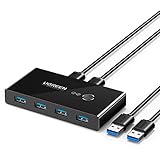
You want upgrade flexibility. Your monitors don't need to match. Start with one, add another later. Upgrade one at a time. Replace a failed display without rebuilding your entire setup. A
Check Price on Amazon →
can even let you share both monitors between computers.
The Hybrid Solution
Here's what I actually run: a 34-inch ultrawide as my primary with a 24-inch vertical monitor on the side. It's overkill for some, but for anyone who does varied work—gaming, content creation, communication—this gives you everything.
The ultrawide handles immersive tasks. The secondary monitor manages Slack, email, Spotify, or reference materials. It's the best of both worlds, though obviously the most expensive option.
My honest advice? Order from somewhere with a good return policy and test for a week. Your workflow is unique, and what works for me might frustrate you. Most retailers offer 30-day returns—use them. Your neck, eyes, and productivity will thank you for taking the time to get this right.
Frequently Asked Questions
Is an ultrawide monitor better than two monitors for productivity?
Depends on your workflow: ultrawide is better for seamless, continuous work across one display. Dual monitors excel when you need distinct separation between tasks (reference material on one, work on another). Window management is smoother on ultrawide with no bezel interruption. Dual monitors offer more flexibility for portrait mode and asymmetric arrangements.
Does an ultrawide monitor use more power than dual monitors?
Typically uses slightly less power than two separate monitors combined. Single power supply vs. two, and one backlight system vs. two. Actual difference is minimal (10-20 watts) and won't significantly impact electricity bills. Modern monitors with adaptive brightness can reduce power consumption on both setups.
Can you game on dual monitors or do you need an ultrawide?
You cannot effectively game across two monitors due to bezel gap in the center. Gamers with dual monitors typically game on one, use second for Discord/guides/streaming controls. Ultrawide provides true expanded field of view for supported games. Dual monitors are actually preferred for streaming/recording gameplay with monitoring tools visible.
What is cheaper: buying an ultrawide or two monitors?
Two budget 24-inch 1080p monitors can cost less ($200-300 total) than entry ultrawide ($350-450). At mid-range quality levels, costs are roughly equal ($500-700). Premium ultrawides (49-inch, high refresh) are more expensive than equivalent dual monitor setups. Don't forget to factor in monitor arm costs: one for ultrawide vs. dual arm mount.
Is it hard to switch from dual monitors to an ultrawide?
Adjustment period of 1-2 weeks to adapt to new workflow and window management. May need to learn ultrawide-specific software for window snapping and organization. Initial neck strain possible until you adjust viewing distance and position. Most users report being very satisfied after adjustment period, though some miss the physical separation of dual monitors. Consider keeping one old monitor as secondary during transition.