Laptop Stand for Desk: Ergonomic Picks That Actually Fix Your Posture
Your laptop screen is too low. I don’t need to see your setup to know this—every laptop screen is too low. Unless you’re six feet tall and have the posture of a ballet dancer, you’re spending hours every day craning your neck down at a screen that’s 8-12 inches below eye level.
This isn’t just uncomfortable. It’s genuinely damaging. We’re going to fix it.
🏆 Our Top Picks
As an Amazon Associate, we earn from qualifying purchases.
As an Amazon Associate, we earn from qualifying purchases.
Why Laptop Height Actually Matters: The Neck Strain Data
When you look straight ahead, your head weighs about 10-12 pounds. That’s what your neck is designed to support. But for every inch you tilt your head forward and down, you add exponential load to your cervical spine.
Check Price on Amazon →
At a 15-degree forward tilt (minor slouch, looking at a laptop on a desk), your neck supports approximately 27 pounds of effective weight. At 30 degrees (typical laptop viewing angle), it’s 40 pounds. At 45 degrees (really hunched over), it’s 49 pounds.
You’re essentially carrying a bowling ball on your neck muscles for 6-8 hours a day. This causes:
- Forward head posture — your head migrates forward, straining neck muscles chronically
- Upper back pain — your trapezius and rhomboid muscles compensate for the imbalance
- Tension headaches — from chronically tight neck muscles
- Long-term spinal issues — including early degeneration of cervical discs
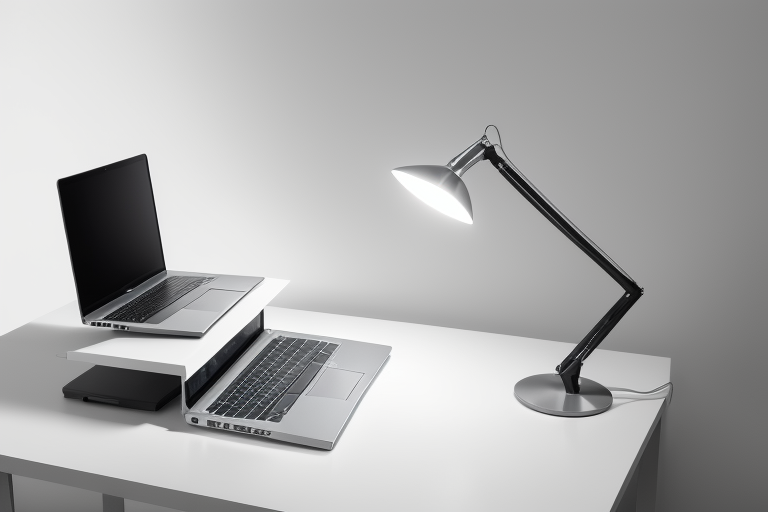
A laptop stand raises your screen to eye level, eliminating the forward tilt. Your head sits naturally over your spine, and those neck muscles can finally relax. The difference is noticeable within days.
The Fundamental Problem with Laptops as Workstations
Laptops are designed for mobility, not ergonomics. The screen and keyboard are permanently attached, which means you can optimize for either screen height OR keyboard position, but never both.
If you raise the laptop to get the screen at eye level, the keyboard is now chest-high and your shoulders are shrugged. If you keep the laptop flat for comfortable typing, your screen is way too low and you’re staring down at it.
The only real solution: raise the laptop for proper screen height, and use an external keyboard and mouse. This is non-negotiable if you work on a laptop more than a few hours per day.

Check Price on Amazon →

Check Price on Amazon →
Yes, it means buying a keyboard and mouse in addition to the stand. But you’re already spending money on chiropractors and physical therapy (or you will be). This is cheaper.

Check Price on Amazon →
Laptop Stand Materials: Aluminum vs Plastic
Most laptop stands come in either aluminum or plastic. The material matters more than you’d think.
Aluminum Stands
Pros:
- Solid, stable, doesn’t flex when you type (if you ignore our advice and type on the raised laptop)
- Acts as a passive heatsink, drawing heat away from your laptop
- Matches the aesthetic of MacBooks and premium Windows laptops
- Lasts forever—no degradation or wear over time
Cons:
- Heavier, less portable
- More expensive ($30-60 vs $15-30 for plastic)
- Can feel cold in winter if you live somewhere with actual seasons
Plastic Stands
Pros:
- Lightweight and portable
- Cheaper
- Often more adjustability options
Cons:
- Can flex or wobble, especially with larger 15-17″ laptops
- No cooling benefit
- Looks cheaper (because it is)
- Can crack or degrade over years of use
For a permanent desk setup, aluminum is worth the extra cost. For a stand you’ll travel with or move between locations, quality plastic makes sense.
Adjustable vs Fixed Height: Which Do You Actually Need?
Fixed-height stands lock your laptop at one specific angle, usually 15-20 degrees. Adjustable stands let you change the height and angle, usually through a hinge, ratchet system, or telescoping arms.
Fixed Height Stands
Simple, solid, and stable. If you’ve measured your ergonomic setup and know exactly what height you need, a fixed stand is perfectly fine. They’re also more affordable and have fewer parts to break or loosen over time.
Best for: Permanent desk setups where you’ve already dialed in your monitor height, chair height, and desk height. Once you know your ideal laptop angle, you don’t need adjustability.
Adjustable Height Stands
More versatile but potentially less stable. Good adjustable stands use friction hinges or ratcheting mechanisms that hold position firmly. Cheap ones gradually sag under the laptop’s weight.
Best for: People who work in multiple locations (home office, coffee shop, coworking space), share a workspace with someone of a different height, or haven’t yet figured out their ideal ergonomic setup.
The catch: adjustability adds complexity. More moving parts means more potential points of failure. A $25 adjustable stand will probably wobble and sag within 6 months. A $60 adjustable stand with quality hinges will last for years.
Ventilation and Cooling: Does It Actually Matter?
Laptops generate heat. When they’re flat on a desk, airflow underneath is minimal. Laptop stands elevate the device and increase airflow, which theoretically improves cooling.
Does this matter in practice? It depends on your laptop and workload.
If you’re running intensive tasks—compiling code, running VMs, video editing, gaming—better airflow genuinely helps. Your laptop will throttle less, fans will spin down sooner, and component longevity improves.
If you’re doing standard work—writing, browsing, video calls, spreadsheets—the cooling difference is negligible. Modern laptops are designed to handle this workload on a flat surface.
Aluminum stands provide better cooling than plastic because the metal conducts heat away from the laptop chassis. Open-framework stands (with large vents or minimal contact area) provide better airflow than solid platforms.
Some stands include active cooling fans. These are gimmicks. The tiny fans are loud, draw power from your USB ports, and don’t move enough air to matter. If your laptop is overheating badly enough to need external fans, the problem is internal dust buildup or thermal paste degradation, not the stand.
Stability with Typing: Why You Shouldn’t Type on a Raised Laptop
Some laptop stands market themselves as stable enough to type on. This is technically true but ergonomically terrible. If your laptop is raised to eye level, your keyboard is also raised to eye level, which means you’re typing with your hands way too high and your shoulders shrugged.
The entire point of raising your laptop is to separate screen height from keyboard height. You want the screen high and the keyboard low. This requires an external keyboard.
That said, stability still matters because:
- You might occasionally need to tap the keyboard or trackpad
- A wobbly stand is distracting even if you’re not typing on it
- Adjusting the laptop angle or closing it shouldn’t feel like you’re about to knock everything over
Test stability by pressing down on the laptop’s keyboard area (gently). If the stand flexes significantly or feels unstable, it’s not well-designed.
Portable vs Permanent Stands: Two Very Different Tools
Portable Laptop Stands
These fold flat or collapse down to fit in a laptop bag. They’re designed for coffee shops, coworking spaces, hotel rooms, and travel.
Key features:
- Lightweight (under 1 pound)
- Compact when folded
- Quick setup/teardown
- Usually plastic or ultra-thin aluminum
Tradeoffs: Less stable, less height adjustment, often less durable. But if you work on the go, portability is worth these compromises.
Best portable stands: Roost Stand (incredibly compact but pricey), Nexstand K2 (budget option, decent stability), MOFT Invisible Laptop Stand (sticks to your laptop, always with you)
Permanent Desk Stands
These live on your desk. They’re heavier, more stable, and provide better ergonomics for all-day use.
Key features:
- Solid construction (thick aluminum or sturdy plastic)
- Wide base for stability
- Better height range
- Cooling benefits
Tradeoffs: Not portable. But you don’t need portability on a permanent desk.
Best desk stands: Rain Design mStand (iconic design, MacBook-matched finish), Nulaxy C3 (adjustable, affordable, aluminum), Lamicall Adjustable Laptop Stand (budget king, surprisingly solid)
Compatibility with External Keyboard and Mouse Setup
Once your laptop is raised, you need somewhere to put your keyboard and mouse. This seems obvious but it’s worth thinking through.
Desk space: The laptop stand takes up vertical space but should minimize horizontal footprint. Stands with a small base or angled design let you slide your keyboard partially underneath, saving desk space.
Cable management: With an external keyboard, mouse, and possibly external display, you’ll have cables running to your laptop. Some stands include cable routing channels. Most don’t, but zip ties and cable clips solve this.
Docking setup: If you use a laptop dock or hub, make sure it’s accessible when your laptop is raised. Some stands have cutouts or platforms for docks. Others will require your dock to sit separately on the desk.
The ideal setup: laptop raised on stand, wireless keyboard and mouse on desk surface directly in front of you, external monitor at eye level next to or behind the laptop. This gives you dual screens, proper ergonomics, and a clean desk.
Top Laptop Stand Picks by Use Case
| Stand | Type | Price | Best For |
|---|---|---|---|
| Rain Design mStand | Fixed, aluminum | $55 | Best overall for permanent MacBook setup, iconic design |
| Nulaxy C3 | Adjustable, aluminum | $40 | Best value adjustable stand, solid build quality |
| Lamicall Laptop Stand | Adjustable, aluminum | $25 | Best budget option, shockingly good for the price |
| Roost Laptop Stand | Portable, plastic | $90 | Most portable, fits in any bag, premium price |
| Nexstand K2 | Portable, plastic | $40 | Best portable value, good stability for travel |
| MOFT Invisible Stand | Portable, adhesive | $25 | Always with you, adheres to laptop, ultra-minimal |
| Twelve South Curve | Fixed, aluminum | $60 | Premium build, matches Apple aesthetic perfectly |
| Ergotron WorkFit-T | Adjustable, mechanical | $450 | Professional sit-stand converter, overkill for most |
My Honest Recommendations by Setup Type
If You Have a Permanent Desk and Use a MacBook
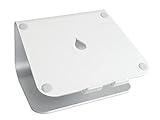
Get the Rain Design mStand.
It’s been the gold standard for over a decade because it just works. Solid aluminum, perfect height for most people, cable management cutout in the back, and it looks like it was designed by Apple (it wasn’t, but it matches perfectly). Your laptop sits rock-solid, airflow is excellent, and it’ll outlast your MacBook.
At $55 it’s not cheap, but it’s a one-time purchase you’ll use for 10+ years. That’s $5.50 per year of better posture.
If You Want Adjustability Without Spending $60
Get the Nulaxy C3 or Lamicall Adjustable Laptop Stand.
Both are aluminum, both offer wide height adjustment, both are stable enough for daily use. The Nulaxy is slightly more premium-feeling; the Lamicall is half the price and 90% as good.
I’ve used the Lamicall for two years and it’s still solid. No sagging, no loosening hinges, no regrets. For $25 it’s absurd value.
If You Work from Coffee Shops or Travel Frequently
Get the Nexstand K2 if budget matters, or the Roost Stand if portability is paramount.
The Nexstand K2 folds down to the size of a magazine and weighs 10 ounces. It’s stable enough for a 15″ laptop and adjusts to multiple heights. It’s plastic so it doesn’t feel premium, but it does the job for $40.
The Roost is half the size and weight but costs $90. You’re paying for engineering and portability. If you’re constantly moving between locations and bag space is tight, it’s worth it.
If You Want the Simplest Possible Solution
Get the MOFT Invisible Laptop Stand.
It’s a thin adhesive platform that sticks to the bottom of your laptop and folds out to create an angled stand. It adds essentially zero weight or bulk, and it’s always with you because it’s attached to your laptop.
The angle options are limited (two positions, neither super high) and it won’t give you perfect eye-level ergonomics, but it’s better than flat on a desk and requires zero thought. Stick it on, forget about it, flip it open when you sit down.
If You Have Serious Neck or Back Pain
Get a proper adjustable stand and an external monitor.
A laptop stand helps, but a dedicated external monitor at proper eye level is a bigger ergonomic improvement. Run your laptop in clamshell mode (lid closed) with an external keyboard, mouse, and monitor. Your posture will be significantly better.
If budget allows, pair the Nulaxy C3 with a 24-27″ monitor on a monitor arm. Position the monitor directly at eye level and use the laptop as a secondary screen off to the side. This is the setup that actually fixes neck pain.
The Setup I Actually Use
I run a 14″ MacBook Pro on a Rain Design mStand, with a 27″ external monitor on an Ergotron monitor arm behind it. The laptop sits at about eye level, the monitor sits slightly higher. I use a mechanical keyboard (Keychron Q3) and a Logitech MX Master 3S mouse.
Before this setup, I had chronic tension headaches and upper back pain. I blamed stress and aging. Turns out I was just staring down at a laptop for 10 hours a day like an idiot.
Within two weeks of fixing my screen height, the headaches stopped. Within a month, the upper back pain was gone. I wish I’d fixed this five years earlier.
Common Mistakes People Make with Laptop Stands
Mistake 1: Buying a Stand But Still Typing on the Laptop Keyboard
This defeats the entire purpose. If your laptop is raised, your keyboard is too high. Your shoulders shouldn’t be shrugged while typing. Buy an external keyboard or don’t bother with a stand.
Mistake 2: Not Raising the Laptop High Enough
Your screen should be at or slightly below eye level when you’re sitting with good posture. If you’re still looking down, you haven’t raised it enough. Most people need more height than they think.
Mistake 3: Buying a Cheap Stand That Wobbles
A $15 plastic stand from Amazon might seem like a deal, but if it flexes and wobbles every time you touch your laptop, you’ll hate it. Spend $25-40 and get something solid, or you’ll end up buying twice.
Mistake 4: Ignoring Your Chair and Desk Height
A laptop stand fixes screen height, but if your chair is too low or too high, or your desk is the wrong height, your overall posture is still broken. Everything has to work together.
Ideal setup: feet flat on floor (or footrest), thighs parallel to ground, elbows at 90 degrees when typing, screen at eye level. Adjust chair and desk first, then add the laptop stand to get the screen right.
Do You Really Need a Laptop Stand?
If you use your laptop as a secondary screen or occasionally work mobile, no. A laptop stand is overkill.
If you work on a laptop as your primary machine for 4+ hours per day, yes. Absolutely. Your neck and back are taking unnecessary damage every single day you don’t fix this.
The laptop stand isn’t optional ergonomic gear—it’s the foundation of a functional laptop-based workstation. You can skip the fancy chair and the standing desk and the blue light glasses, but you can’t skip raising your screen to eye level.
Final Thoughts: Fixing One Variable in a Complex System
A laptop stand solves one specific problem: screen height. It doesn’t fix everything about your setup, but it fixes the single biggest ergonomic issue with laptop-based work.
If you’ve been working hunched over a flat laptop for years, raising your screen will feel weird for about three days. Your neck muscles aren’t used to your head being in a neutral position. Push through. By the end of week one, you’ll notice you’re not constantly stretching your neck or rubbing your upper traps.
By the end of month one, you’ll wonder how you tolerated the old setup. And you’ll become that annoying person who points out bad ergonomics to everyone around you.
Sorry in advance. But your neck will thank you.