60% vs 65% vs 75% vs TKL Keyboard Size Guide (2026)
Introduction: Finding Your Perfect Keyboard Size
The difference between a 65% and TKL keyboard isn't just 25% less plastic—it's about completely different desk setups, gaming styles, and work habits. Choose the wrong size, and you'll find yourself either stretching for keys that aren't there or swimming in wasted desk space while your mouse sits awkwardly far from your typing position.
I've tested dozens of keyboards across every size category, and here's what most buying guides won't tell you: keyboard size matters more than switch type, more than RGB lighting, and often more than the brand name stamped on the case. Get the size wrong, and even the most premium

Check Price on Amazon →
will feel like a compromise.
Why Size Actually Matters
When I switched from a full-size keyboard to a 65%, my first thought wasn't "wow, this looks clean." It was "why is my shoulder pain suddenly gone?" Turns out, reaching 8 inches to the right every time I needed my mouse had been slowly destroying my posture for years. That's the real impact of keyboard size—it determines whether you're sitting in a natural, comfortable position or twisting your body dozens of times per hour.
Here's what keyboard size affects in practice:
- Desk real estate: A TKL takes up 14-15 inches of width. A 60% takes up 11-12 inches. That 3-4 inch difference decides whether your coffee mug has a home or lives dangerously close to your elbow.
- Mouse positioning: Smaller keyboards let you place your mouse directly in front of your shoulder, not halfway to your neighbor's desk
- Portability: Traveling with a 60% in your backpack? Easy. A TKL? You're rearranging everything else to make it fit.
- Learning curve: Missing keys mean relearning muscle memory, which is either a weekend project or a month-long frustration depending on how you use your keyboard

Check Price on Amazon →
What You'll Learn in This Guide
I'm going to walk you through the exact dimensions of each size, show you what the layouts look like in practice, and help you figure out which one matches how you actually work and play. No theory—just practical scenarios like "you're a programmer who needs function keys constantly" or "you travel twice a month and need something that fits in a carry-on."
Here's your quick reference for the four most popular sizes:
- 60% keyboards: No F-row, no arrow keys, no navigation cluster. Pure minimalism at roughly 11.5" wide
- 65% keyboards: Adds dedicated arrow keys and a compact navigation column (Delete, Page Up/Down). About 12.5" wide
- 75% keyboards: Brings back the F-row in a compressed layout. Around 13" wide
- TKL (Tenkeyless): Full-size layout minus the numpad. Typically 14-15" wide
By the end of this guide, you'll know exactly which size fits your desk, your workflow, and your hands. Let's break down what each size actually offers—and what compromises you're making when you go smaller.
60% Keyboards: The Ultra-Compact Minimalist Choice
The 60% keyboard is the most polarizing form factor in the mechanical keyboard world. You either love the minimalism or wonder how anyone gets work done without arrow keys. Let me break down what you're actually getting into.
Physical Footprint and Layout
A typical 60% keyboard measures about 11.5-12 inches wide and 4 inches deep, packing 61-68 keys (depending on the layout variant). That's roughly the size of a standard sheet of paper. You're looking at just the alphanumeric section, plus a few modifiers—everything else is gone.
What disappears? The entire function row (F1-F12), dedicated arrow keys, the navigation cluster (Home, End, Page Up/Down, Delete), and all your numpad keys. Every single one of these functions still exists, but now they're accessed through layer combinations using the Fn key. Want to press F5? That's Fn+5. Need the up arrow? Typically Fn+I or Fn+semicolon, depending on your layout.
What You Actually Gain
The benefits are significant if you value them. Maximum desk space for those low-sensitivity mouse movements is the big one—FPS gamers and designers using large-sweep mouse motions appreciate having 6-8 extra inches of
Check Price on Amazon →
real estate. The symmetrical typing position also feels more natural since your mouse sits closer to your body’s centerline.
Portability is genuinely excellent. These slip into backpacks without the awkward overhang of larger boards, making them ideal for coffee shop warriors or people who shuttle between home and office.
Check Price on Amazon →
The Learning Curve Reality
Let's be honest: you'll feel clumsy for about 1-2 weeks. Your muscle memory will reach for arrow keys that don't exist. You'll press random letter keys trying to hit Delete. This is normal. Most people adapt within a week of daily use, especially if you customize the layers through QMK or VIA firmware to match your workflow.
Programming your own arrow key position is almost mandatory. The default location rarely feels intuitive to everyone, so being comfortable with basic keyboard programming helps tremendously.
Real-World Examples
The HHKB (Happy Hacking Keyboard) uses a unique layout favored by programmers, with Control where Caps Lock normally sits. The Vortex Pok3r offers rock-solid build quality with a more traditional key arrangement. The Anne Pro 2 provides Bluetooth connectivity and RGB if you want wireless freedom.
Who Should Choose 60%
You're a good candidate if you:
- Play competitive FPS games requiring massive mouse movements
- Travel frequently and want a portable setup
- Have a small desk and need every inch
- Enjoy tinkering with firmware and custom layouts
- Rarely use function keys or navigation clusters
Who Should Avoid 60%
Skip this size if you:
- Work heavily in Excel or with numerical data entry
- Rely on arrow keys constantly for text editing
- Need dedicated function keys for software shortcuts
- Don't want to relearn muscle memory
- Prefer grabbing keys quickly without thinking about layers
Common Layout Variations
ANSI 60% follows standard American layout conventions with a regular backspace and right shift. HHKB layout shrinks backspace, eliminates Caps Lock, and rearranges modifiers for programming efficiency. True 60% typically removes some right-side modifiers to fit split spacebar or additional customization.
The 60% works brilliantly for specific use cases, but it demands commitment. If you're not willing to adapt your workflow, go bigger.
65% Keyboards: The Sweet Spot for Most Users
If you've been researching custom keyboards for more than five minutes, you've probably noticed that 65% boards dominate enthusiast forums and group buys. There's a good reason for this—they've hit the ideal balance between compact size and practical functionality.
A typical 65%
Check Price on Amazon →
measures around 12.5 to 13 inches wide and includes 67-68 keys. The magic of this layout is simple: you get everything a 60% offers, plus dedicated arrow keys and a partial navigation cluster. This usually means Delete, Page Up, and Page Down are readily accessible without holding a function key, though the exact layout varies by manufacturer.
65% vs 60%: Is the Extra Column Worth It?
Here's where I'll get honest with you—after testing both layouts extensively, that extra column makes a massive difference in daily use. Yes, you lose about an inch of desk space compared to a 60%, but you gain intuitive navigation that doesn't require memorizing function layers.
The arrow keys alone are worth the trade-off. If you write code, edit documents, or navigate spreadsheets, constantly holding Fn to access arrows gets old fast. I've watched colleagues switch from 60% to 65% boards and never look back. One friend who swore by his 60% for gaming ended up grabbing a 65% for work—the productivity boost was immediate.
The practical advantages:
- Arrow keys for text editing without mental overhead
- Delete key right where you expect it
- Page Up/Down for document navigation
- Still compact enough for your backpack
You'll still need function layers for F-keys, media controls, and RGB settings, but that's fine. These aren't tasks you perform every few seconds. The operations you do constantly—cursor movement, deleting, page navigation—remain effortless.
Layout Standardization Concerns
Here's the catch: 65% layouts are less standardized than 60% or TKL boards. Different manufacturers place the navigation cluster differently. Some put Delete in the top-right corner, others squeeze it between Backspace and the arrow keys. A few models include Home/End, while others stick with just Page Up/Down.
This matters for

Check Price on Amazon →
compatibility and keycap sets. Not every artisan keycap set includes the right sizes for every 65% layout. Before buying expensive custom caps, verify they support your specific board’s layout—particularly the right shift and 1u modifier keys.
Best Use Cases for 65%
The 65% shines for anyone who needs portability without sacrificing usability. Software developers, writers, and office workers who switch between home and office setups love these boards. They fit easily in most laptop bags but don't compromise on typing efficiency.
Popular models like the NK65 Entry Edition, Keychron Q2, and Mode65 dominate group buys because they nail the fundamentals—solid build quality, thoughtful layouts, and reasonable pricing (well, reasonable for customs). The NK65 entry-level option proves you don't need to spend $400 to experience what makes 65% special.
If you use your numpad daily or need dedicated F-keys, look elsewhere. But for most desk setups, the 65% layout represents the minimum viable keyboard—nothing more, nothing less. Just enough board to work efficiently, just compact enough to keep your mouse close.
75% Keyboards: Maximum Features in Compact Form
The 75% keyboard is the Goldilocks of compact layouts—it strips away the numpad and squeezes everything else into about 13-14 inches of desk space. With 84 keys packed into this layout, you're getting nearly everything from a full-size board with minimal compromises.
What makes the 75% special is the dedicated F-row sitting right where you'd expect it. This is huge if you've ever fumbled trying to remember Fn+number combinations for screen brightness or media controls on a 65%. Those F1-F12 keys are right there, immediately accessible for all your shortcuts. For anyone who lives in Adobe apps or Excel, this alone justifies the extra inch of width.
The tradeoff? Everything is compressed. Your arrow keys, Delete, Home, End, Page Up, and Page Down are all present but tightly packed with zero breathing room. There are no gaps between key clusters like you'd find on a TKL or full-size board. It's dense, but functionally complete.
Check Price on Amazon →
Why 75% Is Perfect for Excel and Adobe Users
If keyboard shortcuts are part of your daily workflow, the 75% layout is a productivity powerhouse. Photoshop users can quickly hit F5 for the brush panel or Alt+F9 for actions without hunting for function layers. Excel power users can navigate with confidence knowing PgUp, PgDn, Home, and End are dedicated keys, not Fn combinations you'll forget mid-pivot table.
Check Price on Amazon →
The learning curve is practically nonexistent. This feels like someone just shrunk your full-size keyboard in a photocopier—everything's where your muscle memory expects it, just closer together. Most people adapt within a day or two.
The 'Exploded' 75% Layout Alternative
Some manufacturers offer "exploded" 75% layouts that add small gaps between key clusters for better visual separation. The Keychron Q1 Max and Satisfaction75 follow this approach. These boards sacrifice maybe a quarter-inch in width but dramatically improve navigation feel. If you constantly overshoot Delete and hit Page Up instead, an exploded 75% solves that problem.
The GMMK Pro takes the traditional compressed approach, while the KBD75 offers both styles depending on the version. Try both in-person if possible—it's a personal preference thing, but it matters more than you'd think.
75% vs TKL: The 2-Inch Difference
A TKL board typically measures around 14-15 inches wide. A 75% comes in at 13-14 inches. That's roughly the width of two fingers—not life-changing, but enough to notice on smaller desks.
The real question: do you need that dedicated navigation cluster with gaps between keys? If you're a programmer or writer who constantly uses Home and End keys, the TKL's spaced-out layout reduces accidental keypresses. If you're optimizing for desk space and don't mind the tighter spacing, the 75% delivers virtually the same functionality in a more efficient package.
For most home office setups, the 75% hits the sweet spot between compact footprint and zero-compromise functionality. You keep every key that matters without the calculator you never use.
TKL (Tenkeyless) Keyboards: The Traditional Compact Option
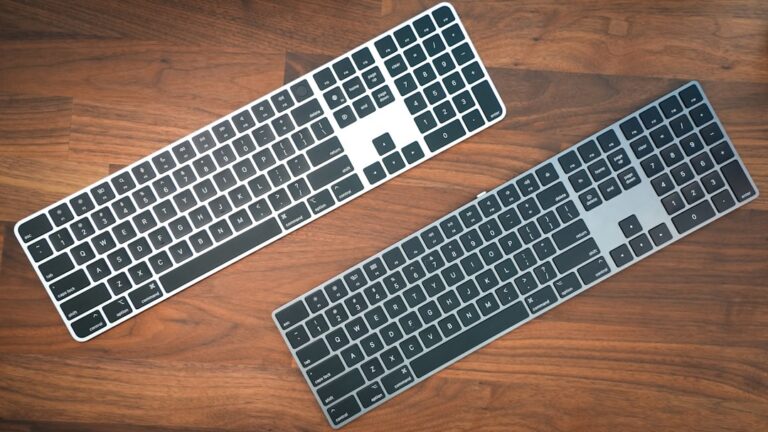
If you're dipping your toes into compact keyboards for the first time, TKL is where most people should start. At roughly 14-15 inches wide with 87-88 keys, the tenkeyless layout is exactly what it sounds like: a full-size keyboard with the numpad chopped off. That's it. Everything else stays exactly where you expect it.
The beauty of TKL is its simplicity. You get your full QWERTY layout, dedicated arrow keys, function row across the top, and that navigation cluster (Insert, Delete, Home, End, Page Up, Page Down) sitting right where it's always been. The only thing missing is that number pad on the right side—and for most people, that's not the compromise they think it is.
TKL vs Full-Size: Do You Really Need a Numpad?
Here's the reality check: unless you're an accountant, data entry specialist, or someone who punches numbers all day, you probably use the top number row anyway. I've watched countless office workers keep a full-size keyboard on their desk while typing "12345" on the top row instead of reaching over to the numpad.
By ditching those extra keys, you gain about 3-4 inches of desk space. More importantly, your mouse sits closer to your keyboard, reducing shoulder strain during long work sessions. That's the entire reason TKL keyboards became the gaming standard before anyone cared about 60% or 65% layouts.
Check Price on Amazon →
Why TKL Feels 'Right' to Most People
The zero learning curve is massive. Walk up to a TKL keyboard, and your muscle memory works instantly. Need F5 to refresh? It's there. Want to jump to the end of a document? Home and End keys are right where they should be. Keyboard shortcuts in Excel, Photoshop, or your code editor all work without remapping a single key.
This makes TKL perfect for:
- Shared workstations where multiple people need familiar layouts
- Office environments that haven't gone full minimalist
- Anyone who relies heavily on function keys for shortcuts
- First-time mechanical keyboard buyers who want better typing without any adjustment period
I've recommended TKL to probably hundreds of people making the jump from membrane to mechanical keyboards, and I can count on one hand how many came back saying it felt weird.
Premium TKL Options Worth Considering
The TKL market is incredibly mature, which means you get excellent options at every price point. At the budget end, brands like Keychron and Royal Kludge offer hot-swappable switches and decent build quality. Mid-range, you'll find Ducky, Varmilo, and Leopold boards with exceptional keycaps and typing feel.
Check Price on Amazon →
For enthusiasts, companies like Keychron Q3, Mode SixtyFive (yes, despite the name, they make a TKL), and GMMK Pro offer customizable mounting systems, premium materials, and that "thock" sound everyone's chasing these days.
The TKL isn't exciting or trendy, but it's the Goldilocks of keyboard layouts—not too big, not too minimal, just right for most people's actual needs.
Direct Size Comparison: Dimensions, Layouts, and Real Desk Space
Let's cut through the marketing fluff and look at actual numbers. A 60% keyboard typically measures 11.5-12 inches wide, a 65% runs 12.5-13 inches, a 75% hits 13-13.5 inches, and a TKL spans 14-15 inches. Compare that to a full-size keyboard at 17-18 inches, and suddenly those inches start mattering.
Key count breakdown:
- 60% = 61 keys (no function row, no arrows, no nav cluster)
- 65% = 68 keys (adds dedicated arrows and a few nav keys)
- 75% = 84 keys (full function row returns, compact nav cluster)
- TKL = 87-88 keys (everything except the numpad)
The Desk Space Math: Calculating Your Actual Needs
Here's where it gets interesting. Most standard mouse pads measure 12-14 inches wide. If you're using a full-size keyboard, you're looking at 30+ inches of horizontal real estate just for your typing and pointing devices. Switch to a 60% keyboard, and you free up 5-6 inches—enough to comfortably fit an extended
Check Price on Amazon →
underneath both your keyboard and mouse, creating a unified workspace.
For gamers, this matters even more. Lower sensitivity players who need wide mouse sweeps benefit enormously from compact keyboards. I've tested setups with both layouts, and the difference in available mouse movement space is immediately noticeable.
Layer Systems Explained: How Smaller Keyboards Access Missing Keys
Smaller keyboards aren't missing functions—they're hiding them. The 60% uses Fn key combinations: Fn + 1 for F1, Fn + arrow keys (typically WASD or IJKL) for navigation. The 65% brings back dedicated arrows but still requires Fn access for F-keys and page navigation. The 75% minimizes this compromise significantly, keeping nearly everything as dedicated keys.
The learning curve? About a week for 65%, maybe two for 60%. Your muscle memory adapts faster than you'd expect, though I won't lie—those first few days of hunting for Delete can be frustrating.
Standard vs Non-Standard Layouts Impact
This is crucial for customization. TKL and 75% keyboards almost universally use standard keycap sizes, making aftermarket keycap sets a breeze. The 65% varies—some use a non-standard right shift, which means finding compatible
Check Price on Amazon →
keycap sets requires extra homework.
The 60% is split: ANSI layouts are well-supported, but compact right shifts and unusual bottom rows can limit your options. Always check the size chart before buying that $120 GMK set.
Weight and portability:
- 60% keyboards: 500-600g (fits in most laptop bags)
- 65%: 550-700g
- 75%: 700-900g
- TKL: 900-1100g
Price reality check: Size doesn't dramatically affect cost. You'll find excellent 60% boards from $70-$300, and TKLs in the exact same range. Build quality, switches, and features matter far more than key count. Don't assume smaller equals cheaper.
How to Choose the Right Size for Your Use Case
The difference between loving and tolerating your keyboard usually comes down to matching the size to how you actually work. Let me walk you through the decision-making process for different scenarios.
Gaming-focused decision tree: If you're primarily an FPS player (Counter-Strike, Valorant, Apex), a 65% or TKL gives you that precious mouse space for low-sensitivity flicks. I've watched my aim improve measurably after switching to a 65% because I stopped bumping my keyboard mid-swipe. MMO and MOBA players typically need more keys—a TKL or 75% provides better access to those function row macros for ability rotations without requiring awkward layer switching. Competitive gamers prioritizing tournament setups should lean toward 60% or 65% boards, as they're compact enough to fit in most LAN event spaces.
Check Price on Amazon →
Programming and development: After testing layouts with dozens of developers, the 75% consistently wins for coding work. Those dedicated F-keys matter more than you'd think—F5 for debugging, F12 for jumping to definitions, F2 for refactoring. Arrow keys without a function layer save you hundreds of keystrokes daily when navigating code blocks. Yes, you can layer these on a 60%, but the cognitive load adds up during long debugging sessions.
Office work and productivity: Excel power users need a 75% minimum, period. Navigating spreadsheets without dedicated arrow keys is painful, and you'll want those F-keys for Excel shortcuts. Writers working primarily in documents can absolutely thrive on a 65%—you don't need the function row as much, and the compact footprint is genuinely pleasant for long writing sessions. Accountants dealing with heavy numerical entry might actually want a full-size with that numpad, or at minimum a TKL with a separate mechanical numpad.
Hybrid work and portability: If you're bouncing between home and office, a 60% or 65% board becomes your best friend. These slip into a backpack without the bulk, and you're not sacrificing much functionality for documents and email. I keep a 65% in my work bag specifically for coffee shop sessions—it's the sweet spot of portable without being compromised.
Red Flags: Signs You've Chosen the Wrong Size
You've picked wrong if you're constantly looking down to remember layer combinations, if your workflow feels slower than before, or if you're developing hand strain from awkward reaching. Another telltale sign: you keep a separate numpad or macro pad within a week of buying your compact board. That's your brain telling you it needed those keys.
The 'Try Before You Buy' Strategy
Hit up a local electronics store or gaming cafe that has demo units. Spend 20 minutes actually typing—not just mashing keys—in your typical applications. Many mechanical keyboard enthusiasts on Reddit also organize local meetups where you can test various layouts. It's worth the effort because "trying" a keyboard in a store for 30 seconds tells you nothing about living with it.
Resale Value Considerations by Size
TKL and 65% boards hold value best because they appeal to the widest audience. 60% keyboards can be harder to sell since they're polarizing. Full-size boards move slowly in the enthusiast market but do fine on general marketplace platforms. Factor this in if you're the type who upgrades frequently—a popular 65% layout might cost you only $30-40 in depreciation after a year of use.
Making the Transition: What to Expect When Switching Sizes
Switching keyboard sizes isn't like changing your mouse—it messes with deeply ingrained muscle memory. Here's what actually happens when you make the jump, and how to make it less painful.
The Adjustment Timeline Reality Check
Going from full-size to 60% isn't a weekend project. Most people need 2-3 weeks of daily use before they stop constantly reaching for phantom keys. The transition difficulty breaks down like this:
Easiest transitions (3-7 days):
- Full-size to TKL
- TKL to 75%
- Any size to a larger one
Moderate difficulty (1-2 weeks):
- TKL to 65%
- 75% to 60%
Hardest transitions (2-4 weeks):
- Full-size directly to 60%
- Any keyboard with dedicated arrows to one without
The rule: going smaller is significantly harder than going larger. Your brain has to unlearn reaching for keys that no longer exist.
The Muscle Memory Minefield
The biggest frustration isn't typing—it's everything else. Your fingers will automatically shoot to where Delete should be, or you'll reach confidently for Page Down only to hit three wrong keys. The home key adjustment is minimal (your hands know where the main alphas are), but accessing arrows and F-keys becomes your daily annoyance.
On a 60%, you'll initially hit the Windows key every single time you want an arrow. On a 65%, you'll overshoot and hit PgUp when aiming for Up Arrow. These aren't user errors—they're inevitable recalibration pains.
Strategies That Actually Speed Things Up
Start with proper layer programming: The biggest mistake is accepting default function layers. Spend an hour with QMK or VIA configuring your
Check Price on Amazon →
before you even start typing. Put frequently-used keys where your fingers naturally want to go, not where the manufacturer decided.
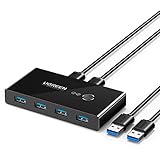
Use the gradual approach: Keep your old keyboard connected via a
Check Price on Amazon →
for the first week. Switch back when frustration peaks, but force yourself to use the new layout for at least 30 minutes at a stretch.
Practice intentionally: Websites like keybr.com help, but honestly? Just use your computer normally. Gaming actually speeds adaptation faster than typing practice—the immediate feedback loop trains your muscle memory quickly.
Should You Actually Switch?
Stay with your current size if you:
- Regularly use the numpad for data entry
- Can't remap your F-keys (work software restrictions)
- Have limited desk space but could solve it with a

Check Price on Amazon →
instead
Make the switch if:
- You travel with your keyboard regularly
- You want more mouse space for gaming
- Your desk is genuinely cramped
The Buyer's Remorse Pattern
The most common mistake: jumping straight from full-size to 60% because it looks cool. About 40% of these buyers end up back on TKL or 75% within three months. The second mistake is buying a keyboard without reprogrammable layers—you're stuck with someone else's layout decisions.
Long-term satisfaction data from mechanical keyboard communities shows 75% and TKL have the lowest resale rates—people keep them. 60% keyboards have the highest turnover, though those who make it past the one-month mark typically become devoted converts.
The sweet spot? Most people find their permanent size within two tries. Start conservative, then go smaller if you're still curious.
Frequently Asked Questions
Is 65% better than 60% for gaming?
For most gamers, yes—dedicated arrow keys are crucial for navigating menus, flight sims, and many indie games without interrupting gameplay. The extra column adds minimal width (about 0.75 inches) but eliminates the need for layer switching during critical moments. FPS competitive players can use either, but 65% offers more flexibility without sacrificing mouse space. Consider your game library: if you play only WASD games, 60% works; if you play varied genres, 65% is safer.
Can you use a 75% keyboard for office work?
Absolutely—75% is arguably the best office keyboard size for most professionals. The dedicated F-row is essential for Excel shortcuts (F2 for edit, F4 for repeat, F9 for calculate), video calls (mute/camera), and screen brightness. You keep all necessary navigation without the numpad that most office workers rarely use. The only consideration: if you do heavy data entry with numbers, you might want TKL with a separate numpad, or full-size.
How much desk space do you actually save with a 60% vs TKL keyboard?
A 60% keyboard saves approximately 3-4 inches compared to TKL (about 8-10cm). This translates to roughly 30-40 square inches of desk space, enough to move your mouse pad 3-4 inches closer to center. For low-sensitivity gamers who make large sweeping mouse movements, this is significant and can improve arm position. For typing-focused users with limited desk space, the savings allow for better monitor positioning or additional desk accessories. Real-world impact depends on your total desk width—on a 48-inch desk it's minor, on a 36-inch desk it's substantial.
What's the hardest keyboard size to adjust to?
60% keyboards have the steepest learning curve because every navigation action requires memorizing layer functions. Most users report 1-2 weeks of frustration reaching for arrow keys that aren't there, especially in text editing. 75% and TKL have virtually no adjustment period—they work exactly like full-size keyboards for muscle memory. 65% sits in the middle: arrow keys feel natural immediately, but F-key shortcuts require the brief adjustment to function layers. Going from smaller to larger is always easier than larger to smaller.
Do smaller keyboards cost less than larger ones?
Not necessarily—price is determined more by build quality, features, and brand than physical size. Premium 60% keyboards (like HHKB at $250+) often cost more than budget TKL options ($50-80). In the enthusiast/custom space, 65% keyboards sometimes command premium prices due to popularity and limited runs. You might save $10-20 on keycap sets for 60-65% since you need fewer keys, but case and PCB costs are similar across sizes. Budget options exist in every size category: $50-80 for basic models, $150-200 for mid-tier, $250+ for premium.